
How to Use People Counting on the Synology Surveillance DVA3219 NAS
Before you set up your NVR Surveillance environment for People counting, you will need to spend extra time preparing suitable lighting. Good lighting is crucial. If the surroundings are too dark, footage may blur and cause details to be lost; if there is excessive illumination, images can be overexposed and disturb the clarity.
If possible, please do the following:
- Provide sufficient lighting, preferably with a light level over 300 lux. Features of moving people are hard to recognize in dark images
- Avoid direct sunlight in the detection areas. Direct light may leave streaks in the images or cause overexposure, affecting the picture quality
- Do not point lights directly at the cameras and overexpose footage
- Camera night vision modes (IR modes) cannot compensate for insufficient light. Add additional lighting if needed
- Remove flickering or glowing objects, such as neon lights
- Avoid uneven illumination. Movements in the darker areas might not be detected correctly
- Remove tilted light sources that create shadows as shadows may blur the shape of human features
- Adjust the colour of the lighting according to the actual environment so that hair can be separated from clothing. People may not be easily detected if the colour of their hair and body are too similar
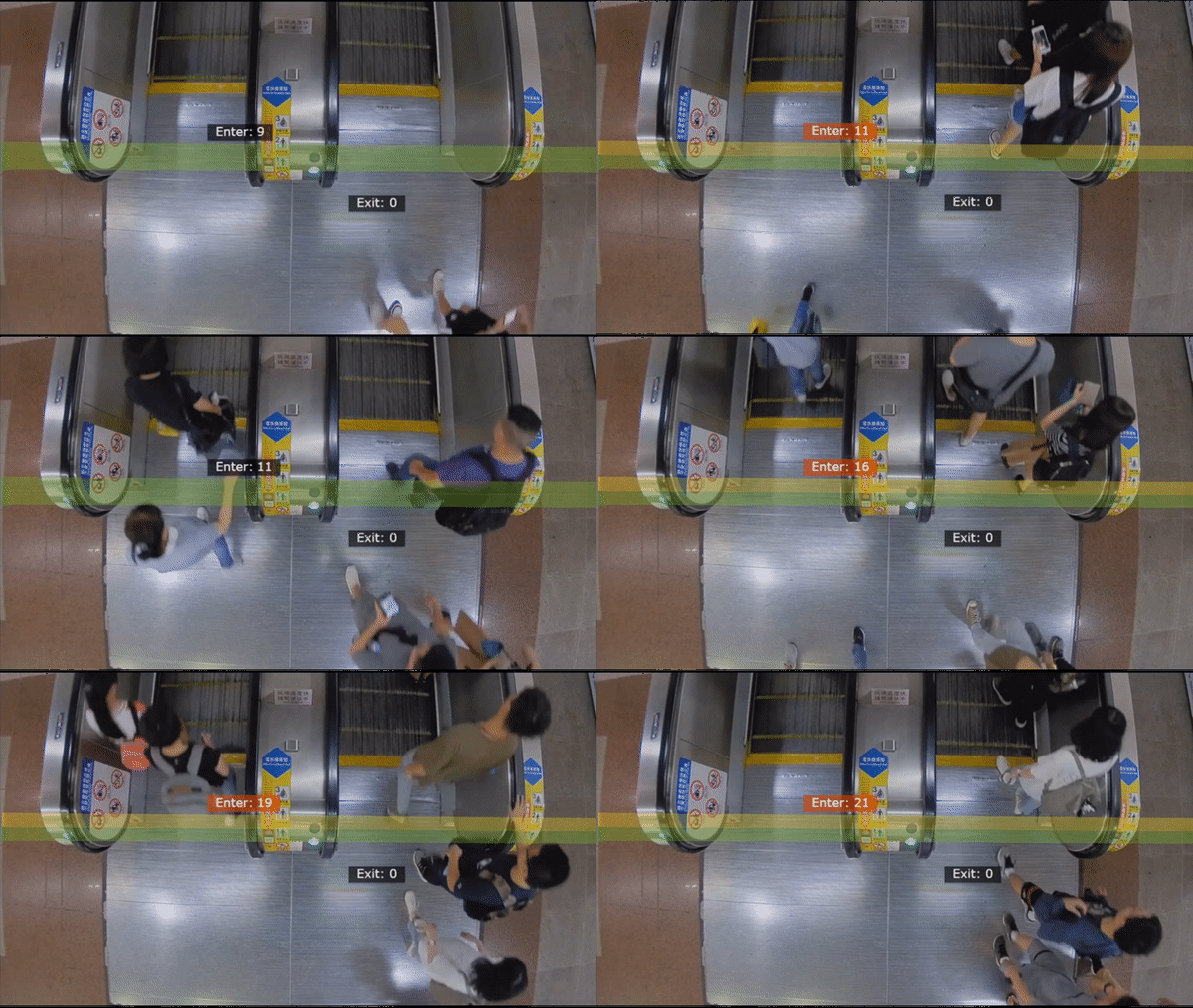

Synology Surveillance DVA3219 – How to Configure People Counting Software Settings
Once your cameras are mounted successfully (Guide for that can be found here), software configurations must be set up for DVA to suit your needs fittingly. This chapter covers the crucial settings to achieve high people-counting precision
Step 1 – Where to Begin with People Counting
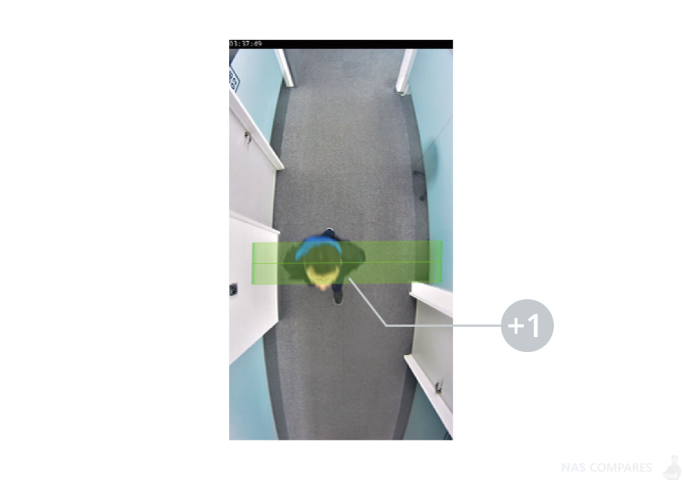
People Counting works by tracking movements of heads. When a person passes by and the center of their head crosses the detection area, the number on the counter will increase.

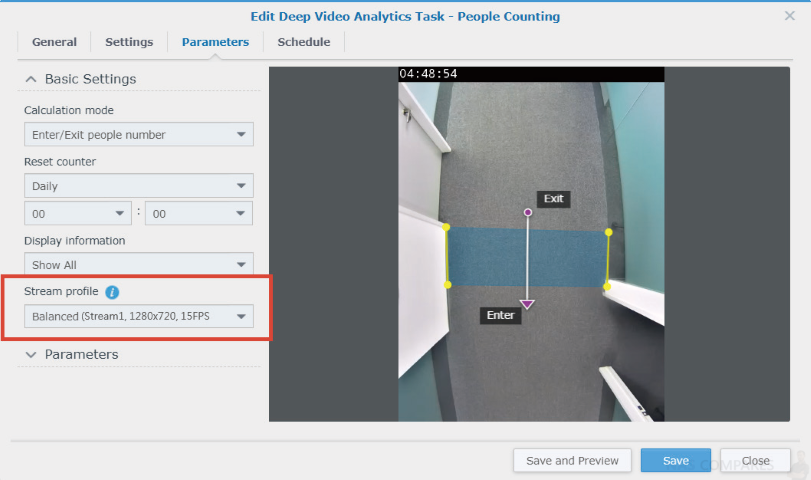
Step 2 – Select a Stream Profile
For optimal detection accuracy, select a resolution of at least 1280×720@20FPS.

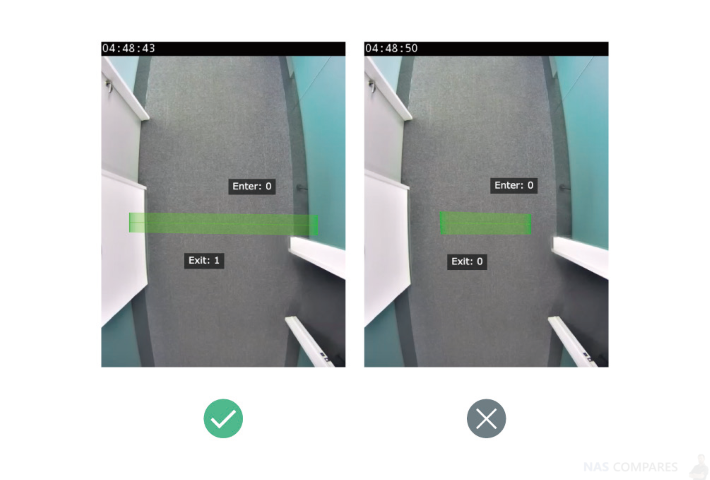
Step 3 – Where to Define the Detection Line
The detection line should be located on the ground, be in the center of the camera screen, and cover the entire width of the passage. If the line is drawn too short, people might pass through the entrance without crossing over it and be missed. The maximum length is 4 meters long.

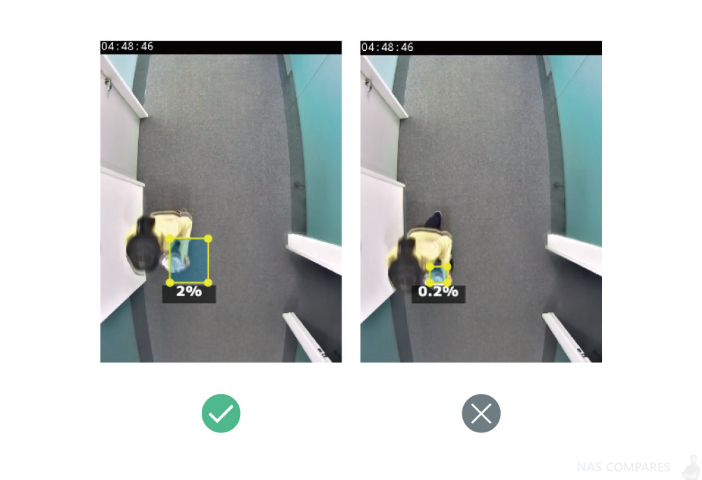
Step 4 – How to Edit the On-Screen Head Size
To accurately detect human heads, it is important to define the on-screen head sizes after mounting cameras. Under Parameters, you can click the Edit button and adjust the yellow object frame to define the head size.

Synology Surveillance DVA3219 – How to Improve Detection Accuracy in People Counting
After adjusting software parameter settings, there are still some factors that may affect the accuracy of People Counting. This chapter lists some possible solutions, causes, and provides a setup example.
Step 1 – Be Sure to Select Proper Flooring
The simpler the surroundings are, the more easily People Counting can analyze human features and provide accurate reports. Here are some general guidelines for arranging the flooring:
- If your flooring has a light reflection or if sharp shadows may appear, place a mat or carpet on the detection area
- Apply flooring that contrasts with the hair colour of your target visitors. For instance, use light carpets for black hair and dark carpets for blonde hair
- Apply plain flooring so that complex patterns do not affect the analysis.
Step 2 – Note Possible Interferences
Even with thorough planning of the camera mounting environment, it is still possible that human heads are not detected or wrongly identified. Please be advised that the points listed below may cause miscalculation, but be assured that People Counting can still function normally:
- The heads of people under 120 cm might be too small to be identified and filtered out due to the on-screen head size settings. If you wish to reduce the on-screen head size, please note that this may increase the chance of interference from other small, moving objects
- Weather sometimes affects the accuracy of outdoor cameras. Rain and snow, changes of shadows, or differences between day and night are all possible influences
- People walking closely side by side might not be recognized correctly
- People running pass too quickly might not be detected
- People with hats, in costumes, holding umbrellas, or wearing accessories that cover heads might miss detection, or even affect the detection of others
- Pets passing by might affect the calculation
Setup Examples
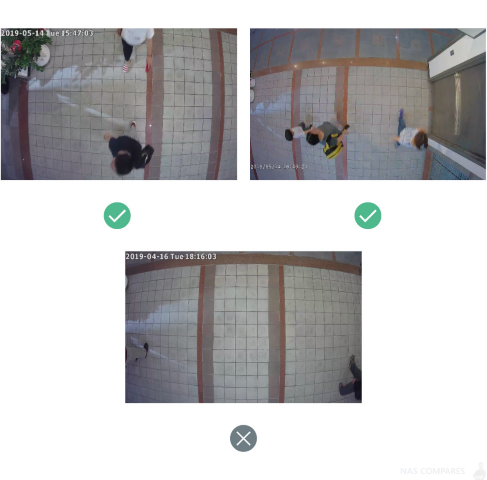
The following are some do and don’ts of installing cameras:
- Human heads need to be completed to achieve high accuracy. If they always appear in the edges of the screen, please adjust the camera height or use cameras with a larger angle of view
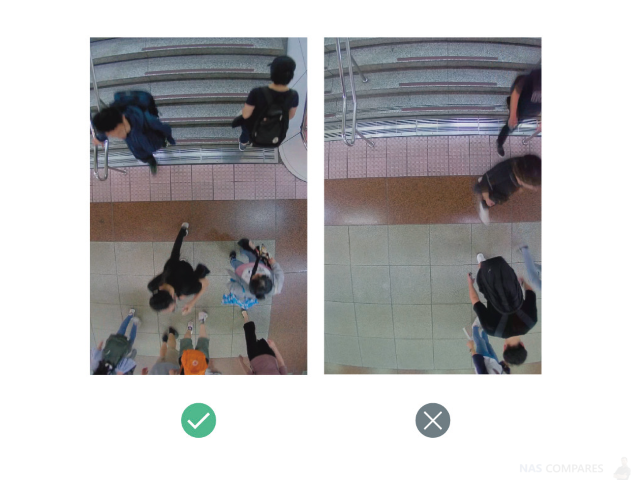

- Keep passing people in the middle of the camera frame for better precision
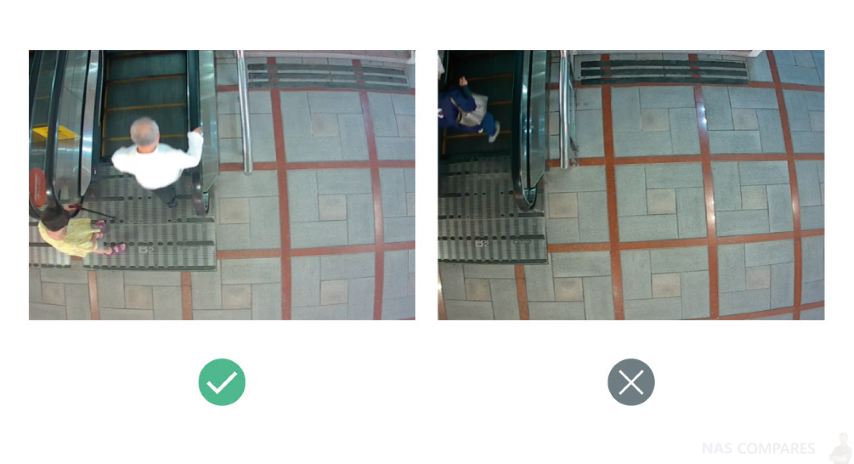

- If the passageways are over four meters wide, please set up two cameras to keep the head images complete and try not to let the sizes vary too much

Synology Surveillance DVA3219 – How to Collect Footfall Data in People Counting
With your People Counting tasks set up, you can start collecting and tracking footfall data. This chapter introduces how to work with People Counting.
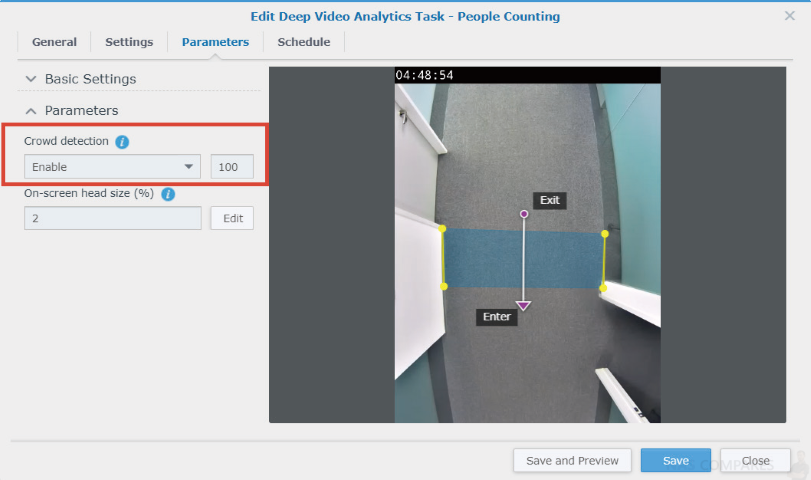
Step 1 – How to Enable Crowd Detection
Crowd Detection can send event notifications and trigger alerts in Live View when the number of people in given premises exceeds the set number. It is thus suitable for places where footfall must be limited for safety concerns, such as stadiums and malls. Its headcount is highly dynamic: the number is calculated by subtracting the outgoing people from the entering people.

Step 2 – How to Generate Reports
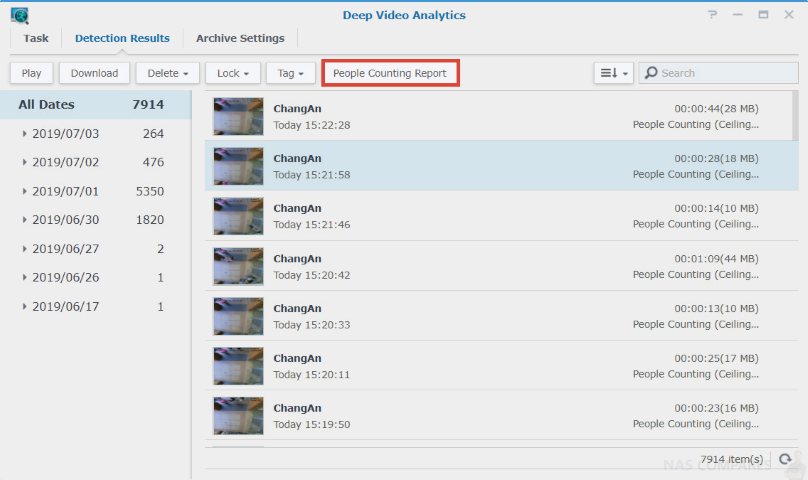
After collecting footfall data, you can go to the Detection Results page to generate a People Counting Report.

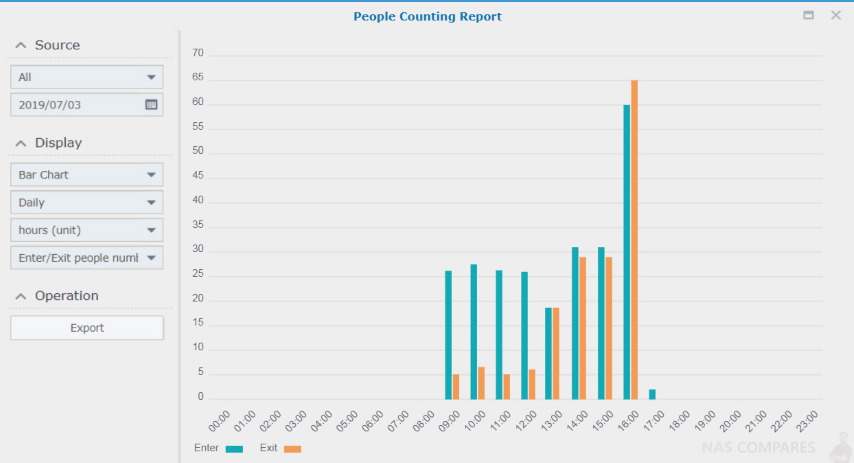
The reports list the number of entering and leaving people within a given date and time. With the flexible Display design, you can easily adjust the time unit from hour to seasons. Data of different tasks can also be shown simultaneously to accommodate spaces with multiple entrances. If you wish to save a copy of the report, click Export to download an HTML file.

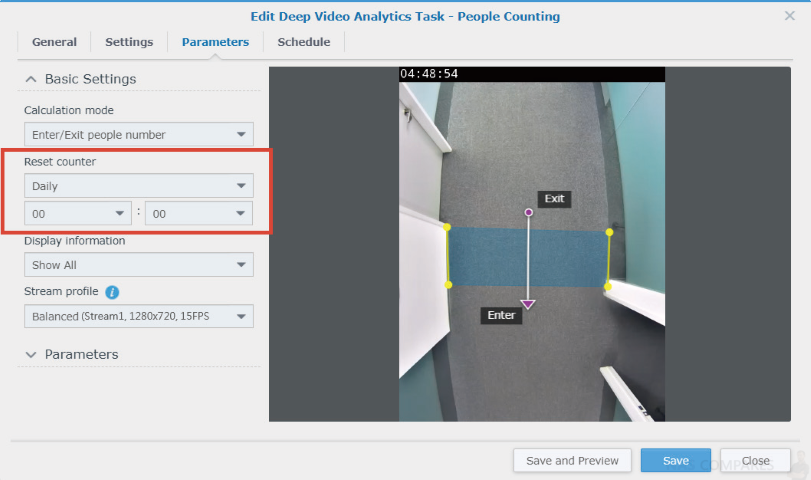
Step 3 – How to the Reset People Counter
As shown in the figure below, the counter provides simultaneous two-way counting of people moving in and out of passageways. You can set a schedule to reset the counter.

Still Need Help with your DVA3219 Surveillance Station NAS? Click the Guide that best suits your needs the most, that can help you use your Synology DVA3219 NAS and Surveillance Station:
Synology Surveillance DVA3219 First Time Camera Setup User Guide
Synology Surveillance DVA3219 Deep Motion Detection User Guide
Synology Surveillance DVA3219 Intrusion Detection User Guide
Synology Surveillance DVA3219 No-Idle Zone User Guide
This description contains links to Amazon. These links will take you to some of the products mentioned in today’s video. As an Amazon Associate, I earn from qualifying purchases