

Buying Your First NAS? Here Are Five Things EVERYONE Gets WRONG!
If you are buying a NAS for the first time, it is very easy to focus on brand names, bay counts and discounts while overlooking practical issues that will shape your experience for the next 5 to 7 years. New buyers often underestimate noise in real rooms, forget to plan for future capacity growth, misjudge the usefulness of SSD cache, ignore long term power consumption, or assume that a couple of very large drives are always the best value. On top of that, many people treat a NAS like a simple external drive rather than a 24/7 network device that will sit near family members or co workers and quietly draw power every day. This article looks at 5 common mistakes that first time NAS owners make and explains how each one happens, what it looks like in normal home or small office use, and the straightforward checks you can perform before you spend any money so you do not end up with a noisy, inefficient or inflexible system.
Mistake #1: Underestimating NAS Noise in REAL-WORLD Use (IGNORE the official Specs Sheets)
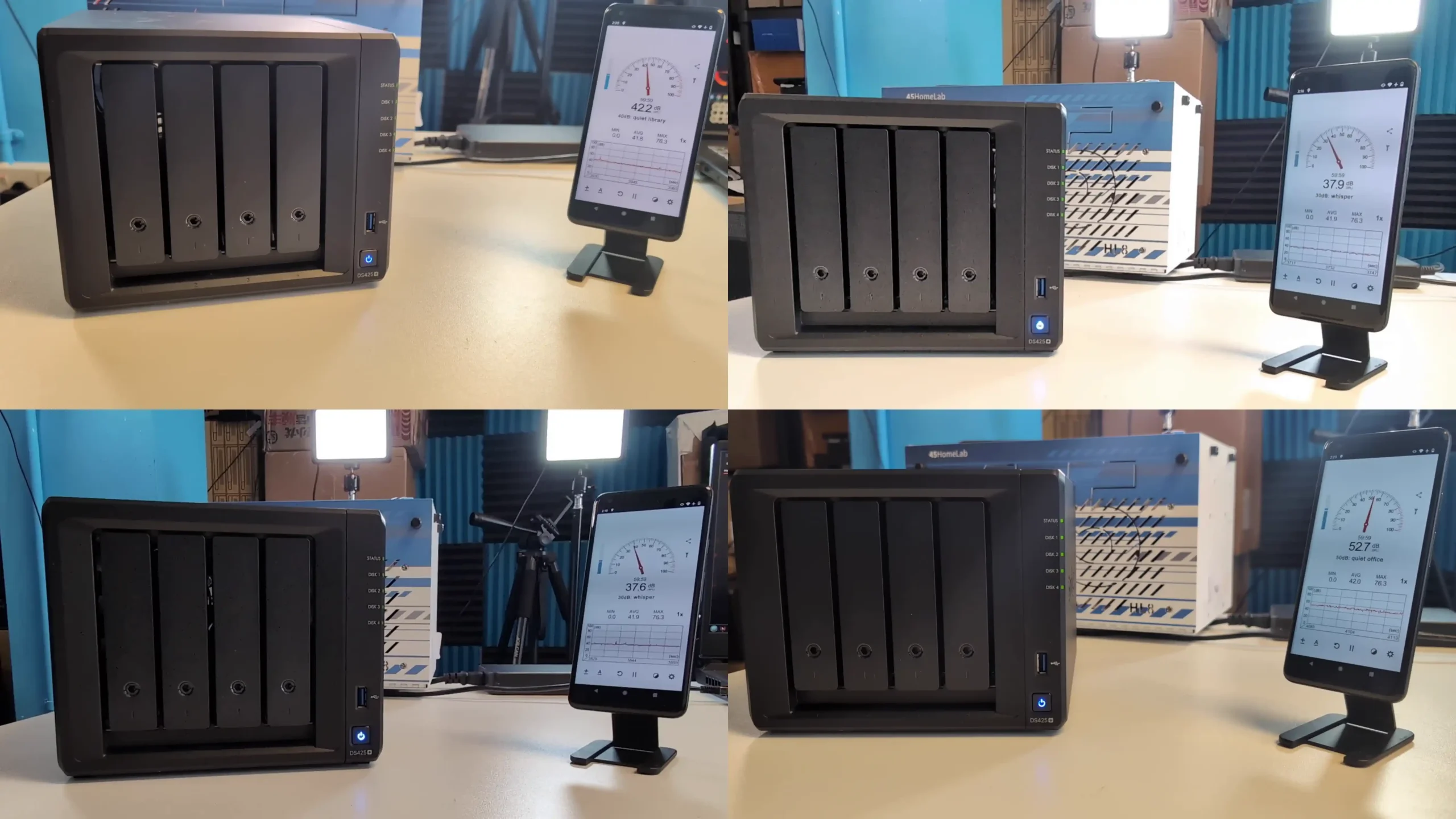
A common mistake with a first NAS is to assume it will sound like a quiet router or a small external drive. In practice a NAS contains several moving parts that generate and transmit noise into the room, especially at night or in a small flat. Drive seek clicks, spindle hum, fan airflow and vibration passing into the furniture all add together. If the system ends up in a bedroom, living room or small home office, the constant whirr can lead to complaints from other people in the house and leave the owner wondering whether the device is faulty when it is simply behaving as designed. It is also easy to forget that scheduled tasks such as antivirus scans, backups and indexing will often push the CPU, fans and disks harder than normal file access, so a system that seems acceptable during light daytime use can become noticeably louder when these jobs run.
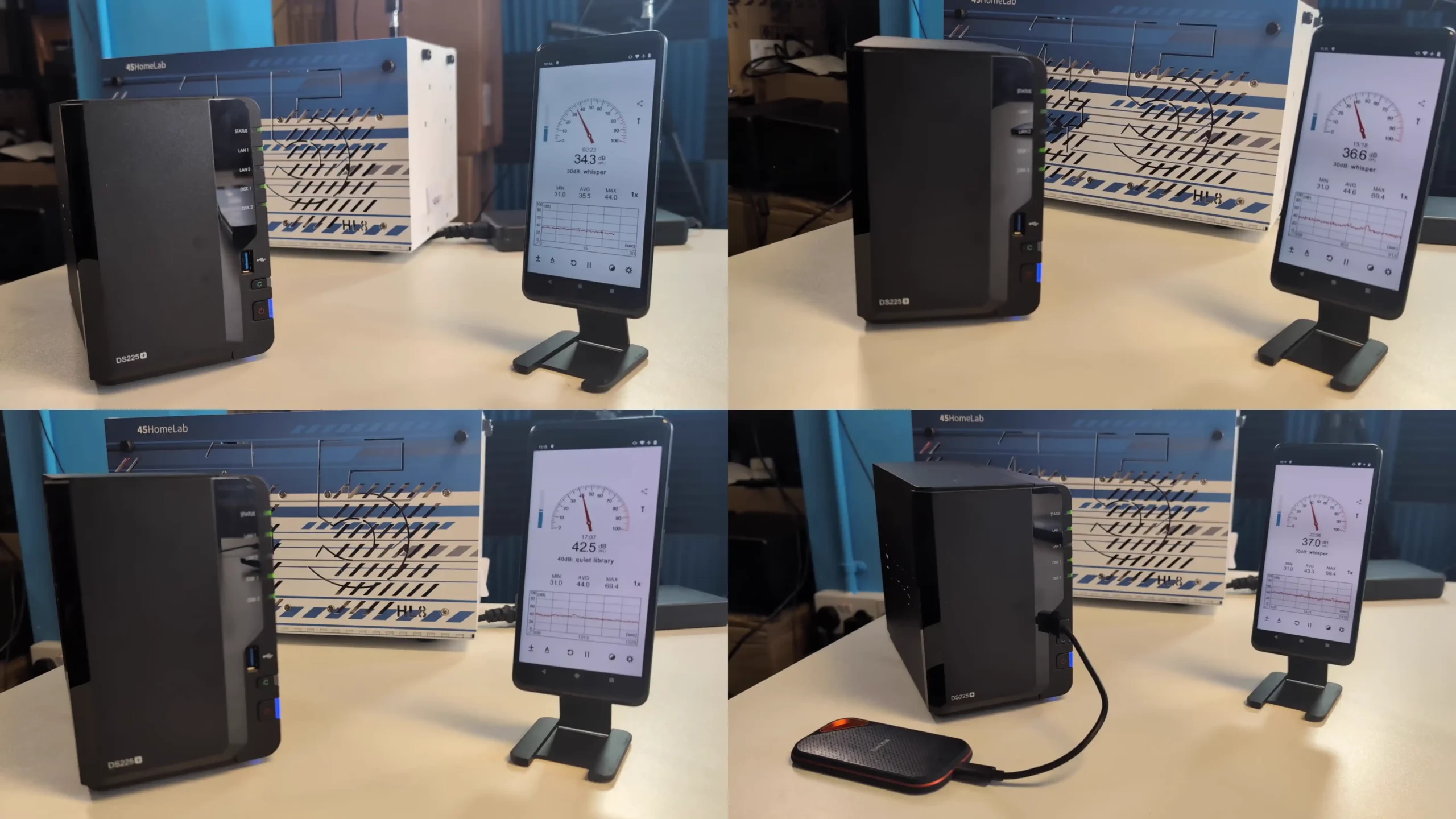
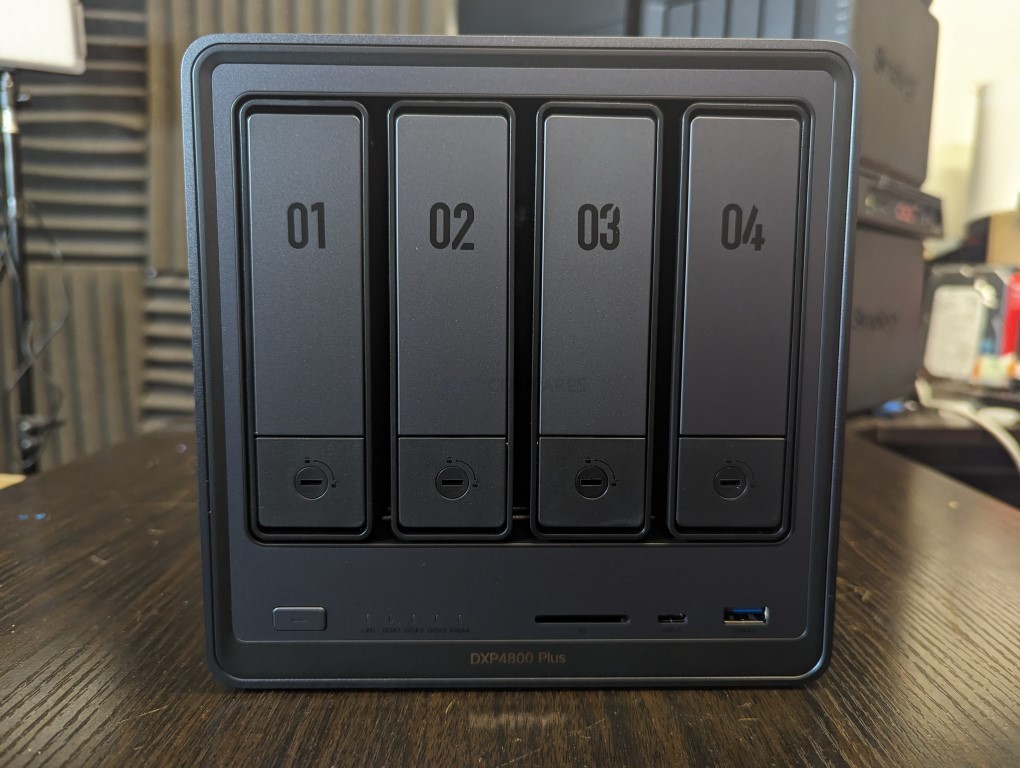
Noise levels are heavily influenced by physical design choices that new buyers rarely consider. Metal chassis units tend to amplify vibration compared with plastic enclosures, which means every drive click and fan change is more noticeable. Larger capacity HDDs, particularly above 8TB, usually contain more platters and a more active actuator assembly, which produces sharper clicks and a deeper background rumble than smaller disks. Fan design also matters. Rear mounted fans tend to push sound directly into the room, while models with downward facing or internal fans may spread the noise more evenly into the surface under the NAS. Even the desk or cabinet matters, since hard surfaces can resonate and make a quiet system sound louder. Simple changes such as placing the NAS on a foam pad, an anti vibration mat or thick rubber feet will reduce the amount of vibration transferred into the furniture and can make a noticeable difference to perceived noise without changing the hardware.
The practical way to avoid this problem is to plan acoustics at the same time as you choose capacity and CPU. If the NAS must live in an occupied room, it makes sense to look at lower noise HDD lines, to avoid the very largest capacities where possible, and to consider using SATA SSDs for the working volume if budget allows. Checking vendor spec sheets for noise ratings in dB is useful, but you should also think about where the NAS will physically sit and how air can flow around it, since putting a box in a sealed cupboard simply forces the fans to run harder. Most modern NAS systems allow fan speed profiles and drive hibernation, which can reduce noise during idle periods, and many also support power schedules so the unit can power down completely during hours when it is not needed. You can also move heavy jobs such as RAID scrubs, indexing and backup windows into predictable time slots, for example overnight if the NAS is in a separate room, so that short periods of higher noise are less disruptive while the system remains quiet for normal daytime access.
Mistake #2: Ignoring Future Capacity and Expansion (PLAN AHEAD!)
A second common mistake is to buy a NAS that only matches your current data footprint with no realistic allowance for growth. Many first time buyers look at their existing files, see that they use 2TB or 4TB, then choose a 2 bay unit and a pair of modest drives that cover today with a small buffer. Once the NAS is in use, however, new cameras, phones and laptops start backing up to it, family members begin storing photos and videos, and it often becomes the default place for downloads and shared work files. Within a year or 2, the system that once looked spacious can be near its usable limit, especially once you take RAID overhead and snapshots into account.
 |
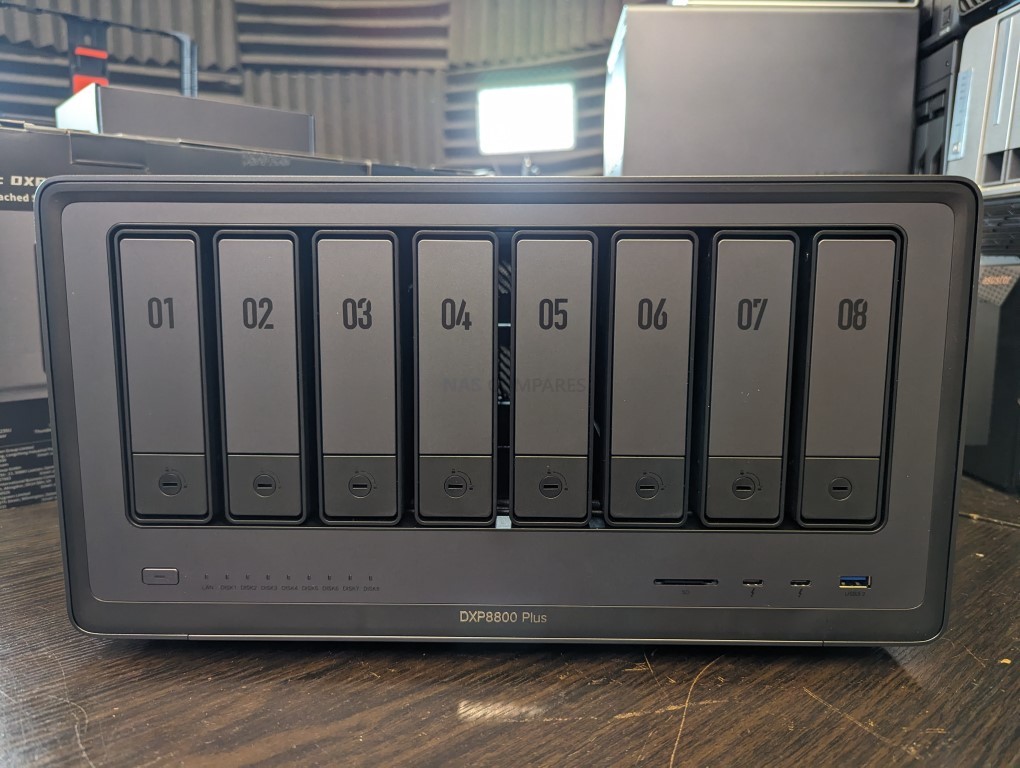 |
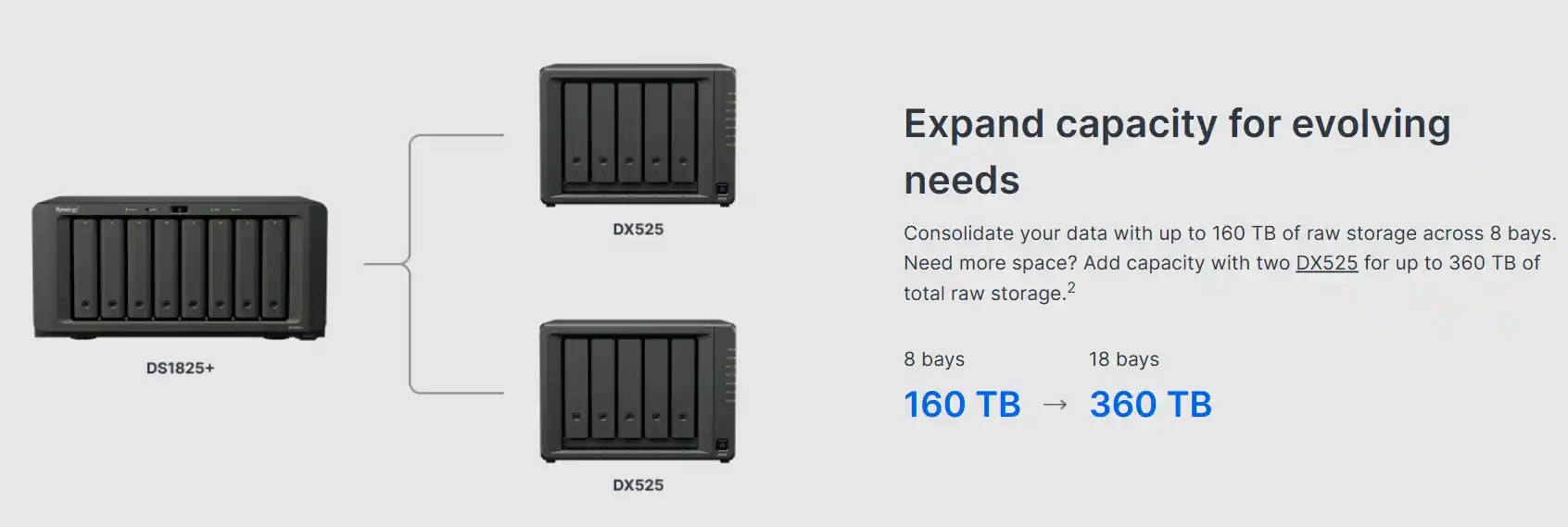
The physical bay count and the way you populate those bays on day 1 has a direct impact on how easy it will be to grow later. A 2 bay NAS that starts fully populated leaves you with only a couple of options when you run out of room. You either replace both drives with larger ones, which is expensive and involves a full rebuild, or you bolt on an external expansion chassis if the vendor offers one. A 4 bay unit that initially uses only 2 drives gives you a much smoother path. You can add extra disks one at a time, or take advantage of flexible RAID schemes from some brands that allow mixing different drive sizes over time, which is far more forgiving when budgets are tight or upgrade windows are short.
Avoiding this mistake means planning capacity as a multi year decision rather than a single purchase. It is usually better to buy a slightly larger chassis with more bays than you think you need, then start with a sensible number of mid sized drives that offer a good cost per TB. This gives you headroom to add disks later without reorganising everything and lets the array performance improve as you add more spindles. It also leaves space for other changes such as introducing SSD volumes or cache in the future without having to retire the entire unit. In short, it is safer to overspec the enclosure a little and understuff it at the start than to buy the smallest possible model and discover that you have run out of practical expansion options far sooner than expected.
Mistake #3: Assuming SSD Cache and RAM Upgrades are a Magic Performance Fix (SAVE YOUR MONEY!)
New NAS owners often treat SSD cache and RAM upgrades as a universal answer to “my NAS feels slow”, without checking whether the underlying workload or hardware actually benefits. It is common to see a 2 or 4 bay system with a modest CPU and a couple of M.2 slots promoted heavily as “cache ready”, which encourages buyers to add SSDs and memory on day 1. In reality, if the processor is already running close to 100 percent under load, extra RAM will mostly sit idle and cache will only accelerate specific types of access. For simple sequential workloads such as bulk media streaming or large backup jobs, disk performance and network limits usually matter more than having faster cache in front of the array, so the investment does not translate into a noticeable improvement.
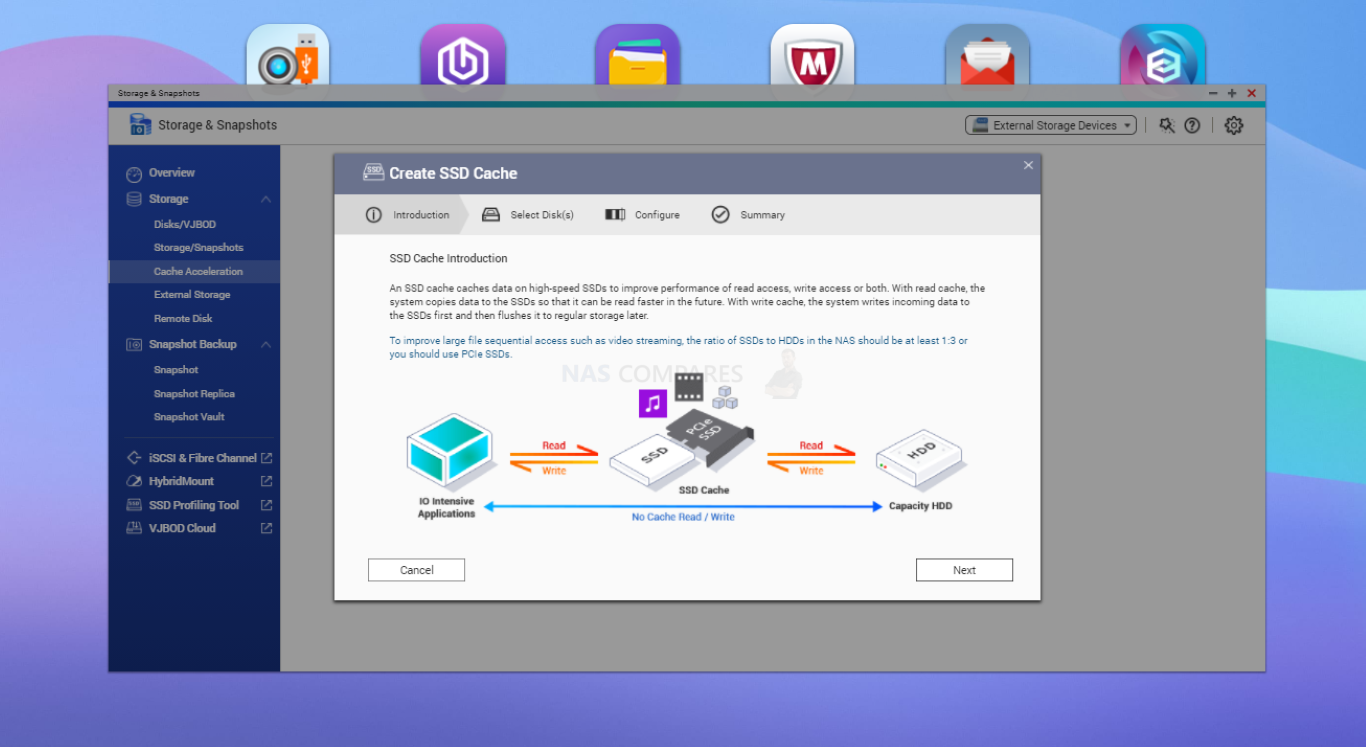
SSD cache in particular is often misunderstood. Write cache temporarily lands incoming data on SSDs and then flushes it to HDDs later, which can smooth out bursty writes but does not change the final speed of the array. Read cache keeps copies of frequently accessed “hot” data on SSDs, but in most NAS use this tends to be small random IO, metadata and thumbnails rather than entire large media files. Some platforms allow you to tune cache block size and policy, which can help in database or VM heavy environments, but for simple file sharing the benefit is limited. If a NAS mainly serves big video files to a handful of clients, using SSD cache rarely justifies the cost. In many cases, placing the NAS operating system, app data and indexes on an SSD volume, or using SSDs as a small primary pool for truly performance sensitive shares, delivers more predictable advantages than a generic cache layer.
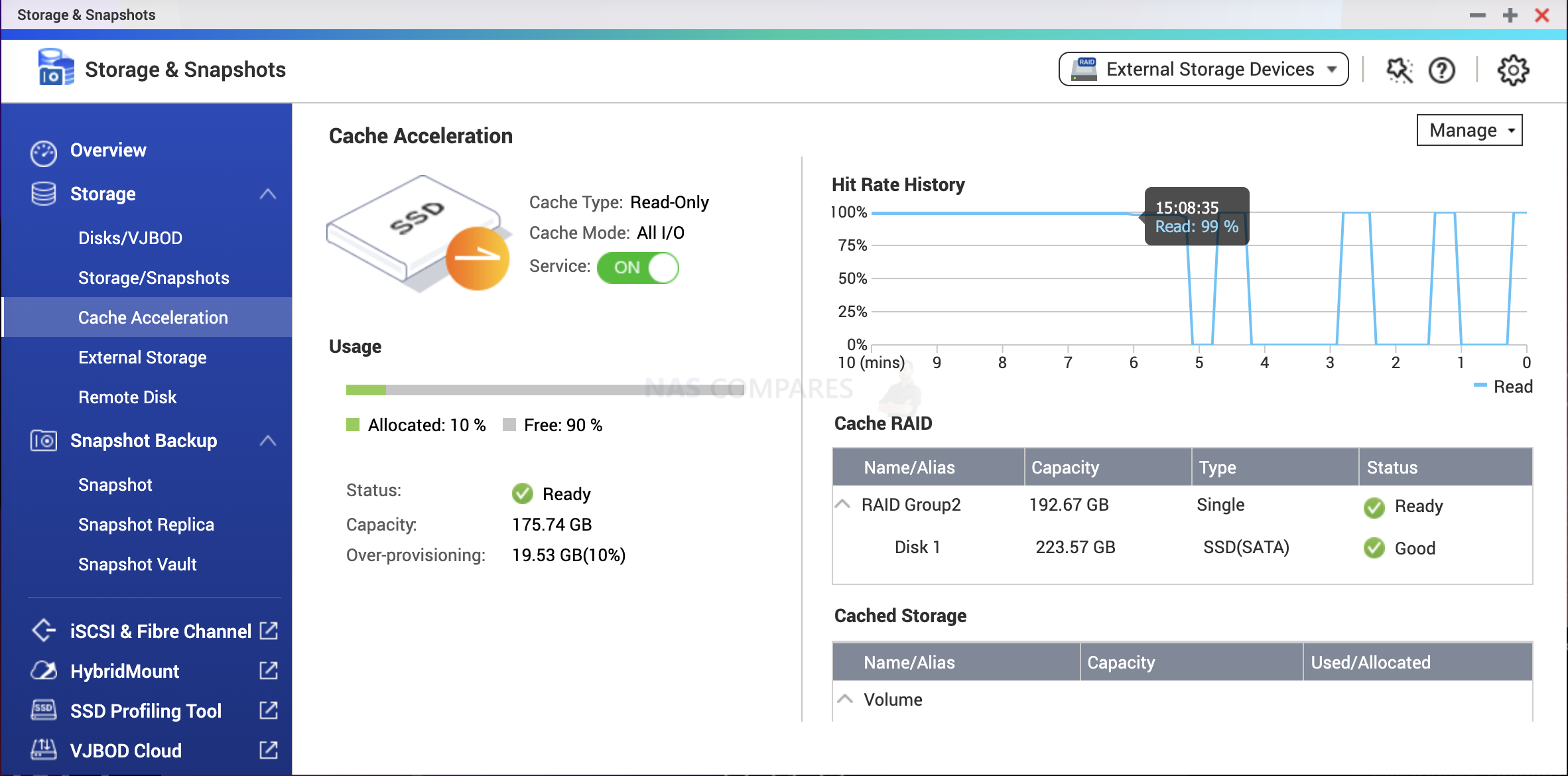
The same caution applies to memory upgrades. More RAM allows the NAS to keep more filesystem cache and run more services concurrently, but it does not compensate for an underpowered CPU or a saturated network link. A basic check of CPU and memory utilisation under your typical workload is essential before buying additional modules. If CPU usage is consistently low while memory is pegged, extra RAM may help. If the processor is the bottleneck, adding memory or cache will not change the response time of apps and shares. For most first time buyers, it is more sensible to size CPU, network and base storage correctly first, then consider SSD based OS volumes, manual or automated tiering, and targeted RAM upgrades later if monitoring shows clear evidence that these changes will address a real bottleneck rather than an assumed one.
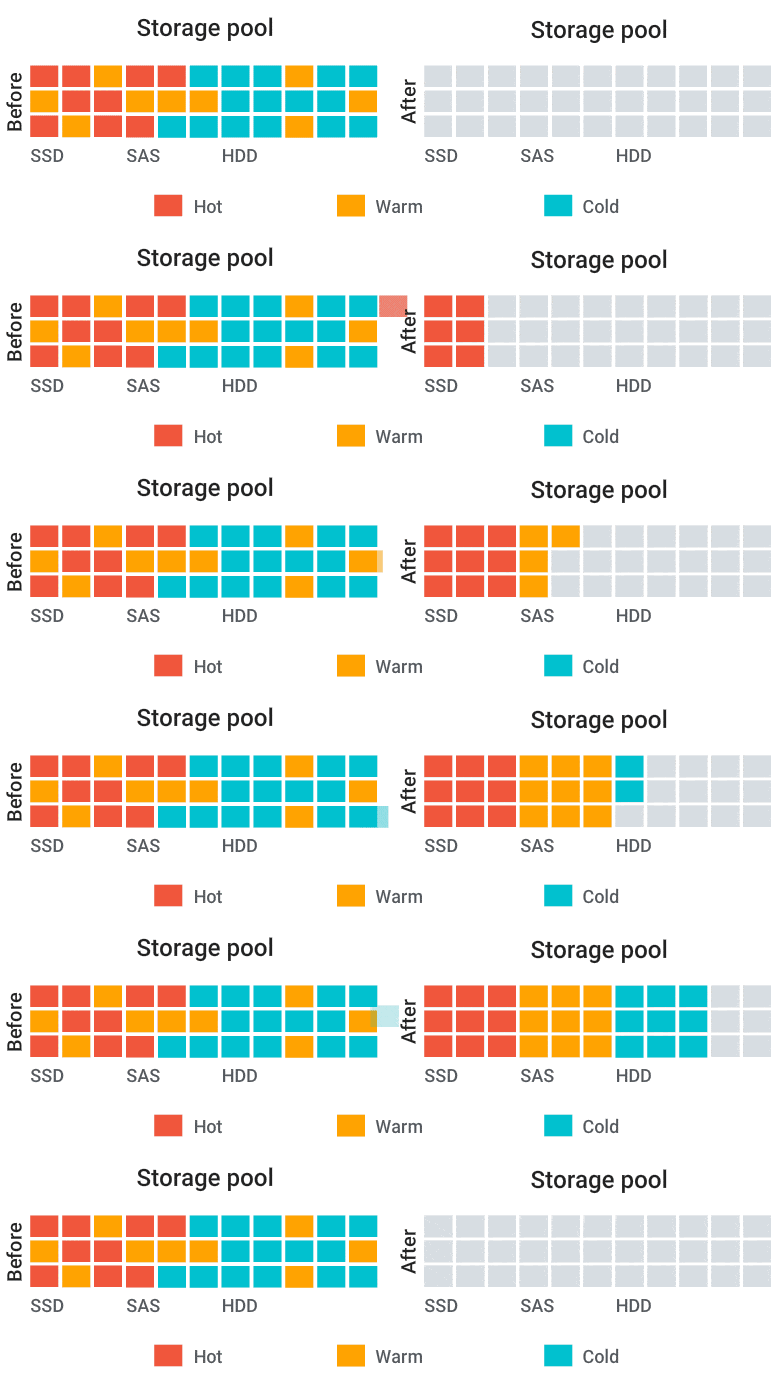
Note – If you are a QNAP NAS owner, you CAN use an alternative to ‘SSD Cache’, but using QTier – this MOVES (not copy) to data from slower HDDs and onto faster SSDs, as data is frequently accessed.
Mistake #4: Treating Power Consumption as an Afterthought (You Have CONTROL)
Many new NAS buyers focus on purchase price and capacity, then only think about power consumption after the first full month of electricity bills. A NAS is designed to be available around the clock, which means that even modest differences in idle draw add up over a year. Larger HDDs with more platters, multiple bays running full time, and older or less efficient CPUs all contribute to a steady baseline load, even when no one is actively using the system. In small flats or home offices this continuous draw can be a surprise, particularly for users coming from purely cloud based workflows where the power cost is hidden in the subscription fee.
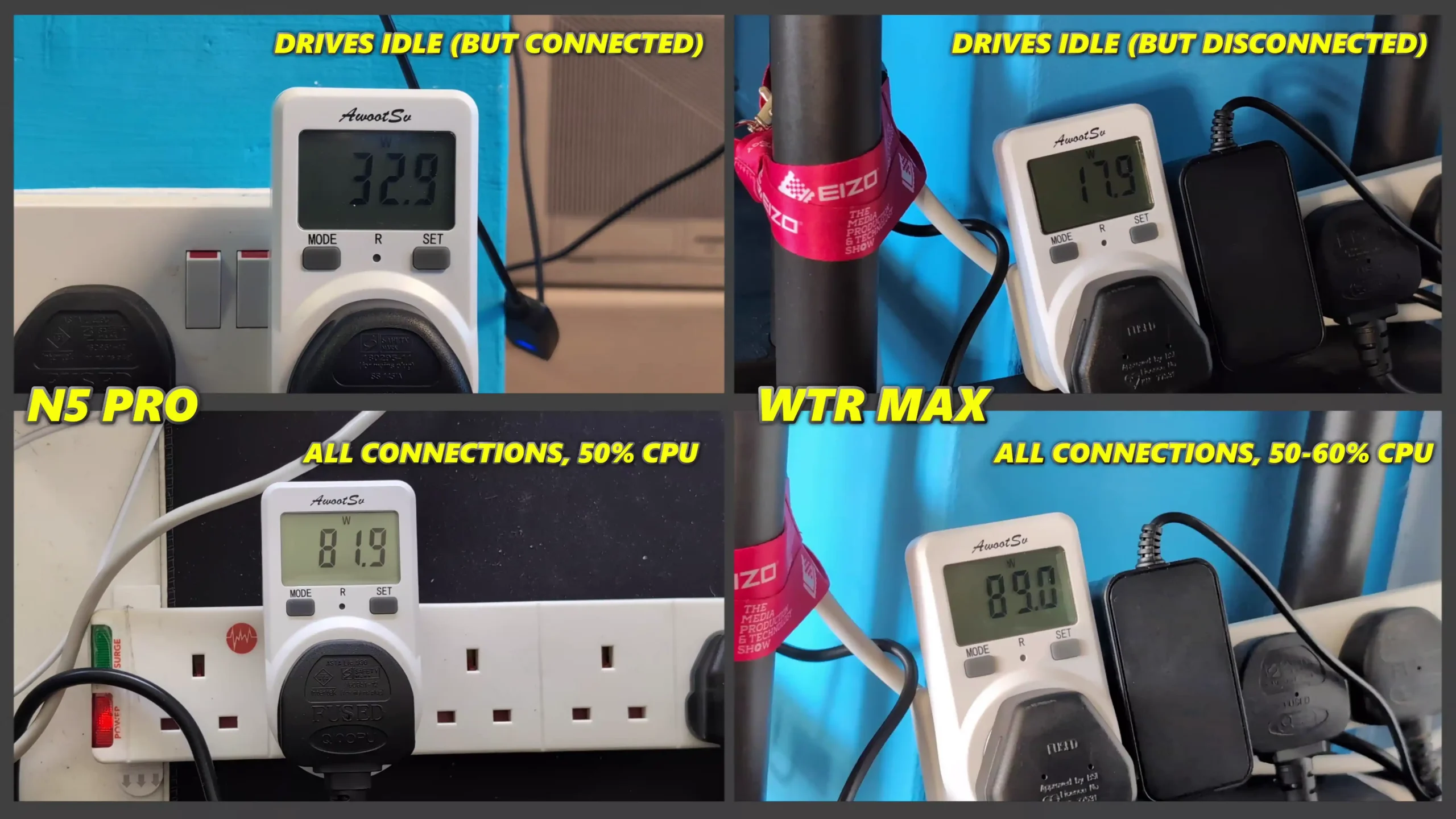
Hardware choices have a direct impact on how much power a NAS will use at idle and under load. High capacity HDDs tend to have higher idle consumption because the mechanics must be ready to spin and seek immediately. A system with fewer, larger disks may draw more power at rest than a similar capacity built from several smaller drives, although this is not a strict rule and depends on the specific models. CPU generation and class matter as well. Modern low power x86 chips such as Intel N series parts can idle in the single digit watt range but still turbo high enough for typical home workloads, while older desktop class processors often draw more even when idle. Buyers who only look at drive capacity and bay count without checking HDD datasheets and CPU TDP figures can easily end up with a system that runs hotter and more power hungry than necessary for basic file serving and backups.
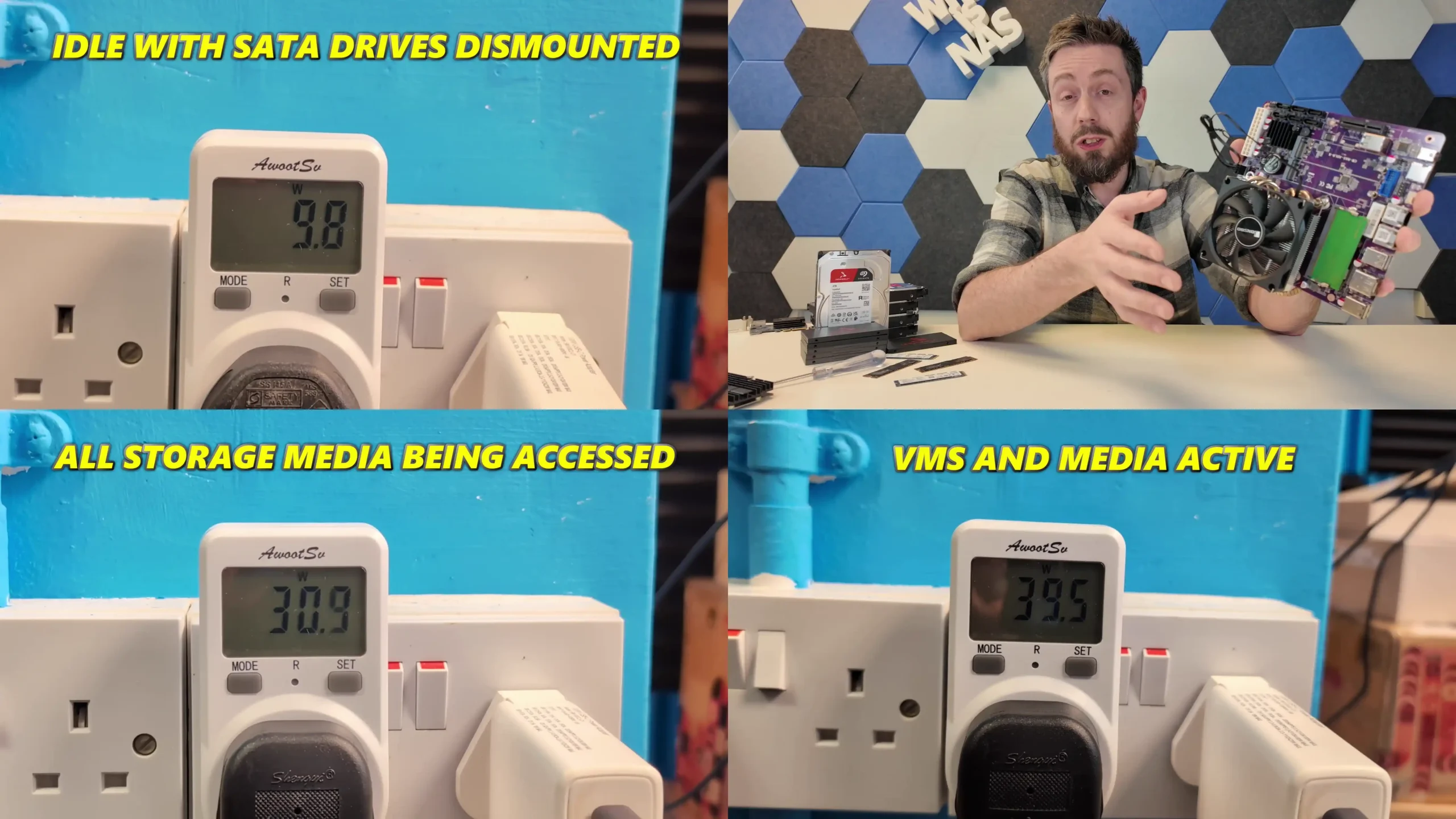
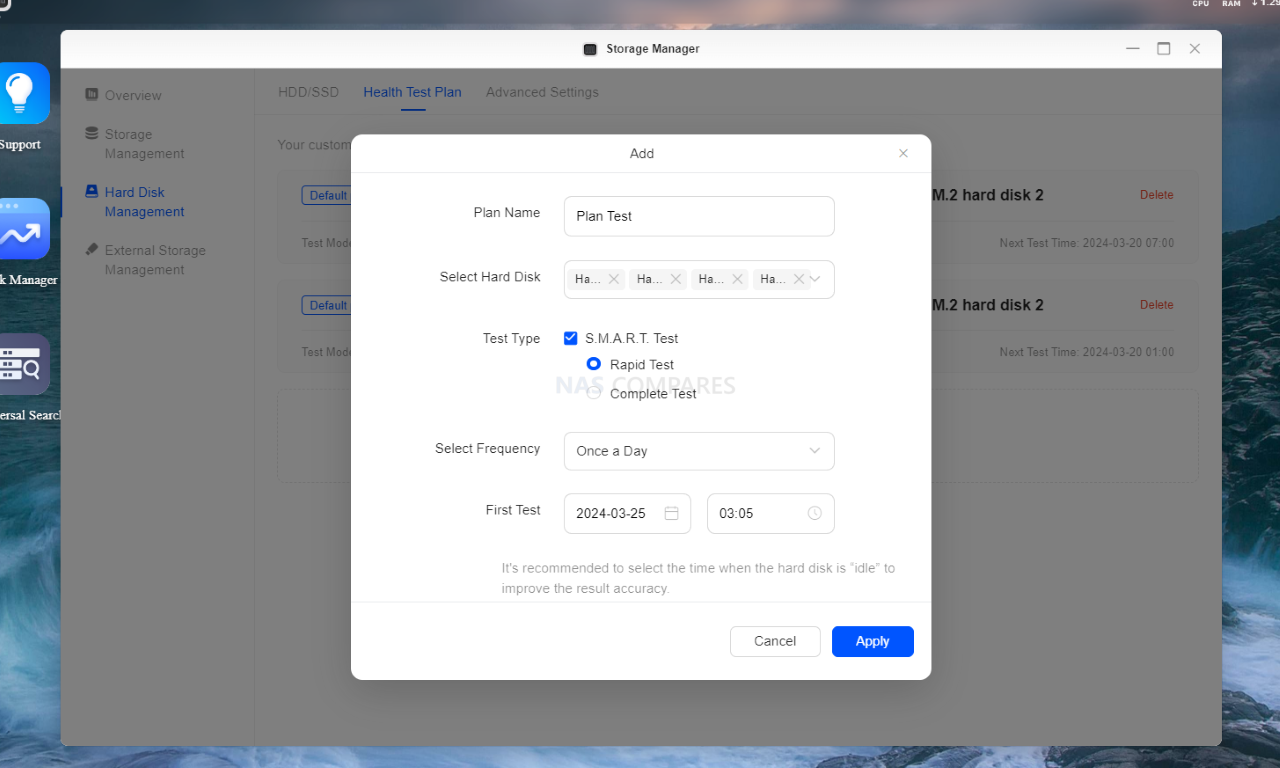
Software features and configuration also play a major role, yet many first time owners never touch these options after initial setup. Enabling HDD hibernation for lightly used volumes can drop disk consumption from around 8 to 12 W per drive to well under 1 W when idle, multiplied across several bays. Most NAS platforms support scheduled power on and power off, which allows you to shut the system down completely during hours when it is not needed and wake it automatically for work periods or backup windows. Moving heavy jobs such as backups, RAID scrubs and indexing into specific time slots also helps, since the system can stay in a lower power state for more of the day. Simple measures like these, applied on top of sensible hardware selection, make the difference between a NAS that quietly adds a manageable cost to your electricity bill and one that runs at full power far more often than your usage requires.
Mistake #5: Assuming Fewer Large Drives are Better (Often the REVERSE is Better)
A frequent assumption among new NAS buyers is that the best approach is to purchase the largest individual HDDs they can afford, fit a pair into a small enclosure and rely on that pair for both capacity and protection. On paper this looks simple and neat. Two 30TB drives in a 2 bay unit appear to offer an easy route to 30TB of usable space with RAID protection. However, this approach often produces a poor price per TB compared with building the same or greater capacity from several mid sized disks, and it concentrates a lot of risk and cost into each individual drive. When one of these large disks fails or needs replacing, the financial hit is substantial and rebuilds can be lengthy.
| Cost of NAS Hard Drives (Example) | |
| Seagate Ironwolf HDDs (Regular) | WD Red Pro HDDs (Pro Series) |
| 1TB – $35 2TB – $65 4TB – $105 6TB – $158 8TB – $177 10TB – $224 12TB – $258 14TB – $271 16TB – $309 18TB – $389 |
4TB – $140 6TB – $173 8TB – $215 10TB – $245 12TB – $253 14TB – $270 16TB – $298 18TB – $349 20TB – $419 22TB – $551 |
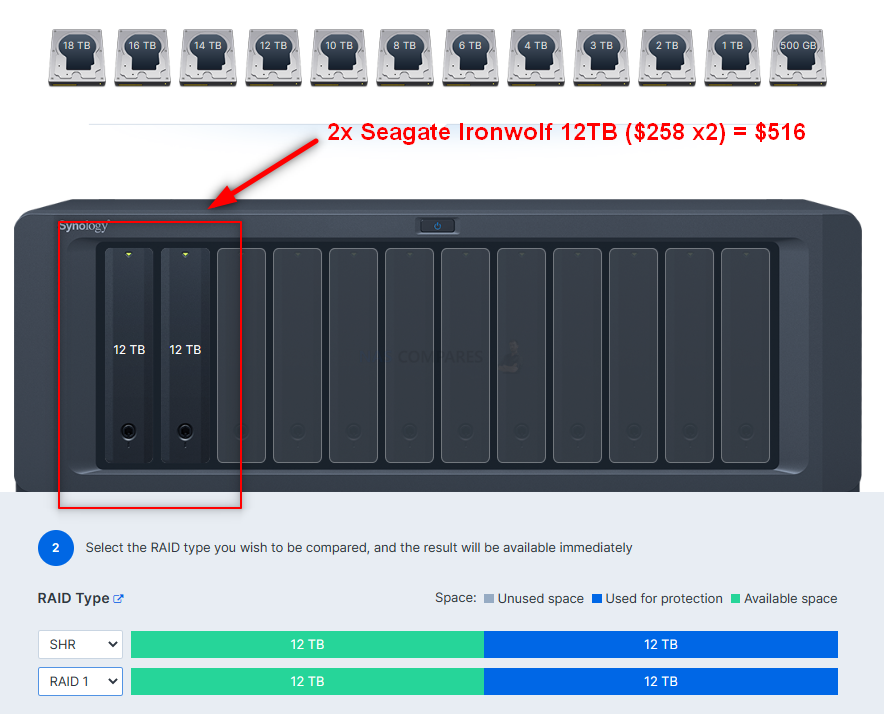
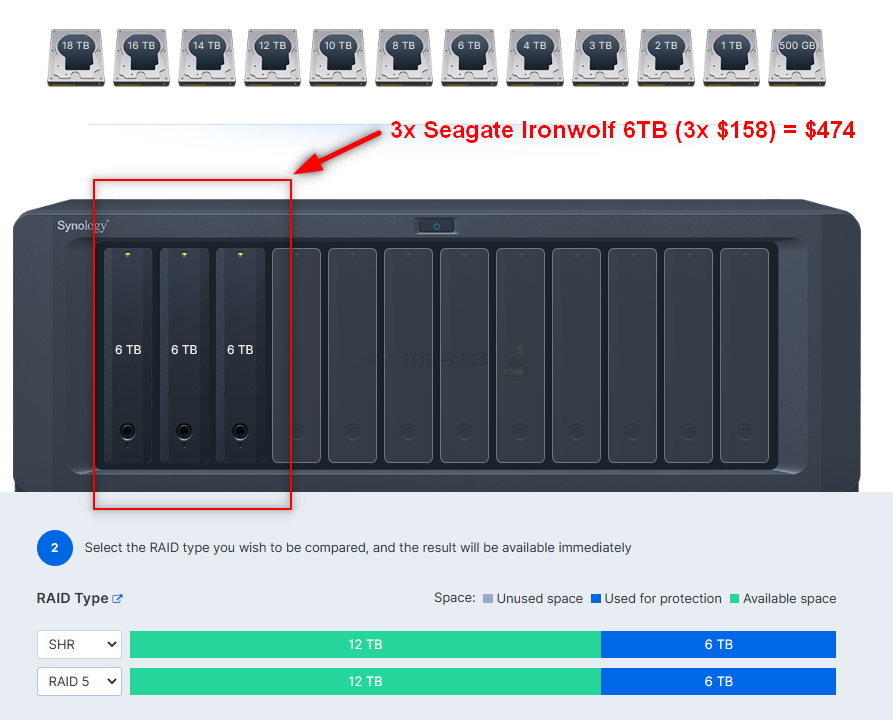
In most cases, the price per terabyte on both sides will remain largely consistent at each capacity. HOWEVER, when you start putting these drives into a NAS/DAS enclosure and acting in the RAID configuration, it soon becomes apparent that the ben efits in Drive #s in a RAID 1 vs a RAID 5 immediately show a saving in almost every single capacity the smaller you go! Below are two examples of achieving 12TB in a NAS enclosure using RAID 1 vs using RAID 5 (so, still maintaining 1 disk drive failure protection and having 12TB of storage to use):
| 12TB Storage in a RAID 1 MIRROR | 12TB Storage in a RAID 5 |
 |
 |
Looking at retail pricing makes the problem clear. Large capacity HDDs carry a significant premium that is not always reflected in proportional capacity gains. At the same time that a 30TB drive might cost 500 to 600 in local currency, 10TB or 12TB drives can often be found for less than 200 each. Four 12TB drives in RAID 5 or similar single disk fault tolerant layouts can deliver 36TB of usable space for less money than a pair of 30TB disks that only provide 30TB usable, while also offering more spindles for better aggregate performance. The trade off is higher drive count, which brings extra power use, more noise and additional points of failure, but in purely cost per TB terms the multi-drive configuration is often more efficient.
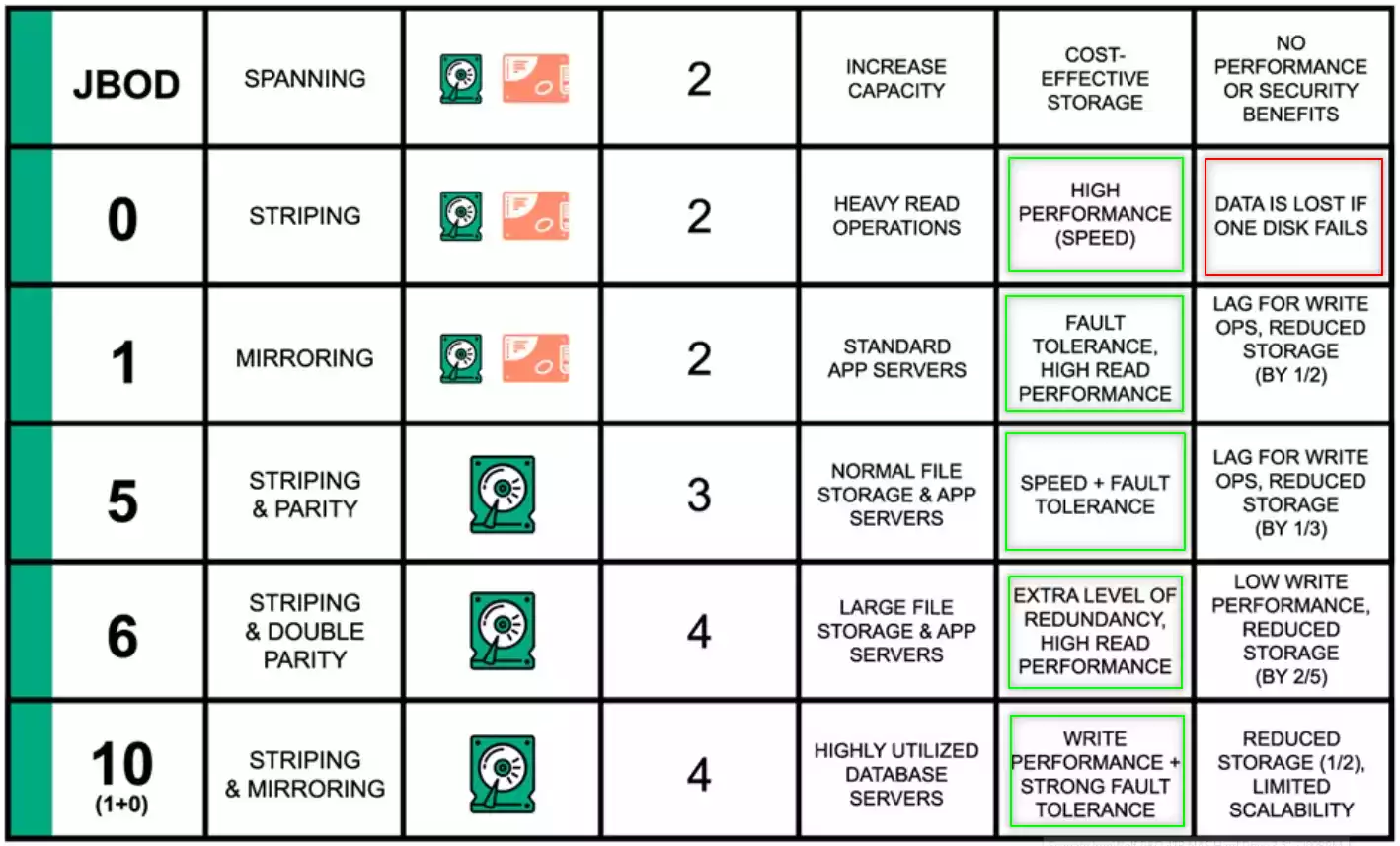
The practical lesson is that drive selection for a first NAS should consider more than headline capacity. New buyers should compare price per TB across several HDD sizes, factor in the desired RAID level and protection scheme, and understand how many drives their chassis can support now and in future. In many cases it is more effective to choose a slightly larger enclosure and populate it with several mid sized disks that offer a good value point, rather than filling a small unit with the largest drives available. This gives better flexibility for future expansion, more options if a disk fails, and a storage layout that balances cost, capacity and performance instead of relying entirely on a small number of very large and expensive disks.
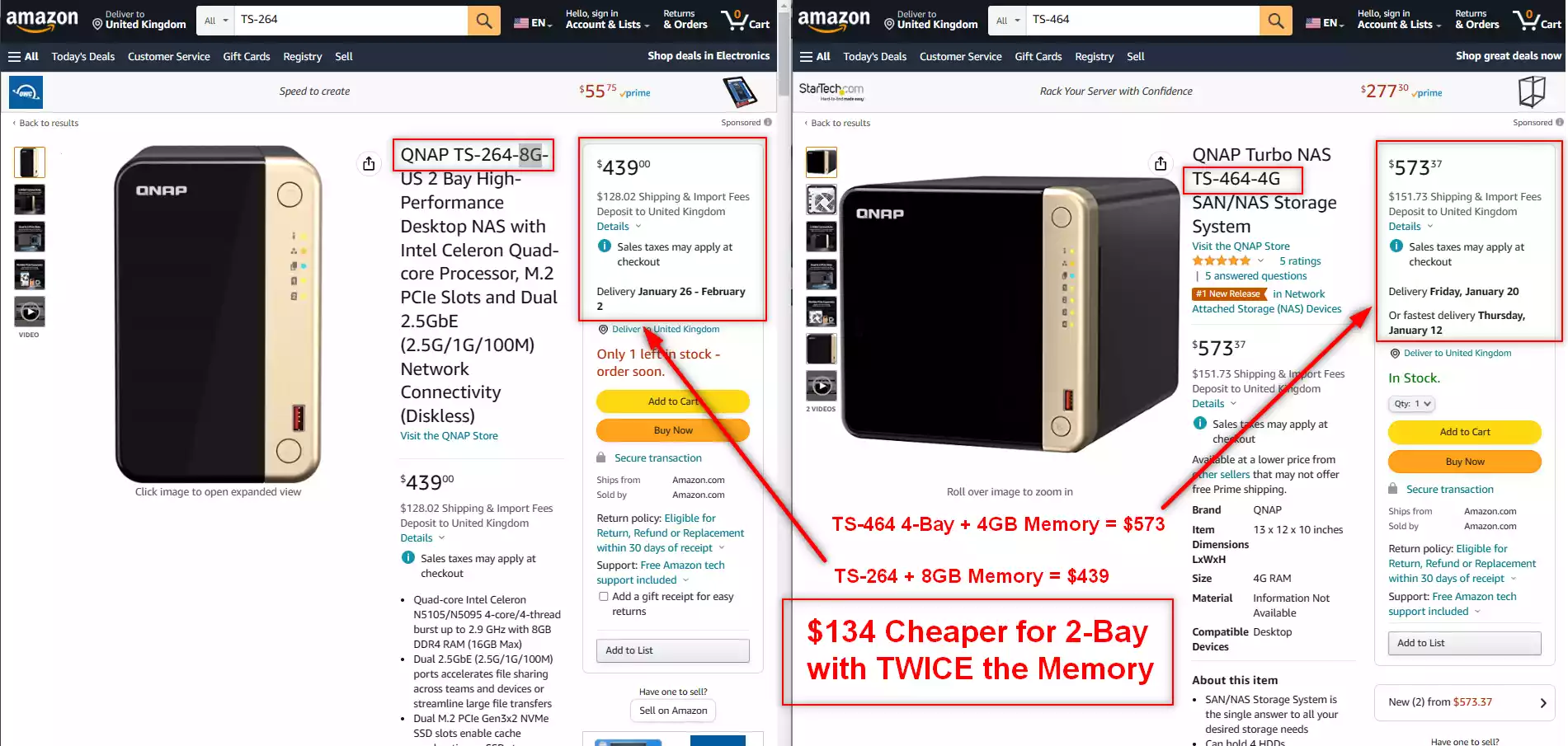
Larger NAS/DAS systems are always more expensive, as they need to have more physical space, resource use in production and power/PSU sizes to run the larger enclosure. Add to this, thanks to memory shortages right now, that smaller scale NAS systems are starting to arrive with more memory by default (as 2-4GB is becoming less cost-effective to produce with chip shortages) and often with little/no increase in the base price. For example, below is the TS-264 and TS-464 NAS. Same CPU, design and ports – however the 2-Bay system has 8GB memory by default AND IS STILL $134 cheaper! So, this can often mean that you can save money on smaller quantities of larger capacity HDDs becuase the enclosure they are going in is cheaper over all.
Conclusion – PLAN AHEAD!
New NAS buyers rarely set out to make poor choices. The problems described above usually arise because a NAS is treated like a simple storage box rather than a device that will run all day, sit in shared spaces and gradually absorb more roles over several years. Noise, expansion, SSD cache, power consumption and drive sizing are all easy to overlook when you are comparing spec sheets or promotional bundles, yet each one has a direct and practical impact on how comfortable and economical the system will be to live with. The safest approach is to treat the first NAS purchase as a medium term infrastructure decision rather than a one off gadget. That means thinking realistically about where the box will sit, how many people will rely on it, how much data is likely to arrive over time and how much power draw and running cost is acceptable. A slightly quieter chassis, a few more bays, a balanced drive choice and sensible use of features like hibernation and scheduling will matter more in day to day use than chasing the biggest individual drives or adding SSD cache on day 1. By addressing these 5 areas before you buy, you reduce the risk of needing early upgrades or workarounds and increase the chance that the NAS you choose will remain suitable for several years without constant attention.
5 affordable Turnkey 10GbE NAS Solutions (Between $499 and $699)
For years, 10GbE networking has been seen as a premium feature reserved for high-end or enterprise-grade NAS devices, often pushing total system costs well beyond the reach of home users and small businesses. However, as controller prices have dropped and demand for faster data transfers has grown, a new wave of affordable NAS solutions has started to appear with built-in 10GbE. These systems no longer require expensive proprietary upgrade cards or third-party NICs, and many sit comfortably below the $699 / £599 price point. They cover a range of use cases, from compact SSD-based NAS devices to rackmount storage appliances and versatile desktop units. Below is a selection of some of the most notable options currently available, each offering a balance of performance, connectivity, and affordability for users who want to move beyond 1GbE or 2.5GbE without breaking the bank.
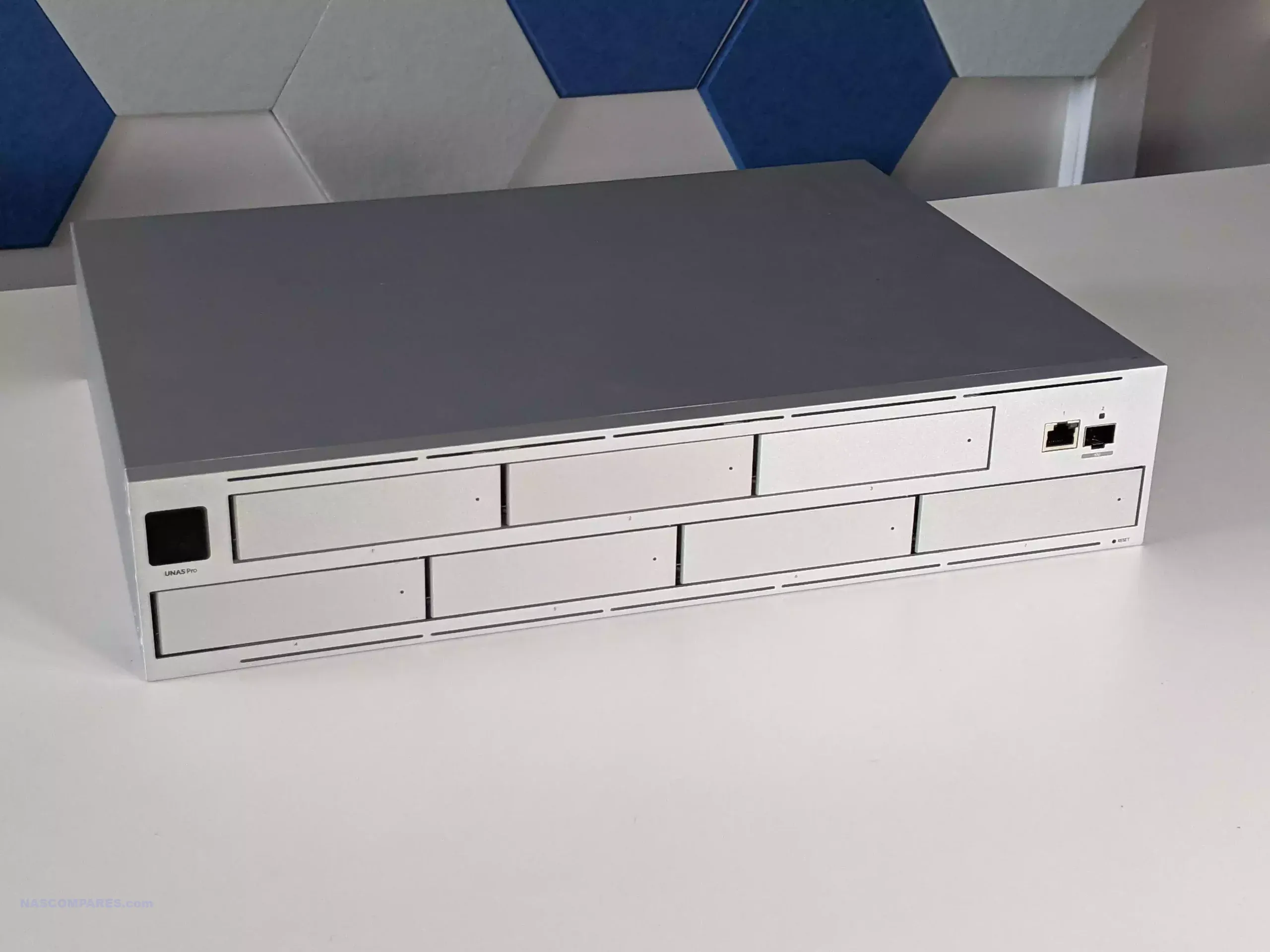
UniFi UNAS Pro (7-Bay, Rackmount)
I keep coming back to two words for the UniFi UNAS Pro—fundamentals and consistency. UniFi has clearly focused on making this system a strong addition to their ecosystem, prioritizing the essential storage needs of a NAS. They’ve succeeded in this, but comparisons with long-established competitors are inevitable. While solid, reliable, and stable, the UniFi UNAS Pro will take time to be competitive on the software front. If you’re deeply invested in the UniFi ecosystem, you’ll appreciate its ease of use and integration. However, outside of a UniFi network, it may feel feature-light compared to alternatives. The pricing is competitive for a launch product at $499, and while it’s not the best NAS on the market, it’s the most user-friendly and UniFi-ready. It will likely satisfy many users’ needs. I can certainly see this being integrated into existing UniFi networks as a 2nd stage backup alongside their already existing 3rd party NAS solution, with the potential to graduating to their primary storage as Ubiquiti continue to evolve this platform above and beyond the fundamentals their have nailed down in the UNAS Pro system.
-
Approx. Price: $499 / £400
-
Specs: ARM Cortex-A57 quad-core CPU, 8 GB RAM, seven 2.5″/3.5″ SATA bays, 1×10GbE SFP+ and 1×1GbE.
-
Why It Stands Out: Exceptional price-to-performance for pure storage needs. Lacks advanced multimedia or container apps but ideal for high-speed backups in a rackmount setup.


Asustor Flashstor 12 Gen 1 (Compact NVMe NAS)
The Asustor Flashstor Gen 2 12-Bay NAS is a robust and versatile solution for users with demanding storage needs. Its combination of high-performance hardware, extensive connectivity options, and compact design makes it a standout choice for content creators, small businesses, and enthusiasts. With dual 10GbE ports, USB 4.0 connectivity, and support for up to 12 M.2 NVMe drives, it offers exceptional speed and scalability. While the device has a few quirks, such as its mixed PCIe slot speeds and lack of M.2 heat sinks, these are manageable with proper planning and aftermarket solutions. The Flashstor Gen 2 excels in raw performance, handling intensive workflows with ease and maintaining low noise levels even under load. Its power efficiency and robust thermal management further enhance its appeal for 24/7 operation. For users prioritizing hardware capabilities and performance, the Flashstor Gen 2 delivers on its promises. While its complexity may deter less experienced users, those with the technical expertise to configure and optimize the system will find it a valuable addition to their workflow.
-
Approx. Price: $750 / £600
-
Specs: Intel Celeron N5105, 12×M.2 NVMe slots, single 10GbE port, compact form factor.
-
Notable Traits: High-density SSD storage in a small desktop chassis. Excellent value for SSD-heavy builds.

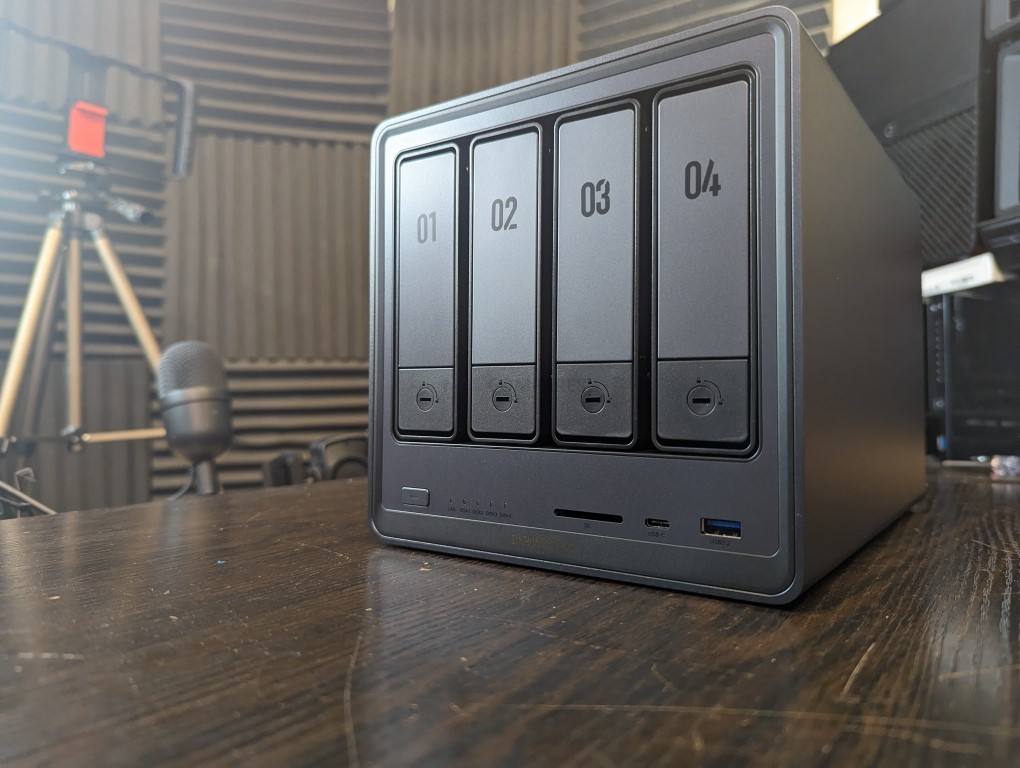
UGREEN NASync DXP4800 Plus
BOTTOM LINE – The UGREEN NASYnc DXP4800 Plus does not feel ‘finished’ yet and still needs more time in the over, but UGREEN have been very clear with me that this product is not intended for release and fulfilment till summer 2024 and improvements, optimization and product completion is still in progress. Judging the UGREEN NAS systems, when what we have is a pre-release and pre-crowdfunding sample, was always going to be tough. The DXP4800 PLUS is a very well put-together NAS solution, arriving with a fantastic launching price point (arguably even at its RRP for the hardware on offer). UGREEN has clearly made efforts here to carve out their own style, adding their own aesthetic to the traditional 4-bay server box design that plagues NAS boxes at this scale. Equally, although they are not the first brand to consider Kickstarter/Crowdfunding for launching a new product in the NAS/personal-cloud sector, this is easily one of the most confident entries I have seen yet. The fact that this system arrives on the market primarily as a crowdfunded solution (though almost certainly, if successful, will roll out at traditional retail) is definitely going to give users some pause for thought. Equally, the UGREEN NAS software, still in beta at the time of writing, although very responsive and nailing down the basics, still feels like it needs more work to compete with the bigger boys at Synology and QNAP. Hardware architecture, scalability, and performance are all pretty impressive, though the performance of the Gen 4×4 M.2 NVMe slots didn’t seem to hit the numbers I was expecting. Perhaps a question of PCIe bottlenecking internally, or a need for further tweaking and optimization as the system continues development. Bottom line, with expected software updates to roll out closer to launch and fulfillment, such as an expanded App center and mobile client, the UGREEN DXP4800 Plus is definitely a device worth keeping an eye on in the growing Turnkey and semi-DIY NAS market. As an alternative to public cloud services, this is a no-brainer and worth the entry price point. As an alternative to established Turnkey NAS Solutions, we will hold off judgment till it is publicly released.
-
Approx. Price: $595 / £475
-
Specs: Intel Pentium Gold 8505 (6-thread), 8 GB DDR5, 4×SATA + 2×M.2 slots, 1×10GbE and 1×2.5GbE, plus HDMI, USB-C, USB-A, and SD reader.
-
Why It’s Attractive: Well-rounded design with rich connectivity and media support, undercuts most rivals on price and features.
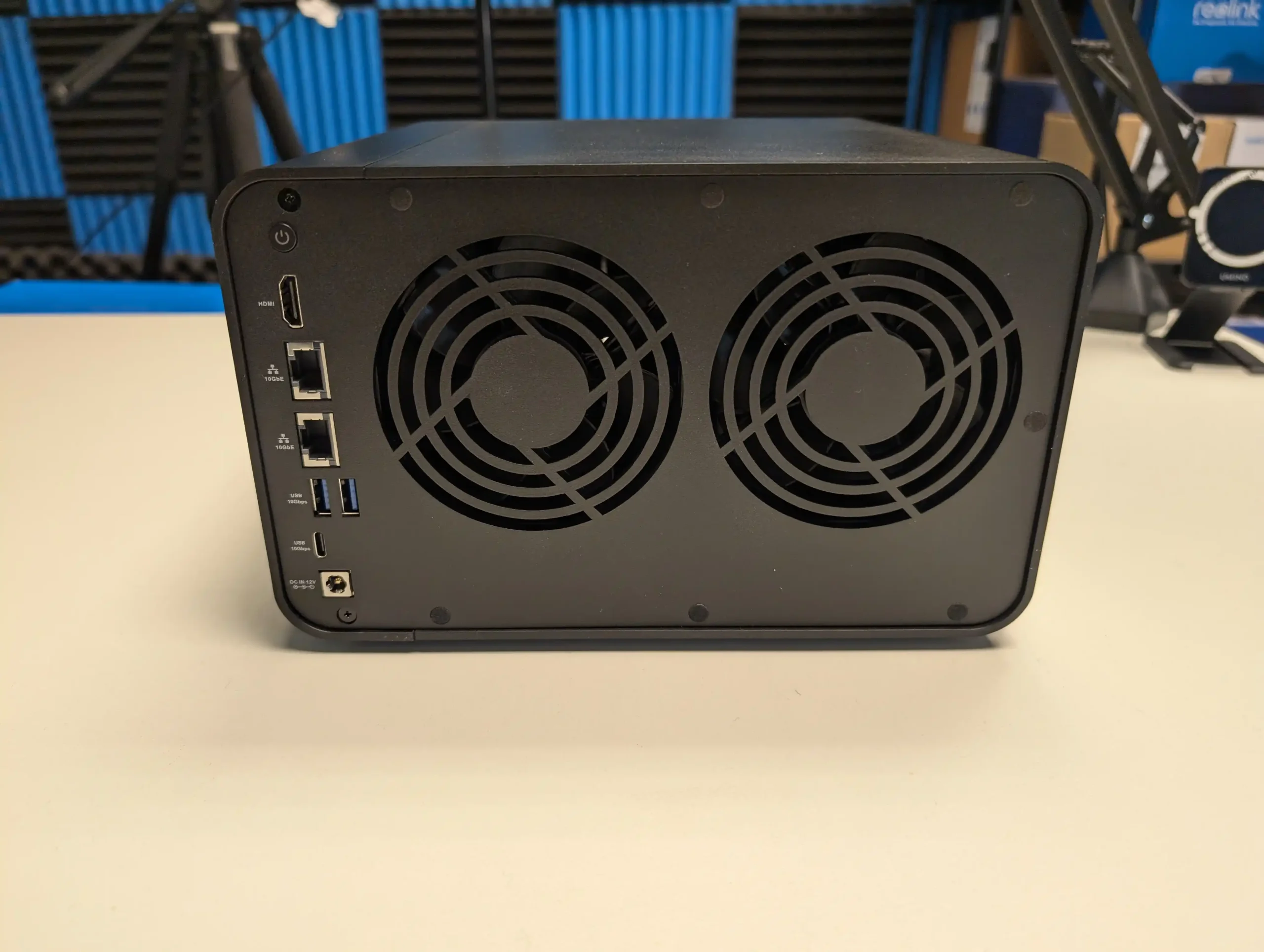
TerraMaster F4-424 Max / F6-424 Max
The TerraMaster F4-424 Max is a robust 4-bay NAS system that offers a powerful mix of features and flexibility for a wide range of tasks. Powered by the Intel i5-1235U CPU with 10 cores and 12 threads, the F4-424 Max excels at resource-intensive applications such as Plex media streaming, 4K hardware transcoding, and virtual machine hosting. Its dual M.2 NVMe slots running at PCIe Gen 4 speeds significantly improve storage performance, especially when used for caching, while the two 10GbE ports offer high-speed networking environments, allowing for 20Gbps throughput via link aggregation.
In terms of software, TOS 6 brings notable improvements, although it still lags behind the more polished ecosystems of Synology DSM and QNAP QTS. That said, TerraMaster’s continuous software evolution with each new version of TOS ensures that users have access to more robust tools and security features. For its price point of $899.99, the F4-424 Max is a compelling option for those seeking high-performance NAS solutions with scalability in mind. While the Pro model offers competitive performance, the Max takes it a step further with advanced networking, making it ideal for environments where speed is a priority.
-
Approx. Price: $675 / £550 (F4-424 Max, during sale) – $899 / £700 (F6-424 Max, regular)
-
Specs: Intel Core i5-1235U (10-core), 8 GB RAM, dual 10GbE ports, dual M.2, with 4 or 6 SATA bays depending on model.
-
Why It Helps: The F4-424 Max frequently drops below the $800 mark in promotions, offering unusually strong CPU performance and dual 10GbE at a mid-range price point.
| Where to Buy?
Terramaster F4-424 Max ($899 Amazon) – HERETerramaster F4-424 Max ($799 Aliexpress) – HERE |
📧 SUBSCRIBE TO OUR NEWSLETTER 🔔
🔒 Join Inner Circle
Get an alert every time something gets added to this specific article!
This description contains links to Amazon. These links will take you to some of the products mentioned in today's content. As an Amazon Associate, I earn from qualifying purchases. Visit the NASCompares Deal Finder to find the best place to buy this device in your region, based on Service, Support and Reputation - Just Search for your NAS Drive in the Box Below
Need Advice on Data Storage from an Expert?
Finally, for free advice about your setup, just leave a message in the comments below here at NASCompares.com and we will get back to you. Need Help?
Where possible (and where appropriate) please provide as much information about your requirements, as then I can arrange the best answer and solution to your needs. Do not worry about your e-mail address being required, it will NOT be used in a mailing list and will NOT be used in any way other than to respond to your enquiry.
Need Help?
Where possible (and where appropriate) please provide as much information about your requirements, as then I can arrange the best answer and solution to your needs. Do not worry about your e-mail address being required, it will NOT be used in a mailing list and will NOT be used in any way other than to respond to your enquiry.
 TRY CHAT
Terms and Conditions
TRY CHAT
Terms and Conditions





|
 |


Minisforum G7 Pro Review
CAN YOU TRUST UNIFI REVIEWS? Let's Discuss Reviewing UniFi...
WHERE IS SYNOLOGY DSM 8? and DO YOU CARE? (RAID Room)
UniFi Routers vs OpenWRT DIY Routers - Which Should You Choose?
WHY IS PLEX A BIT S#!t NOW? IS 2026 JELLYFIN TIME? (RAID Room)
Synology FS200T NAS is STILL COMING... But... WHY?
Access content via Patreon or KO-FI
Discover more from NAS Compares
Subscribe to get the latest posts sent to your email.
Very informative, thanks
REPLY ON YOUTUBE
I love the video’s guys. Helpful, informative, You’re British…What’s not to like? I’ve been using a WD MYCloud to store and play back movies via Plex with poor results. So, I’m looking to buy a home NAS to play back BR movies we have and other Streamed Media. What would you recommend as an OS for this purpose and what hardware to avoid Transcoding? Appreciate any help you can provide.
REPLY ON YOUTUBE
So if I want to add a drive later (im thinking of buying a Ugreen dh4300) do I need to buy exactly the same brand and same model hdd? Also what will happen if wd ever stops making the red pro hdds? Will i then have to replace all the drives and will it be a headache to transfer the data?
REPLY ON YOUTUBE
I’m a hoot and available for parties… ~@15:25
REPLY ON YOUTUBE
$200 for 12Tb… Boy, this is an old video and it was published just a month ago…
For future reference, I bought 10Tb Toshibas on 24.01.2025 for an equivalent of $286 each and still have to learn if that ptice wasn’t too “good” to be true (as in if the store is legit and they will arrive and not turn out to be bricks in towels).
REPLY ON YOUTUBE
First night of my new Nas my wife quickly told me to turn it off as she could hear in the room above us lol.
I only turn it on now when I need to use it and never at night. Sad times.
REPLY ON YOUTUBE
Really great vodeo, nice one
REPLY ON YOUTUBE
I am still searching for a Synology solution to backup their devices FULLY-EVERYTHING – I think people call it bare metal BUT I want to INCLUDEEXCLUDE Shared Folder content. ABB does not provide that capability, Hyper Backup does not get to full bare metal content. How can Synology design something without fully 100% nothing left out with Shared Folder exclusions? I have spent 40_ hours searching a solution and so far NOTHING or I am not looking in the right places. I watched various videos of how to set it up (DSM settings, User Setup, Firewalls, Task Scheduler some with scripts, etc.). A FULL backup should not require a user to go back and re-setup settings or app settings, etc.
I must be stupid as I cannot find anything that works – Active Backup -Nope, cannot exclude shared folders, Hyper Backup – Nope – does not backup some firewall, scripts in scheduled tasks, user authorization settings – What is the solution?
REPLY ON YOUTUBE
Someone set me up a NAS system for me and the wife to store all our photos and documents to get off iCloud and google and just go off the NAS. I do video editing for YouTube as a hobby. What do I need. I’m a newb to this world
REPLY ON YOUTUBE
Thumbs up for the orangized disorganized shelving, I bet this guy knows where everything is
REPLY ON YOUTUBE
whats the android noise level app you are using in all your videos?
REPLY ON YOUTUBE
I bought a Beelink ME Pro and just got it, and the drawer-style upgradeable motherboard will make future upgrades much easier.
REPLY ON YOUTUBE
Can someone help me ? Can I easily install the qbittorrent client and PLEX/Jellyfin server on a UGREEN NAS? Is this problematic?
I’m asking because on ASUSTOR, I can do it in seconds from the OS level…
REPLY ON YOUTUBE
Yes, stopping HDDs will save electricity, but…. Spinups are not good for drive health. Especially if you configure that drive to stop after a specific (two-digit) number of minutes. –> In the worst case, it does these stop-start pairs multiple times per hour. It will cost more money and nerves to replace a failed drive than you save with electricity.
REPLY ON YOUTUBE
Does the more-is-better rule apply equally to an all SSD NAS?
REPLY ON YOUTUBE
You comparison of # vs Size is completely flawed: you are only comparing RAID1/0 (large disks) to RAID5 (small disks). What about 4x20TB vs 8x10TB. The price per TB is so much less for the 4×20 and you can still do RAID 5.
REPLY ON YOUTUBE
I’m in the middle of getting myself a QNAP TS-464, install QTSHero, upgrade to 16GB RAM and get 5 refurbished/used Toshiba MGACA 18TB drives (~250€/unit, JAN:2026). Then again, I only consider RAID-6 (RAID-Z2). Figured if I wanna manage a larger pool and especially use used drives, I wanna prioritize the more robust ZFS over EXT4.
And the 5th drive goes into an external usb enclosure to serve NAS-Backup. Because as we all know, RAID isn’t backup.
And yes, I got a UPS (Cyberpower UT850EG).
REPLY ON YOUTUBE
One of the major mistakes — a very expensive one — is buying or building a NAS when what you really need is a DAS.
REPLY ON YOUTUBE
Another mistake, getting a NAS with 2.5Gb (or better) ethernet and putting it on a 1Gb network and wondering why it isn’t faster. You’ll need to upgrade your switches and NICs and maybe even your wiring to take advantage of the speed of your NAS. Something to keep in mind.
REPLY ON YOUTUBE
hi ds225+ can work any 2.5 ssd
REPLY ON YOUTUBE
“Just move the operating system over to” …. this where my eyes glaze over. Why do all you nerds think us beginners have the same knowledge as you do. We don’t, but I’m guessing you’ve been told that many times before
REPLY ON YOUTUBE
Seagate Exos or Seagate Baracuda Pro for Picture and Video?
REPLY ON YOUTUBE
You seem to be pushing ugreen….
REPLY ON YOUTUBE
Is iSCSI support a thing within NAS offers? If want to build a small cluster server nodes, iscsi is the way to go to be able to share a specific disk space, no?
Usually, database engines don’t support database files in network drives (or unplugged drives). If want to have a database engine running (sql server, postgres, for instance), there’s any chance that some nas have native support for some database engines?
Are there any NAS systems that supports bare-metal backups?
Does some nas systems that support backup in the cloud (even partial backup) and/or synch systems to off-site backup?
I imagine that some NAS systems can upscale capacity by joining more NAS devices and that can be visualized as just one-site backup.
I have many questions about the possible capabilities of nas devices, i’m doing my own research, but decided to put some of them here as being more of an expert on this matter than i am. Trying to so some shortcut, having more keywords to research,…
Thank you.
Wish a Great New Year.
REPLY ON YOUTUBE
Well. This video came out too late. I only got one thing right and that is the N100 chip.
I setteled for a two bay Ugreen DXP2800, with 2x 16TB drives and 2x 1TB SSD cache, because in all of this late hardware-price madness, the larger drives were actually quite a lot cheaper than the smaller ones. They also have substantially more storage than I actually need, so I guess I am going to be good for a few years.
I also managed to reduce the noise substantially by adding some 3D printed TPU dampening pads and by putting it on regular felt-gliders for furniture.
All things considered, I am actually quite happy with it, despite all of my first timer mistakes!
REPLY ON YOUTUBE
I just purchased four 2.5″ 1TB HGST 5K-1000 (CMR) for $20 each from OWC – pulls from refurbished MacBooks. Pretty low hours, and perform as new. 4 TB for $80 – sweet deal. I’m using them in my Sabrent 4-bay USB 3.0 enclosure as simple independent storage drives, formatted as exFAT for cross-platform use. I played around making them a software RAID0 ???? just to see.
REPLY ON YOUTUBE
NVME price per TB is four times higher than regular 3.5 drives. Not 2.
You compared noise of 2 bay nas with 8-bay. With no info on type of drives inside of those boxes nor current activity.
30TB vs 10TB drive price. And now do price per TB calculation for 24 TB. You selected highest capacity drive that is priced at premium.
REPLY ON YOUTUBE
Where are you getting 12TB drives for under 200? Reputable ones, I mean?
Not here in the UK as far as I can see.
Keep up the good work guys!
REPLY ON YOUTUBE
great guide
REPLY ON YOUTUBE
Hi! I’d like a video on BACKUPS! When you have your 300+TB 10GB dual mic super NAS, how do you back it up and to where if you want to keep your stuff if your house burns down to the ground or your server closet is flooded with poo water. And this without is costing you another arm or leg ????
REPLY ON YOUTUBE
A NAS is NOT supposed to reside in the general living space. The whole point of them is that they are NETWORK ATTATCHED. Put them in the fricking utility closet. If you can’t afford 24/7 hdd spinning, then you shouldn’t buy a nas.
REPLY ON YOUTUBE
Probably the biggest mistake in setting up a NAS is thinking that because you have some redundancy within the NAS, that your data is safe. When a pipe bursts and water gets inside the enclosure, or you have a fire or anything like that, the fact that two perfect copies of your data sitting six inches away from each other both get destroyed instead of one isn’t particularly helpful. You also need off-site backup for any data that matters. Fortunately, you can typically link NAS boxes over the internet so that any file sent to your primary NAS also gets sent to a second, remote NAS. Have one in your home, one in your office, or stick a remote one in the house of a trusted relative or friend. I started out with a very basic, 2 bay NAS, and eventually that became my off-site backup when I outgrew it and needed more performance. But if you don’t have off-site backup, you will still need to back up to the cloud, which largely negates one of the key benefits of owning a NAS – avoiding cloud storage fees.
REPLY ON YOUTUBE
This is a great channel for NAS interest. I’ve been considering this long time. I’d say, like with anything tech related, start cheaply & learn, and expect to get “what you really want” later. (MUCH bigger learning curve than you expected!) I’m a new owner of a GMK nuc – I’m 67…
REPLY ON YOUTUBE
Thank you sir
REPLY ON YOUTUBE
Can I use the discs from my DS220+ nas in a DS225+ without re-formating they are segate ironwolf drives, I know they would go into the DS224+ Ok.
REPLY ON YOUTUBE
I made the mistake of buying the Ugreen DH2300 only to upgrade it a week later to the DXP4800 Plus. I should have known that a 2 bay NAS would never be enough storage. Side note, the 4800 is a lot quieter than the 2300 and holy #### is it fast
REPLY ON YOUTUBE
Alacrity. What a wonderful word 😀
REPLY ON YOUTUBE
majority don t really need 30tb drives , am photographer for 20 years , and my 20year work is about 2tb , my video that i shoot for the last 10years , are about 6tb , even my plex media library is about 9 tb i shoot jepeg most of the time , and 1080 video , and i compress movies to about 1-2gb each .
REPLY ON YOUTUBE
How can a single drive protection be adequate for a random one or two drive failure?
REPLY ON YOUTUBE
Solid advice as always, and I also love your deep dives on your other videos! I’d say another big one for NAS first-timers is assuming once their data is on there, they can safely delete from their phones and computers and assume they’re all backed up. Obviously the moral is to backup critical data from the NAS onto a portable drive, cloud, or another NAS, ideally elsewhere.
REPLY ON YOUTUBE
Great video. Another newbie here. I am considering a NAS for my home computers. You brought up some great points about the various situations one will experience when using a NAS. Definitely something to think about. Thanks for the informative video!
REPLY ON YOUTUBE
Please think again about this agitated waving around with your arms.
REPLY ON YOUTUBE
hdd make more sound right?
REPLY ON YOUTUBE
Nice video, new to NAS noise, surprised the sound reverberated through the shelf and walls. I found Spring Turntable Isolation Feet that completely eliminated the noise transmission. $29 on Amazon.
REPLY ON YOUTUBE
Tons of details in this video featuring the pros and cons of each NAS components. Definitely subscribe and sharing this video.
Thanks
REPLY ON YOUTUBE
Love your work. Green horn here. Research ah who needs it. Was my attitude 2 months ago. I bought of eBay TS 431with 4 x 2 TB drives. Personal use only. Setup as per a serious you did in 2024 perfect. Set up 2 raid one pools. Upgraded to 4TB drives. I w feel now like I was lucky. System was 6years old based on operating history of 2 TB drives 2256 days or so. Thank you for this channel. Again I love your work
REPLY ON YOUTUBE
Haha! I love the way you talk about the costs in dollars, but then use the terms ‘bunce’ and ‘nicker’ ????
REPLY ON YOUTUBE
Mistake #1. Get Advise from Marvin the Android.
Mistake #2. Back up the Encyclopedia Galactica.
Mistake #C. Use an OS written in Vogon Poetry.
Mistake #5. Fail to consult NAS Compares. 🙂
REPLY ON YOUTUBE
I have an 8 slot QNAP, in the room with the NAS I don’t hear it but downstairs I can hear the drives seeking. The drives used to power down after 30 minutes of non use but that seems to have stopped, I just realised why my electricity bill is so high!
REPLY ON YOUTUBE
Does spinning your drives down more often not damage them more ?
REPLY ON YOUTUBE
Thanks in part to you, I recently bought a Aoostar WTR Max with 96GB of ECC RAM, and loaded it with 6 Exos X20 20TB drives running TrueNAS. I love it.
REPLY ON YOUTUBE
I. Ugreen can you go from raid 1 to raid 6? I have ,2 8TB drives in bay 1 and 2 they are raid 1 now I am ordering 2 more drives for bay 3 and 4. Can I change it to raid 1 without loosing data.
REPLY ON YOUTUBE
my biggest issue is moving from a Buffalo to a Synology NAS. I need to move all the files and folder structure…
REPLY ON YOUTUBE
My biggest mistake was buying a 4 Bay Synology & having that stupid security certificate warning that I can’t get rid of!
REPLY ON YOUTUBE
Ups is a must
REPLY ON YOUTUBE
Im looking at getting my first nas. I mostly do photo and video editing.. I have both mac and PC computers. Is there a specific way to format the drives so both systems are able to read and write to the nas?
REPLY ON YOUTUBE
Thank you for this! nobody talks about the noise issues..
REPLY ON YOUTUBE
I’d add the 6th: CMR vs SMR disks, especially when your NAS is using ZFS under the hood.
REPLY ON YOUTUBE
Excellent video breaking down the key points that a beginner needs to understand to make an informed decision.
REPLY ON YOUTUBE
Excellent video breaking down the key points that a beginner needs to understand to make an informed decision.
REPLY ON YOUTUBE
Excellent video breaking down the key points that a beginner needs to understand to make an informed decision.
REPLY ON YOUTUBE
It’s always stressful when one drive failes and I’m on raid 5. My biggest mistake was sticking with it to save cost. It’s fine for 4-8TB, but for 20TB per drive on a 4 bay device, it’s too slow to rebuild.
REPLY ON YOUTUBE
It’s always stressful when one drive failes and I’m on raid 5. My biggest mistake was sticking with it to save cost. It’s fine for 4-8TB, but for 20TB per drive on a 4 bay device, it’s too slow to rebuild.
REPLY ON YOUTUBE
It’s always stressful when one drive failes and I’m on raid 5. My biggest mistake was sticking with it to save cost. It’s fine for 4-8TB, but for 20TB per drive on a 4 bay device, it’s too slow to rebuild.
REPLY ON YOUTUBE
Great video ???? Would you be able to do a deeper dive into essential NAS services, and which NAS platforms provide these most effectively and with the least friction?
In my own case (though I’m sure many others are in the same boat) some key requirements are:
• External access outside the local network
• Google Drive / Dropbox–style file access and syncing
• Google Photos / Apple Photos–style personal photo cloud with syncing
• Encrypted backups to external USB drives (e.g. Synology’s Hyper Backup)
(Please add more as you see fit)
For me, these are pivotal when trying to replace the main uses of big-tech cloud services. Synology currently provides all of this (and more) very well. However, as recent events have shown, many of us are now looking to move away from them too.
So while Synology is obviously part of the comparison, I suspect a growing number of people are looking for independence not only from big-tech cloud providers, but from Synology as well.
Apologies if you already have a video that covers these points… if so, I’d appreciate a pointer.
REPLY ON YOUTUBE
Great video ???? Would you be able to do a deeper dive into essential NAS services, and which NAS platforms provide these most effectively and with the least friction?
In my own case (though I’m sure many others are in the same boat) some key requirements are:
• External access outside the local network
• Google Drive / Dropbox–style file access and syncing
• Google Photos / Apple Photos–style personal photo cloud with syncing
• Encrypted backups to external USB drives (e.g. Synology’s Hyper Backup)
(Please add more as you see fit)
For me, these are pivotal when trying to replace the main uses of big-tech cloud services. Synology currently provides all of this (and more) very well. However, as recent events have shown, many of us are now looking to move away from them too.
So while Synology is obviously part of the comparison, I suspect a growing number of people are looking for independence not only from big-tech cloud providers, but from Synology as well.
Apologies if you already have a video that covers these points… if so, I’d appreciate a pointer.
REPLY ON YOUTUBE
Great video ???? Would you be able to do a deeper dive into essential NAS services, and which NAS platforms provide these most effectively and with the least friction?
In my own case (though I’m sure many others are in the same boat) some key requirements are:
• External access outside the local network
• Google Drive / Dropbox–style file access and syncing
• Google Photos / Apple Photos–style personal photo cloud with syncing
• Encrypted backups to external USB drives (e.g. Synology’s Hyper Backup)
(Please add more as you see fit)
For me, these are pivotal when trying to replace the main uses of big-tech cloud services. Synology currently provides all of this (and more) very well. However, as recent events have shown, many of us are now looking to move away from them too.
So while Synology is obviously part of the comparison, I suspect a growing number of people are looking for independence not only from big-tech cloud providers, but from Synology as well.
Apologies if you already have a video that covers these points… if so, I’d appreciate a pointer.
REPLY ON YOUTUBE
Great video thank you
REPLY ON YOUTUBE
The biggest mistake i made was using SMR drives, believing the NAS branding was just hype. Mind you, I started with a five-bay, so wasn’t restricted that way.
BTW, I find plastic cases far noisier than sturdy metal ones. My DS1821+ is whisper quiet with 7 drives in it, while my DS423+ plastic box rattles like a bucket of bollts with 3 x Toshiba MG series drives in it.
REPLY ON YOUTUBE
Great Video – Wish I’d seen this before I bought an NAS – I bought a UGREEN DXP2800 which is perfect for me , but I had to add SSD Caching to control the SATA drive activity I couldn’t get them to hibernate. It’s all cool now and as I don’t use it that much it’s very quiet. Some excellent tips thanks
REPLY ON YOUTUBE
What about ecc memory ? Does it really matters for a home NAS?
REPLY ON YOUTUBE
I have a 14bay diy system and a 4bay shelf bought system. Luckily before the prices went mad with ram and hdd
REPLY ON YOUTUBE
Glad I have an IT closet (quiet in the rest of the house)…I also place my NAS feet on rubber pads.
REPLY ON YOUTUBE
My first NAS was in 2017. Scalability wasn’t on my mind. I put 4 256GB SSD’s in it and away I went. Honestly, it was great for my cadd work, but when I wanted to add my photos, I found it was not enough. So I got a larger, more scalable NAS, but it wasn’t reliable (died 11 months into owning it), so I went up to a 6 bay NAS which could do everything I wanted and needed. Still have the old NAS units, but the 6 bay NAS is still going strong!
REPLY ON YOUTUBE
The more I hear about the noise and cooling issues with newer NAS cases, the more I appreciate the venerable HP MediaSmart EX490 server: Dual fans instead of one that ran at lower speed than regular PCs of the time, passive cooling for the socketed CPU with heat sink vanes aligned with the airflow, metal case but with plastic over metal for noise control.
I don’t like the lack of longevity of solid state media of any kind for NAS storage. You get improved speed, but it’s a higher cost per TB, and if you factor in that a HDD lasts 4 times longer than a SSD the result is that the total cost over time is 6-8 times higher for solid state media.
In addition, for a media server, SSDs will slow down read performance over time, unless the entire drive is refreshed, but this causes significant write wear, leading to early drive failure.
REPLY ON YOUTUBE
Why yes, yes I HAVE made the decision to get off the cloud and onto my own private NAS server.
AND I AM OVERWHELMED.
REPLY ON YOUTUBE
NASCompares AKA Mr Charisma.
but seriously, you can feel his passin, as he’s speaking down the camera.
REPLY ON YOUTUBE
Go with at least a 4 bay. I bought a DS224+ now I’m looking at getting a 4 bay
REPLY ON YOUTUBE
For choosing HDDs for home use, consider your emergency expense capabilities. Your emergency funds should be able to cover your HDD replacement in panic, and it should not disturb your other emergency expenses. For business, if your company can’t cover that then that might be a chance to find another job before you get data disaster s**tbomb poured on your head.
HDD (& SSD) bays are also expensive. Those don’t scale cheap. Think deeply with all of your applied variables and choose accordingly.
Yeah, it’s never easy and never will.
REPLY ON YOUTUBE
I was under the impression that HDD Hibernation causes more wear and tear on the drive long term vs. leaving them running
constantly.
REPLY ON YOUTUBE
Crunchy hard drive noises are seriously the only thing I don’t like about my UGreen. I only have one 8TB Ironwolf in it too.. I would put it in the closet, except it has HDMI out that I use on my tv… Fan noises basically Zero from where I’m sitting but when I’m watching 4K movie the hard drive is constantly clicking. It’s not terrible and I can just turn up the sound but in quiet scenes it can be a little annoying????
REPLY ON YOUTUBE
#1- Ds720+ and Ds220+ are on my dresser, literally 5feet away from my bed. Only having 2x 6TB Ironwolf 5400RPM drives means I don’t even know they’re there. ????
#2 – yeah, I screwed up on this one. (Note the 2 NAS boxes mentioned in #1)
#3 – I have 2x 120GB M.2 SSD cache in my Ds720+ and they are only there as I don’t have any place else to use them. (Figured a cache for Plex was better than sitting on a shelf) ????
#4 – Bought the Ds720+ specifically for the CPU & transcoding for my Plex. (Though I do have HDD hibernation enabled after a bit.) 14:50 That’s awesome! ????????
#5 – With how low capacity mine are, not sure if I screwed this up, or if I did ok with ‘multiple’ drives. (2x6TB in a mirrored RAID, so only 6TB usable)
Built my setup 3-5 years ago, so at least I’ve gotten some usable lifetime out of it so far.
Great video & still entertaining. ????????
REPLY ON YOUTUBE
I just bought a Ugreen 2 bay with 2 – 24TB drives. They are Seagate Exos recertified direct from Seagate. They were a great price at $330 each. Should I be concerned that they are recertified? Or should I send them back!
REPLY ON YOUTUBE
Can do a vid on ur rcmd 4-drive NAS with SSD & HDD setup for beginner at Home Backup and sharing for Vids? You have great info but sometimes too fast for us DIY…TY
REPLY ON YOUTUBE
I don’t know if it’s just us in Europe, but the cheapest disks per TB (in reasonable capacities, not 3TB) are 22TB $18.5 per TB for factory recertified Samsung or $23 for new Toshiba’s. If you go down to 10TB or 12TB you pay $20 per TB for recertified and $33 per TB for new.(All prices with taxes). So it makes absolutely no sense to buy anything smaller.
REPLY ON YOUTUBE
Terramaster F2- 454 are nott load and it got metal and fan i the back. No sound problem att all. But by som disk i we know are not loud at att all. Red Plus 4TB 5400rpm WD40EFPX we can watch movies 2 meter from them. No sound problem at all. And n100 -n95 can take 32 Gb ram ? , yes dey do !!! Wow.
And know the difrecys betwen dhem…
NAS are network atatch 24/365 and are to risky that one, for movies and not so importen things. Storge backup are not connected to the network 24/365, for importent doc, familyphotos and maybe backup for your NAS to.
it is good to know 🙂
REPLY ON YOUTUBE
SATA SSDs are underrated. They are orders of magnitude faster than spinning rust and if you get M.2 SATA drives you don’t have the heat dissipation problem of NVMe. M.2 SATA is the form factor of a full sized NVMe but cheaper and cooler operating temps.
REPLY ON YOUTUBE
If you use a lot of data i personally would go for a SAS external drive enclosure, this makes the drives looks like its internal in the system, easy and simple setup, at first it cost a bit on SAS pci cards but after years still have capacity to expand for less if you use a 24 bay drive enclosure. And Raid? i dont do raid anymore since many years, drives are fast enough for the most things, raid makes more drives running for a single task, more power more heat… make things simple as possible and use all single drives managed by one OS, Windows can handle hundreds of drives easy! and Linux prob even more.
REPLY ON YOUTUBE
Mistakes I’ve made or seen. 1)Buying the wrong drives, too small, or not enough for raid. With ugreen all have to be same size. 2) messing up external access or mounting as drive in explorer. This can be very frustrating and it’s not easy to learn. 3) Take your time when setting up, take notes, you need to remember stuff and settings.
REPLY ON YOUTUBE
Most of these “issues” can be fixed by buying the Ugreen DXP480T! Only NVMe inside, up to 64TB! Works like a charm. I added an external Sandisk Extreme 8TB portable SSD for backups which is blazing fast as well.
REPLY ON YOUTUBE
Great Job,Thank you
REPLY ON YOUTUBE
I have a question about mixing Hard Drive brands. I have 2 WD Red Pro 4TB in my Terramaster F4-424 Pro, and I’m looking to scale up with 2 more 4TB drives. But the WD Red Pro 4TB are now some what more then the Seagate IronWolf Pro 4TB. So should I stick to the WD Red Pro or mix the brands and go with the cheaper priced IronWolf Pro?
REPLY ON YOUTUBE
A UPS is another must as far as I’m concerned, if your nas fails while it’s writing it could corrupt the data, and most nas’ don’t have ECC memory. This is also important if you have an ssd write cache, as it may keep a ton of data before flushing it to the drives, making it vulnerable. I’m sure there are routines and safety built in to mitigate that, but I decided to have a read cache only to be safer. If the nas dies mid-copy then in theory I should lose less data.
REPLY ON YOUTUBE
At 8:05, you say to think about scalability. A NAS drive with 4 bays only uses 2 bays and adds storage as needed. When you add another drive, do you have to initialise all the drives? Will that erase the contents of the first two drives? Or can you just add and play?
REPLY ON YOUTUBE
A great, informative video, as always!
REPLY ON YOUTUBE
Use the AAM setting on the drive set via smartctl to quiet the drives, though there is a performance tradeoff for this.
REPLY ON YOUTUBE
I/O = Input / Output
IOP = Individual Operations
REPLY ON YOUTUBE
haha. i love the noise my nas makes. if i don’t hear it, i would think it’s not working.
REPLY ON YOUTUBE
For the DIY-ers out there: get a good case if you care about the noise levels. I got myself a Fractal design define case, which has every panel padded with foam, and three fans in the front spinning at low rpm. I had it for a couple of years in the same room I slept in and never noticed it. And as it was said in the video, setup a sleep/wake schedule if you’re worried about noise or power consumption
REPLY ON YOUTUBE
The thing that makes the most noise at my place is my UPS.
REPLY ON YOUTUBE
My 10G switch makes more noise than my UGREEN 4800+.
REPLY ON YOUTUBE
Hibernation on Synology ???? mine comes on multiple times.even the dam router wakes it up.
REPLY ON YOUTUBE
On the subject of better uses for SSD’s, i just bought a Synology DS425+ with 24TB’s of HDD which im going to setup in RAID 5 leaving me with 18TB of storage, can i use one of the SSD slots for the OS and the other for read/write cache? And if so what size SSD’s would people recommend for each purpose?
REPLY ON YOUTUBE
Great vid some good point i didnt think of. I’ve got a question though. Is M.2 ssd caching even worth it (in terms of speed) if my internet is only 2gbs and i will bc of that use the 2gbs connection on lets say the ugreen dxp4800
REPLY ON YOUTUBE
The top 5 mistakes NAS buyers made is not buying equipment before the prices spiked
REPLY ON YOUTUBE
I don’t get why people want to run an 8 bay NAS on the desk next to them?
Why not stick it in the garage (with suitable cooling, etc.) and connect to it via a switch? Are people that fixated with flashing lights or something?
REPLY ON YOUTUBE
My Synology with Exos drives is significantly louder than the one with WD Reds. It’s in the living room which shares a wall with the bedroom and I can hear the drives while I’m trying to drift off.
Regarding you being available for parties….fancy a trip across the pond? 🙂
REPLY ON YOUTUBE
Mistake 1 – Buying a home NAS
Mistake 2 – Thinking that your data is safe on a single NAS
Mistake 3 – Thinking RAID is a backup.(including RAID 1)
Mistake 4 – Not having an offsite backup
Mistake 5 – Thinking that data at rest can’t be corrupted
REPLY ON YOUTUBE
About $/TB: hardware search engines have this as a sorting criteria. Bought mine on Black Friday but the prices were still “stable” I’d say.
Larger drives had a better $/TB rating, but my budget was limited.
Also thinking about anything you said in prior videos:
Bigger drives = longer time to fill, longer time to resilver.
Also the replacement costs are higher ????????
REPLY ON YOUTUBE
Luckily I do deep dive and go wild with research before buying things (shoutout to the ’tism lol) but I still fell victim to one of these mistakes: my budget was limited so I could only afford a 2-bay…
I’m not out of space yet but I’m definitely looking at upgrades now because datahoarding is so fun
REPLY ON YOUTUBE
Bought a UGREEN DXP4800 Plus, and attempted to purchase 3 6tb Exos drives from CEX, only to discover they had 50 to 60k POH, they sold me end of life products… switched to 3 new 8tb ironwolf drives and one arrived DOA. So going through a replacement now. With wanting to set up RAID5 im sat on my hands waiting for the replacement…
REPLY ON YOUTUBE
Memory upgrade? Can’t even afford thinking about it
REPLY ON YOUTUBE
Funny enough, I actually just got rid of my NAS. I moved all the drives to my Linux workstation (since that’s where I need the data, mostly) and now host the SMB service/media server/etc stuff there
REPLY ON YOUTUBE
HDD and RAM prices getting ridiculous. Sad times.
REPLY ON YOUTUBE
I have a NAS since 2009. I agree on most points, not all. Here is my experience.
1. Scalability: Synology DS209 2x1TB RAID1 lasted me 4 years. DS213+ 2x3TB RAID1 lasted me another 4 years. I upgraded the drives to 2x4TB RAID1 for another 4 years. If I had bought a 4 bay right away, I probably would have wasted money. But then I made the mistake: DS220+ 2x6TB RAID1. A 6TB failed within two years and I realized my error, bought a DS423+ and used my old 3 and 4 TB drives in SHR. I should have upgraded to the 4 bay, not another 2 bay plus new drives.
2. Power. Since I use BTRFS the drives NEVER hibernate any more. So I use a schedule to turn the NAS off and turn it on not on schedule but when I need it. Using WOL as a part of my PC startup routine. The downside: I can no longer run docker containers I need 24/7 in the NAS.
REPLY ON YOUTUBE
If you have to sleep in a room with a NAS, avoid the Seagate Exos drives. They’re good drives, they’re just too loud.
REPLY ON YOUTUBE
Just HOW is that Casio calculator watch still working?!
REPLY ON YOUTUBE
My regret (and I returned) was buying a 600 usd product, and getting super obsolete hardware that cannot run a media server or do anything. It was a synnology. I just decided to keep my macstudio always on, and connected a DAS. So far so good. In the future, I might buy a Ugreen. No blackfriday fomo again.
REPLY ON YOUTUBE
Come on! It’s HAY-low, not HELL-low!
REPLY ON YOUTUBE
Excellent presentation. Thank you for posting. For me, you hit all of the key issues with not only NAS systems but PC’s in general. I have a still very useful but older NAS with 12 drives. The heat and watts used that by system now make it a non-option for 24/7 usage. When it is active, it will literally heat the room up requiring HVAC to manage things. I power it on as needed for long term backups. The hit on the HVAC and electric bill are not trivial. Sticking with the least amount of larger drives with a CPU that will just saturate the network connection, is the way to go. Plus, to your point, the NAS OS needs to be able to hibernate drives – several of the popular OS’s do not have drive hibernation built in as a default.
REPLY ON YOUTUBE
Mistake #1: buy ARM, buy twice.
REPLY ON YOUTUBE
Hello.Mate do U have any ideas with overheating nvme disks in Qnap ts-464. I have to open the front plastic cover a little bit or remove it to have nvme temp in about 50°celsius. If its closed i must set manual fan speed for about 55-70%. I changed ariginal fan for Noctua its much hetter but still noisy.I remove dust from it every week or two.My opinion is that thetes not enough space to get fresh air to the server. NVME discs are 2x 500mb wd red for cache and they are with radiators.
REPLY ON YOUTUBE
You’ve really got me thinking now as my UG 4800 Plus will be set up today as soon as the 4…yes 4 Seagate 20TB IronWolf Pros arrive today. I was going to set up everything on RAID5 to future-proof for good…but if all of my data is around 15TB and I’m essentially setting up a system for 60TB, should I consider shelving one of the drives to save money and also have an immediate replacement in the event of a failure? (For the record, I intended to get 12’s or 16’s, but B&H had the 20’s for $379!)
REPLY ON YOUTUBE
Regarding noise, changing out my HDDs for SATA SSDs in my Synology NAS was very effective at reducing noise. Specifically, the SATA SSDs put out a lot less heat, reducing the thermal load. So, the fan spins at very low RPM, barely audible when right next to the NAS, and completely inaudible 2m away. Also, SSDs are utterly silent. When I used HDDs I could hear them spinning up every time I accessed files on the NAS from my computer.
As a side note, when using HDDs I had three HDD failures in my NAS over a span of 10 years or so. I switched to SSDs around 8 years ago and have not had a NAS drive failure since.
REPLY ON YOUTUBE
Anything more than a 2 bay NAS is going to be noticably loud, unless you can isolate the unit (I keep mine – 3 Synology units – in the basement), perhaps in a closet or cabinet, presuming you have enough cooling for it. I never hear mine run, and I’ve been using Iron Wolf Pro drives for 10 years.
REPLY ON YOUTUBE
The only thing I don’t get on NAS, let’s say I get a 4 bay, and have 4TB drives in it, can I later add 20TB drives and actually expand the size?
REPLY ON YOUTUBE
I just recently rebuilt all of my old NAS systems. My intent was to go with a system that had a huge amount of RAM. I wanted a very large ARC. I was then going to put the L2ARC and the ZIL on NVME. Then I was going to set up a Z1 RAID for the primary data pool, using lots of SATA SSDs. The problem was, I can’t find high endurance SATA SSDs anymore. I wound up going with all NVME in a Z1. It cost more, but, the performance is good and, all of my drives are high endurance.
REPLY ON YOUTUBE
About a year and a half ago I was shocked into seeing I needed a NAS (mainly as a backup for my big external hard drive cases) and went home brew – getting a Dell T330. I “knew” power consumption was a problem but rationalized that it would NOT be on 24/7 (thanks to you I added a 2 bay Ugreen NAS for that but I’m getting ahead of myself). Once I got it up and running the pool was over 80% full which I found out was not good so I had to replace all the drives with even bigger ones! Gah!
Plan A was to finally replace it with a lower power consumption more powerful CPU modern system but with RAM and drive prices getting nuts she is gonna be just fine for now. Plan C may be to put the Ugreen NAS into back up duty for the Dell and get a 4+ bay system for 24/7 use. We’ll see how prices go.
So I came here to find out more about this NAS thing but have stuck around because every time I watch one of your video’s I learn something new (low bar really) – and as things change it helps to be kept up to speed. Thanks!
REPLY ON YOUTUBE
yep, (1) bit me. I built a QNAP with 4TB Red drives, and it was “OK”. I upgraded to faster 8TB IronWolf drives, and OMG the noise. The drives never spin down, and the seek noise is just awful. Heat built up, and then the fan was noisy. So I put in a noctua and noise dampening materials in the chassis, but it is still really bad. Also draws a lot of power, 24/7. It’s just not home friendly.
I LOVE my Beelink ME Mini, 4x4TB NVMe drives, effectively silent, very low power device. Not cheap per TB, but it’s all about compromise. But appropriate NVMe drives are getting more pricey all the time. And 8TB NVMe drives are still mad expensive.
REPLY ON YOUTUBE
Bullseye! Got the exos drives….very good, but loud. Have a synology which should park the drives…..but any app used and this never will park a drive ever again….
REPLY ON YOUTUBE
When you’re comparing the power consumption of two different HDDs, I don’t think it’s an apple to apples comparison is it? I assume the 30TB was a HAMR drive? While sure that applies when you are comparing a 30TB to a 4TB but a 4TB to say a 20TB, the difference will be little to nothing.
REPLY ON YOUTUBE
For me the biggest mistake is buying the NAS ????
Keep your stuff cold.
REPLY ON YOUTUBE
Can you recommend a NAS that’s loud enough to drown out my snoring? Apparently I snore like a banshee.
REPLY ON YOUTUBE
HDD prices are going up too… ARGH!!
REPLY ON YOUTUBE
6:20 “You need to think bigger!”
ain’t that the truth
REPLY ON YOUTUBE
At the end when you talk about raid 5 you forgot to say if one if drive fails in the raid 5 it will cost you £200 where as in the mirror format (30TB drive) you will have to spend £500. So I would say go for the raid 5 format as it easier to expand.
REPLY ON YOUTUBE
More platter, more clatter.
REPLY ON YOUTUBE
I did my 1st NAS 18 months ago. I was pleasantly surprised by the noise. I was expecting it to be louder because I went with 5 20TB Toshiba N300 with 1 drive parity on TrueNAS. The consumer N300 drives were quieter than my 10 TB and 12 TB enterprise drives that I got to test ahead of time and relegated to archival backup because they’re so loud.
I made several mistakes though. I went with an AMD combo from Micro Center, and Plex had weird but consistent issues with hardware transcoding on the iGPU and I didn’t consider recommended RAM. Thankfully, when I swapped to an Intel Core Ultra 7, I also upgraded the RAM before prices went crazy. I still need to figure out getting it to let the drives hibernate in TrueNAS. The power management is set to allow it, but TrueNAS is doing some very small activity consistently which causes them to never spin down.
REPLY ON YOUTUBE
Depending on what kind of drives you have you might be better off keeping them spinning 24/7 (if you can live with the slight noise). I spent 1100 eur on 3x16tb exos drives and those are built and recommended to run 24/7 rather than spinning up and down
REPLY ON YOUTUBE
When I bought my first NAS, I was convinced that a 2 bay was all that I needed. At the last minute, I ordered a 4 bay and it didn’t take long to realize what a good decision that was. Today, having a better understanding about hybrid RAID, Storage Pools, and Volumes, plus realizing how much more I can really do with my NAS, I would never buy anything less than a 6 bay. The extra cost for the extra bays up front is just too small to worry about given the long term benefits.
REPLY ON YOUTUBE
I definitely underestimated the noise and now I’m stuck looking into SSD and NVMe NAS or DAS solutions…. Hoping for an updated tutorial video on that soon!
REPLY ON YOUTUBE
I’m very new to this, and will start my journey with 3x2TB drives. This will mainly be used as a replacement for Google Photos. I’ll set it up so I have 2TB parity-data and 4TB storage – then we’ll see how it holds up in the future.
I’m using my old gaming PC as a NAS, which surprisingly have 6x SATA interfaces
REPLY ON YOUTUBE
the answer to the question is it does not matter, back it up is what you need to do!
REPLY ON YOUTUBE
????????????????????
REPLY ON YOUTUBE
if i understand this correctly, unraid mix disk, is perfect for homelabs servers (old dell, hpe, ibm, etc.) with refurbises sas drives. does truenas have something similar?
REPLY ON YOUTUBE
Long term power usage starts to add up when you consider the drives running 24/7/365 for the next 4 or 5 years at least. I’m looking at replacing my ageing 10 drive 8/12 TB Unraid server with 20 or even 24TB drives and newer hardware that will use less power at idle. A huge setup cost, and that will allow me to use my existing setup as a backup system that powers up occasionally and does a backup of the new server. I’m looking at something with better reliably and a 5+ year minimum lifespan, and my existing unraid server is starting to show its age in terms of power use and reliability.
REPLY ON YOUTUBE
at the end of the day it depends on how much you are storing. some will need 18 TB * 8 or whatever.
also: notepad instead of spreadsheet? ????you could’ve normalized for example for 72 TB (18 tb * 4) 3:30
REPLY ON YOUTUBE
2+2+1+1 tb nvme/ssd drives w my desktop for gaming(ofcourse i would have loved haing only 2*4tb but price was about 1/3 w 2tb+1tb drives and w discounts at the moment of purchase i could even buy ram for my previous desktop+ a few cables(even a few bucks left after this last year)
So why are bigger drives more expensive per 1tb vs samller ones? its more materias n work one would think or is the smaller just so much worse in quality or something?
REPLY ON YOUTUBE
Well the video is really usefull.you are right, not many are interested in this but for me is crucial. My new home is open space, including where I will put network and my future home made NAS. While my miktotick gear is all passive cooled, for nas I landed on zima2 for it’s passive cooling and 2×20TB in RAID 1 is enough for storage at decent price and with your help I know audio treatmemt of the corner is enough to not not hear it, specially sing it will be reading and writing ONLY when I will be at my pc with my headphones, not when I will be using my hifi system.
REPLY ON YOUTUBE
More drives means more frequent failures. Less drives means more impact of each failure. This can be compared by doing calculations using the announced MTBF, but some models don’t meet their official MTBF.
Larger drives tend to have better performances (higher density means less head movements). The way to know which is faster would be to actually measure both configurations.
One either presents results for specific configurations, which does not help many people, or is bound to end with an “it’s complicated” conclusion. At the end, people choose one or the other on personal preferences and selection criteria. Is consumption or noise important to a YouTuber with a separate server room?
REPLY ON YOUTUBE
2 years on this is what i can tell you this. big drives become small drives in the future. thank goodness i went for 18tb drives, bought another one today and just expanded my capacity by 16.4 tb, 2 bays left open and next year i might add yet another 18tb drive, if i had gone for small drives i would need a huge storage bay with 20 hdd, so go big as soon it will be small, 18tb is no longer large in a world of 36 tb drives. capacity is the only reason for hdd use, otherwise go ssd. yes it is expensive and yes the only way to sleep at night is to go raid 6 with large drives.
REPLY ON YOUTUBE
28tb. I’m waiting to see what return-stats are like. The Seagate 20s are still HIGH.
REPLY ON YOUTUBE
Go for a home server. Put an left over motherboard, CPU, memory, and PSU in a PC case with a LSI HBA card (hopefully a 16 drive card) and run UNRAID… then you can just put whatever you want (no need to match drives since UNRAID allows for any configuration [SATA HDD, SATA SSD, M.2, U.2, NVMe, USB, SAS, whatever you can connect to your machine] you want (no need to match drive capacities)) in there and as many as you want and add another LSI card as you grow insanely large. Plus you’ll have parity drive redundancy, cache drives (if you want them), add on PCI cards if you want, run dockers, run plugins, run VMs, LAN-wide VPN, and a ton of stuff.
REPLY ON YOUTUBE
I run a small home Synology just for file archive, an always on backup for my main PC. I have 2x 8TB and recently obtained a 16TB. I can’t see any way of dividing the 16TB into 2 and running two 8TB raid 1 volumes with each 8TB drive using half of the 16TB drive. Manual partitioning would be a very nice feature.
REPLY ON YOUTUBE
the clicking in the video’s cuts also is some annoying noise
REPLY ON YOUTUBE
At a certain storage capacity, smaller becomes a relative term.
I would not want to build by 60+ TB array from 4-8 TB drives.
REPLY ON YOUTUBE
I actually LOVE the way these sound, so I’m here to find the loudest one
REPLY ON YOUTUBE
Bigger hdd but never ever EVER a Nas, I simply build a server with filters ventilation etc.
Way better in terms of performances and everyday use and repairs.
REPLY ON YOUTUBE
or using UnRaid, you can mix old HDDs for example, thats a bit cheaper than qnap/synology nas, if you got an old pc maybe laying around…
REPLY ON YOUTUBE
If I could set it up as I imagine, I’d avoid all hardware RAID and go for the highest capacities that work in cheap enclosures that will simply put everything on three devices. Let some automated management software ensure it.
REPLY ON YOUTUBE
In the two situations you presented in the beginning of the video the 4TB drive was a better option than the 6TB ones.
5 X 4TB drives = US$525.
12TB in a RAID6.
Or 16TB in a RAID5.
REPLY ON YOUTUBE
Since I know which ever I buy, I have to buy at least an additional one for back up, buying more smaller ones means buying even more or buying the big one for backup which would need a backup.Lol???? Fact is that I bought several 8 TB drives because they were a great price and serve my needs well.????
REPLY ON YOUTUBE
Since I know which ever I buy, I have to buy at least an additional one for back up, buying more smaller ones means buying even more or buying the big one for backup which would need a backup.Lol???? Fact is that I bought several 8 TB drives because they were a great price and serve my needs well.????
REPLY ON YOUTUBE
bud i cant hear anything maybe you should apply Gain , for the Noise level on your mic is about as high as HDD noise . At least i cant hear it .
REPLY ON YOUTUBE
i want to say that 30db is very quite , you have 10db there , you would hear your Heart and blood if you were in a room with 10dB. , speech is 70dB , hardly half of it on your meter . But i get it , its not scientific measurement , there is a microphone , its ok . Just saying , the chart is of the scales wrong .
REPLY ON YOUTUBE
hi, i’m from the future – HDDs are $10/TB now, so you might as well go big instead of holding a ton of small ones. your failure chance is about proportional to the number of drives you have anyways, so the risk cancels out if you copy-paste (RAID 1 equivalent) every once in a while to a copy
REPLY ON YOUTUBE
Hold on….did you really ask “why are they popular”? Or “Why use one”? Those answers are extremely obvious. I mean, they seem so so obvious. You build your first storage server, you’re gonna have all the same size, of course. But upgrade time comes. And you can spend $1,600 to $2,400 OR MORE to replace every single drive with new sizes….or you can spend $300 or $400 for one drive upgrade. I feel like that’s just…I mean…obvious 😐
REPLY ON YOUTUBE
The cost of having like a 6 or 8 bay nas and a bunch of smaller drives id rather get a 4 bay and populate with 12tb drives in paritiy, if one fails il just rebuild and im essentially big in the middle sweet spot of price/per tb and setup/storage capacity wise 4 bay makes the most sense.
REPLY ON YOUTUBE
Why don’t you link the calculator tool that you are using?
REPLY ON YOUTUBE
Su quali schede
madri questi hard disk grandi Seagate sono compatibili ?
REPLY ON YOUTUBE
SHR is a major reason for having stuck with Synology given the flexibility for upgrading storage gradually.
Since Synology’s vendor lock-in nonsense has convinced me that I need to look for alternatives, TRAID looks like a good alternative to SHR.
REPLY ON YOUTUBE
4:45 Spin Up / Idle
6:35 4GB AJA Performance Benchmark Test (Independent Read & Write)
8:40 Windows Write
10:38 Windows Simultaneous Read & Write
12:08 Power Down
12:40 Spin Up
REPLY ON YOUTUBE
which hard disc manufacturer is best ??? is it seagate ???
REPLY ON YOUTUBE
what’s a raid server ??? thanks
REPLY ON YOUTUBE
The first comparison stacks 2x12tb(24tb) with 3x6tb(18tb) and call it a win in price for the latter? ????
REPLY ON YOUTUBE
I hate those rats with wings too????????
REPLY ON YOUTUBE
@AhmadZeyadah beat me to it and three years ago at that 🙂 but.. thanks so much for this video 🙂 .. I was going nuts wondering if the hard drive sounds were normal from my exos drive now I know they are 🙂 .. I made the unusual choice of using one in my desktop drive to store files (working out great so far, it was on sale at a great price for the 8 TB version) ..
REPLY ON YOUTUBE
I don’t think it was really extremely bad as far as sound goes but hard drives are always going to make noise but I really do think hard drives in general I’ve gotten a lot quieter especially considering some of the old IDE hard drives those things were loud so compared with something much older these things are virtually quiet I could hear it a little bit probably most likely it’ll get a lot louder once you start writing multiple files to it or larger files but like I said before hard drives are always going to be noisy because they have Spinning Disk that are metal but probably most likely when it start writing a lot of data it’s going to be noisy anyways thanks for the video
REPLY ON YOUTUBE
Is this really relevant now with the price of SSD’s coming down? Could we have an update with M2 and Esata SSD’s?
REPLY ON YOUTUBE
I usually go for bigger drives because the cost of smaller drives is always much higher per TB, I generally look for a cost of 11-12 USD or 16-17 CAD per TB as a good value I paid about that for 2 18TB x18 EXOS drives One for my NAS and one for my Desktop/Workstation a few years back from server part deals before they raised the prices up so high it was not worth it anymore. I also do not need redundancy since the data on my DIY NAS is all just media on Jellyfin and some files I have backed up elsewhere. It’s also got a 500GB SSD cache just for good measure.
REPLY ON YOUTUBE
Right now I am buying off used 500GB HDDs off local market and building a 12 disk array. Works out quite cheap and enough supply is available to buy extra as spare. I am doing this not because I prefer 500GB but because the price is very cheap and available in plenty. I switch it on only twice in a week for taking backups, so small drives doesnt matter much.
REPLY ON YOUTUBE
While I quite appreciate you doing this test, it could have been done better. -isolate your own talking and noise away from the test, probably recording your commentary seperately. Have more clear graphics of the min/max/average running volume during each test. Cut out the fat in the video, it is painful trying to find relevant information within a 10 minute video that could easy be half that time. And probably offer more clear indicator between each test and what the test is, either via youtube chapters, large obvious graphic on screen, etc. Also a comparison of this to other tested models would be nice.
REPLY ON YOUTUBE
The entire point of having a NAS is max porn storage so I’m going 28TB drives! YOLO
REPLY ON YOUTUBE
Why don’t you show us exact model?
There are bunch of EXOS variations
REPLY ON YOUTUBE
Remember how processors became more powerful ? Not by increasing processing power per processor, but by increasing number of processors, I.E. cores. Same with the disks: more smaller disks, configured as RAID volumes, with redundancy and striping, managed by hardware accelerated controllers where required.
REPLY ON YOUTUBE
As a sysadmin friend told me: it all comes down about price – think how much are you willing to pay in case your RAID goes down.
REPLY ON YOUTUBE
A lot of hand waving about nothing. The best way to do it is start with a 4 bay or more NAS, and buying 2 of the largest drives you can afford. Run that in RAID 1 (mirroring) until you fill it up. Then add another matching sized drive and switch to RAID 5 or SHR, your space will double. Run that till you fill it up and add one more matching sized drive. Now you’re at max capacity of the array (for a 4 bay) and you fill that up. Then you either buy a NAS with more bays, or you start swapping drives out for larger drives.
REPLY ON YOUTUBE
I’m new to this. I get how 2 18TB drives equals 1 18TB RAID. I don’t get how 4 6TB drives equal 1 18TB RAID. To me, that only makes sense as a 12 TB RAID. How can one 6 TB drive manage to play defense for 3 entire drives of the same size? Wouldn’t there have to be SOME data loss in the event of a drive failure? I’ve yet to see anything actually explain how this magic works.
REPLY ON YOUTUBE
Lots of people want mixed raid on day 1 because we have random old drives lying around already. Why buy 4 new drives today when I have 4 drives already just not all the same size?
REPLY ON YOUTUBE
parity is for losers, YOLO
REPLY ON YOUTUBE
Great video, one point missed is capacity / money spent. with some drives you get more per dollar spent then with others
REPLY ON YOUTUBE
I think the obveous answer is more big hard drives. – last year I put together a 36 bay server chasis, currently with 3x 8 disk raidz2 vdevs (2 16tb and 1x 14tb), and I’ve got room for 1 more vdev worth of disks to expand.
REPLY ON YOUTUBE
As I mentioned to another user here in the comments:
To clarify, yes, 3dB is actually a doubling of sound output, but it doesn’t take into account the typical way a human ear/brain housing group combo perceives the loudness. In all of the research out there, scientists have found that it take (on average) ~+6dB in low freqs & ~+10dB in high freqs to have a human perceive a doubling in sound output.
Now the issue w/ this test, even w/ the post-processing made to single out the noise. The recorded sound file is compressed to be posted on Youtube, so what you hear via the video will never be what you would actually hear IRL. Additionally, the noise floor of a quiet room is around 25-35dB. An HDD at ~10dB would not be heard over the ambient noise of the room. Likely what you’re hearing isn’t the drive, it’s likely the vibration of the drive transferred to the drive cage, fasteners, & chassis the drive is mounted in. So, my recommendation is get thin sheets of foam/rubber & start using it to dampen all of your case panels (like dynomat for mobile audio systems), get rubber or silicone o-rings or even use silicone caulk for fasteners, etc. I know that’s a lot of work, but if you’re sensitive enough to care about that type of noise & refuse to relocate the rig you installed the drives in, then this is really your only option.
Honestly, your case fans likely make more noise than any HDD out there, unless you’re using like 180mm to 200mm fans at low RPM, so IMO, being concerned about drive noise in smaller at-home systems is a bit ridiculous.
REPLY ON YOUTUBE
6TB HDD seems to be the sweet spot on sound cost and power use.
REPLY ON YOUTUBE
I personally prefer a few large capacity drives. Get a NAS with multiple bays and buy 2 or 3 16TB drives. When you need more storage buy another drive and add it to the pool. Drives also get cheaper over time.
REPLY ON YOUTUBE
Speed vs heat/noise/power consumption
REPLY ON YOUTUBE
Like you may mention this yourself, but the funny thing is that if your building your own NAS ITX cases are actually more expensive, ITX motherboards are more expensive, so when building your own NAS is actually often the same price or cheaper to have the ability to have more drives, but that comes at the cost of the cases not being made to be compact so they do take up more space.
REPLY ON YOUTUBE
To save everyone a lot of time: Here’s what chatGPT had to say about this :
More Drives vs. Bigger Disks for NAS
Factor More Drives Bigger Disks
Performance More drives = higher IOPS & throughput (RAID benefits) Fewer drives = less overall performance
Redundancy Better redundancy with RAID (e.g., RAID 5/6/10) Fewer drives = Higher risk of multiple failures
Capacity Growth Easier to expand by adding drives (if NAS supports it) Can be limiting unless you replace all drives
Power Usage More drives consume more power Fewer drives use less power
Cost Efficiency More small drives can be cost-effective at times Bigger drives may have a lower $/TB cost
Failure Risk More drives = higher chance of individual failures Fewer drives, but longer rebuild times if one fails
RAID Rebuild Time Faster rebuilds (especially in RAID 5/6) Longer rebuilds = higher risk of failure during recovery
General Recommendations:
If you prioritize performance & redundancy, go with more drives (e.g., RAID 10, RAID 6).
If you want higher capacity with fewer slots, use bigger disks.
If you have limited NAS bays, opt for the largest disks you can afford.
If your NAS supports ZFS (like TrueNAS), more drives help with redundancy and performance.
REPLY ON YOUTUBE
Big drives are good until you go full retard and use some 20tb drives then one fails and you wait week for array rebuild and in the meantime next fails
REPLY ON YOUTUBE
Just shy of two minutes in, and already something needs addressing.
IronWolf drives are currently more expensive than the more capable Exos drives of the same capacity. Always check between NAS and enterprise versions of a particular brand before choosing, though don’t go with standard NAS for WD because of SMR (which I’m sure will be covered at a later point in this video).
I guess the main point is, when in doubt, look for enterprise versions of a drive first, then see if the NAS versions are cheaper. Then make sure those NAS versions don’t have some crippling drawback like SMR.
REPLY ON YOUTUBE
Many smaller drives in raid config require a more expensive NAS with more HDD slots and also uses more power than a couple of big HDDs. You can even run single large HDD 24/7 with scheduled rsync tasks to avoid using the second drive too much and extend it’s lifetime. In most home NAS cases you don’t need 24/7 access to the NAS, as it’s mostly there to provide media streaming when you’re free after work. And for this specific use case a couple of larger disks in raid1 or noraid with rsync makes more sense and helps to reduce electricity bills.
REPLY ON YOUTUBE
I have a Seagate EXOS X10, and it makes a repeating sound of three tiny clicks, like a head park (I think), but I don’t know if that’s an issue. Sometimes it doesn’t, but it’s on a desktop, and I just don’t know if it’s OK, or something to worry about. Anyone know if a quiet 3X click is normal for these? It tests good, and there are no SMART errors. It sounds like when the EXOS wss powered on in the video. I guess it’s the repeating rhythm that has me concerned.
REPLY ON YOUTUBE
I’ve been researching NAS for a while, and when I build one, it will be big.
For now, i have a single 20tb hdd, in a single bay enclosure.
I only put 4k video of which I have a low res back up, and once I’m ready to build the nas, ill transfer everything over.
I just have to cross my fingers between now and then 🙂
REPLY ON YOUTUBE
everything’s good until drive crashes, what is the best way to backup in 2024 on a measly budget?
REPLY ON YOUTUBE
I’m looking at getting a DAS, I guess this info still applies
REPLY ON YOUTUBE
Do you not have enterprise mechanical drives starting ~12tb that replace atmosphere with an inert gas that reduces sound, friction, and power?
REPLY ON YOUTUBE
this is a pretty detailed overview of the advantages and disadvantages so everyone can make up their own mind
REPLY ON YOUTUBE
More is faster and more reliable using a raid array with two drive redundancy
REPLY ON YOUTUBE
I think you got most of it, what you maybe have not talked about is that if you use RAID 6 can you buy different drives at different times from different brands and over time slowly switching drive out as you see fit, you do never have to put the system offline, and you do never have to copy one large drive to a new one. In short, just feed a new HDD once in a while and the system will never go down.
REPLY ON YOUTUBE
Thanks for your videos and I appreciate them as much as my bank account
REPLY ON YOUTUBE
The problem I have is the helium drive vibrating the external case which in turn vibrates the walls of my house. Perhaps a more realistic test would be the drive mounted in metal case on a table instead of on foam.
REPLY ON YOUTUBE
Why do you say TB every time? Why don’t you just say terabyte like a normal person?
REPLY ON YOUTUBE
I started with 6 6TB. Wish I got larger drives. Cheaper per TB and more efficient. That said, I got dual parity for my important files and now 24TB drives for media that I can simply redownload.
REPLY ON YOUTUBE
i was just looking at gettig a second hand synology DS413 which has 3 2 tb disks in 3 of the 4 bays and i was considering taking the 4 tb sata drive out pf my old seagate personal cloud and installing it in the 4th bay. would that be possible and work?
REPLY ON YOUTUBE
I have 2 wd gold 16TB drives mirrored and love them. Quiet and responsive. Wicked warranty too.
REPLY ON YOUTUBE
Thank you a lot for the nice tests! It helped me a lot with the decision on these drives!
REPLY ON YOUTUBE
+ point for smaller drives, if 1 fails out of warranty. its cheaper to replace and getting that raid going again.
REPLY ON YOUTUBE
Amazingly comprehensive research. Thank you!
REPLY ON YOUTUBE
Easy answer…more big hdd is good
REPLY ON YOUTUBE
so my solution after this video was: big and many. ????
REPLY ON YOUTUBE
Virtualised NAS: 2 pools of 4Tb x3 with 60Gb RAM (read cache) + NVMe special device mirror (50Gb) for small blocks (<128k)
Prioritised sound so they are 5900 vs 7200rpm with rubber tray mounts
Checkout the Backblaze HDD failure rates (manufacturer, capacity) especially before believing the marketing for _Enterprise_ or _Pro_ drives
REPLY ON YOUTUBE
what if i get refurbished bigger drives
REPLY ON YOUTUBE
Do QNAP units support this sort of feature, I’m looking at investing in a simple 4bay unit for ‘learning’ purposes and looking on second hand sites for a sensible price; such as the TS-464 or similar; populating it with maybe 2 or 3 drives of a simialr size before replacing two of them with something larger when I’m ready to use the system more demandingly.
REPLY ON YOUTUBE
Windows does something similar with storage spaces and can build a usb array of different size drives. I use a flexible tnas and windows and a traditional tnas raid 5 and there is definitely a big performance hit with flexible systems. That being said they are fine for 1gb nas boxes as the performance of a 1gb link is not great. The use of raid for any performance has to an extent been negated by pcie4 nvme drives which are cheap and very fast when built into workstations so nas boxes are less about performance and more for mirroring and sharing, so I think flexible storage should be added to all raid boxes so they can continue to be used as network storage as newer fast performance tech makes the traditional nas a little less relevant
REPLY ON YOUTUBE
Hybrid raid is my goto.. just cheap to upgrade 1 drive in stead of my entire array. I’m frustrated that there’s no software solution that does what terramaster/synology does (and drobo in the past). I like unraid and no real complaints, but yeh single drive performance is a pain often.
REPLY ON YOUTUBE
The only proper solution is more hard drives that are bigger. I don’t want to put smaller hard drives because it just eats up space that a bigger hard drive can go into instead.
REPLY ON YOUTUBE
No 1 NAS rule, use different suppliers, NEVER take 2 or 4 from the same brand
REPLY ON YOUTUBE
Who ever had to copy a 8TB that made strange sounds, understands Einsteins relativity theory
REPLY ON YOUTUBE
I think I still find this too terrifying. I’m dumb, I will just stick to buying second hand 4tb drives.
REPLY ON YOUTUBE
A very informative video for sure.
I’m at the point where I am slowly upgrading my offline nas… my nas is a repurposed PC. It is a repurposed PC with space for 10 spinning rusts (with 5in adapters) and 4 2.5in drives.
And the kicker, is that it’s all sitting on windows storage spaces.
My problem is, I can not move to something like truenas or w/e because all my stuff is on storage spaces already. I do not have enough free space to do a local copy, and I couldn’t figure out how I could download from a cloud provider from truenas so I was kind of screwd and had to revert back to windows =(
REPLY ON YOUTUBE
It would be nice if you also discussed mergerfs + snapraid as an approximation for unraid storage. OpenMediaVault has plugins that support these two features. Seems fairly popular among OMV users who want to take advantage of the mixed drive scenarios you described. Like unraid, you can spin down the individual drives not in use to save power. Also in an emergency, you can yank out individual drives to access the data from another system since each drive has an underlying filesystem. Not sure if unraid has this feature (never used it).
REPLY ON YOUTUBE
Why didn’t you give some numbers?
Frankly, I only care if the reduced performance can still max out the 1Gbit/s connection. If that is the case, i have a good 5 years before its an issue, and i’ll replace the drives and the NAS system
then.
REPLY ON YOUTUBE
unraid does have the benefit that if a to many drives die you only lose the data from those drives since all of the drives have complete files and filesystems
REPLY ON YOUTUBE
1:59 new dance move just dropped.
REPLY ON YOUTUBE
20 bays in my Fractal Define 7 XL. I’m not populating all of that from day 1! First of all I don’t need that much on day 1 — they’d just be spun up and idling and wearing out. Second, TB/$ presumably goes down with time. Why buy 20x 16tb drives today when in 2 or 5 years time you could grab 20tb drives at or around the same price? Third, what if some SSD breakthrough tomorrow gives huge capacities at reasonable prices rendering spinning drives obsolete? I’d have a bunch of obsolete expensive drives when I’d rather have their SSD equivalent. In short, it’s silly to populate all at once when you don’t need the space yet. Software RAID that can’t handle variable drive sizes are no bueno !!
REPLY ON YOUTUBE
I’m pretty new to the NAS space, so I thought Synology’s SHR was the ONLY mixed-drive raid option. It’s good to know there are other choices.
I’ve been thinking about it in the case you described at the start of the video: “what if I want to upgrade the size of my NAS drives LATER?”
REPLY ON YOUTUBE
One little clarification. You can add a single larger drive to your array, but it will only use the size of the next largest drive until you put a second drive in. If you have 2tb and 10tb drives in your system and swap a 2tb with a 20tb, you only get an additional 8tb.
REPLY ON YOUTUBE
As a home user, a flexible solution has been my fallback. I do not know what i need 10 years from now and couldn’t afford it if I did. My first NAS started out as an eaght bay rack with some old drives that I had collected over the years. My last one was also an empty bay with drives from previous upgrades to other NAS. If you can’t afford to buy all of the drives at the same time, then it a good way to go.
REPLY ON YOUTUBE
I’ve been using different size drives in my Dell R510 12 bay since I got it. Truenas with a single RAID6 vdev. I use 3 drive sizes, 4 of each. When I run low on space, I just need to replace 4 of the smallest drives so that they become the biggest size and my storage is increased. Is three wasted space? Yes but upgrading costs less since I need to buy 4 drives instead upgrading all 12.
REPLY ON YOUTUBE
I love SHR and the flexibility that it offers me for my home network. SHR and its ilk may not be as stable, robust, or whatever you want to call it but it works for me. It reminds me of my office back in 1984. We had a DEC mini computer which huge removable hard drives and a DEC word processor which ran on 8 inch floppy drives. When I decided to switch to the then new PC based word processor, Word Perfect, the DEC experts said I was crazy because it wasn’t as stable, robust, etc at the DEC systems. I wonder how it would have turned out for us if we had just stayed with DEC all these years later… Far too many “experts” don’t realize that we don’t all live in their worlds and these more flexible systems are more than capable enough to handle many lesser demanding situations.
REPLY ON YOUTUBE
Thanks
REPLY ON YOUTUBE
Where I worked, back around 2010, we paid an EMC expert – to configure an EMC SAN; he did some voodoo, essentially breaking up drives into half ( all of them ) and then assigned half of the “half drives” to one storage controller and the other half to the other storage controller; let’s say that performance was extremely BAD ; think about it, in order for a controller to read or write to a particular chunk of a particular drive, it either owned the drive at the moment, or it had to wait for the other controller give up control of the drive. In short, the SAN had abysmal performance; and I ended up having to re-build the entire thing while still in production. So, I can certainly understand why certain brands want to limit their products to conventional storage types and methods; performance is something everyone wants, but if you buy a product, and it’s performance is handicapped by the drives that the end user selects, well, it tarnishes the manufacturer’s reputation. The more one spends on hardware/software, well, the more that person/business expects out of their investment.
Now with today’s drives moving towards solid state, well, I can see where this might be less of an issue; but I can also see engineers arguing for absolute best performance.. Yes, I wish my NAS’s here at the house did allow for mixed drives; but reality is eventually I’ll end up finding a replacement for my aging NAS’s anyways. I’ll probably opt towards a full on NVME solution..
REPLY ON YOUTUBE
Mixing drives is like building a PC from used outdated components. Come on guys, your data deserves to be treated with respect. If it’s not valuable, whats the point in redundancy in the first place?
REPLY ON YOUTUBE
Customized HW raid solution. Where do I sign up?
REPLY ON YOUTUBE
isn’t this the same as having a double raid array on 1 drive ? i believe qnap had this if so , also this kinda unraid , the largest drive is parity and you can add many dif capacity drives if stay below the parity
REPLY ON YOUTUBE
@NASCompares, would love to see the addition of the coming ZFS Expansion introduced in TrueNAS Scale ElectricEel Nightly ( I know nightly) but it’s coming.
REPLY ON YOUTUBE
I would like to go back from raid to shr. But there’s no way but setting up the synology again?
REPLY ON YOUTUBE
With a ds923+ , shr is a good idea I think. As a home user at least
REPLY ON YOUTUBE
Hybrid raid is…. Really bad. The way most vendors implement it, it’s at best slow and gives you a false sense of security, at worst, it’s negligent for it to be even present and you should stop paying companies to have the opportunity to obliterate your data.
The way Unraid specifically is engineered is egregiously terrible, and almost every single thing I’ve ever seen from people with any reasonably sized unraid installs have ended with them losing all their data.
A bunch of filesystems, loop mounted and combined with FUSE – the way unraid is, is disgustingly bad.
The real answer to which you should use and trust, is none of them.
REPLY ON YOUTUBE
Mixed Drive Raids, what are they? Do they know things? Let’s find out!
REPLY ON YOUTUBE
I wish Asustor would do hybrid RAID. It would be nice to have on their NVMe devices.
REPLY ON YOUTUBE
Unraid is quite the compelling option for running a Plex media server with mixed drive sizes. The ability to spin down drives when not in use is also a nice power saving feature.
REPLY ON YOUTUBE
The performance hit is a big deal. If you need slower bulk storage it’s not a bad option. My tertiary storage solution will use Greyhole and mostly asleep.
REPLY ON YOUTUBE
Not a single mention of Drobo. RIP.
REPLY ON YOUTUBE
I feel like when you buy a NAS you should populate every bay with the largest drive you can afford (at least unless you’re getting something bigger than 8 bays, in which case 8 is a good start), so I only really see this being useful if you want to slowly upgrade your drives to a bigger size every time one dies. But really, the better way to go about it if you can swing a backup NAS is to just backup all your data to that one, then upgrade your drives all at once and reinitialize the RAID array, then copy stuff over. Too much performance and capacity lost in a flexible array like this.
REPLY ON YOUTUBE
We all hate seagulls mate
REPLY ON YOUTUBE
What are the problems in TrueNAS with doing manual partitioning of the larger drives and manually creating the flexible ZFS arrays that e.g. Synology use?
REPLY ON YOUTUBE
I never found it appealing as drives are cheap these days and when something goes into production I want it all new. The speed hit when you mix drives isnt worth it, its a novelty…
REPLY ON YOUTUBE
I can understand it would be appealing as a “solution” for some scenarios and users.
For some the pro’s will outweigh the con’s.
I see it as a rather “handy to have” in case of an urgent need. (e.g. drives have failed and you have no other replacements on short-term then a bunch of smaller capacity disks)
But in best practices should be avoided, if possible.
So, I deemed it as nice-to-have but not really needed.
I rather fill-up all my slots and go for the maximum capacity of a NAS.
Also thinking about the performance- and capacity-loss in such a flexible RAID environments.
When using a NAS, you will need to plan ahead, plan also for some future. (expansion, replacement, updates and upgrades)
And that would include, I personally believe, planning perhaps for some (cold) spare drives.
In such scenarios a flexible RAID wouldn’t be needed IMHO.
REPLY ON YOUTUBE
Hybrid raid is king, can’t live without it
REPLY ON YOUTUBE
This is good info for those who are un-aware.
REPLY ON YOUTUBE
great video, thanks.
REPLY ON YOUTUBE
Lots of good points for both sides but you didn’t answer the question:”Which is better?” Please make a video with the conclusion and thus the answer. If you don’t have an answer it is just clickbait and you should have chosen a different title.
That being said I liked thevideo.
REPLY ON YOUTUBE
i have 2 slow ones. Is there any way to add faster ones but don’t make the whole system as slow as the 2 slow ones?
REPLY ON YOUTUBE
I have HDD’s of various sizes. 2TB 4TB, 6TB, and 16TB.
REPLY ON YOUTUBE
Another point to consider is when the inevitable drive failure happens…
How long does it take to rebuild the array?
My 12TB RAID5 array takes ~23 hours to parity check or rebuild a failed disk.
The bigger the disks, the longer the rebuild. If your bought a batch of disks from the same retailer at the same time (common thing to do)… will a 2nd disk fail during the rebuild?
So another tip – buy your disks from different retailers (2 from here, 2 from there kind of strategy)… hopefully you will get disks from different manufacturing lines or at least different batches to reduce the likelihood of simultaneous failures.
REPLY ON YOUTUBE
I would say more drives, more chances at redundancy and rpms somewhat combine with raid so the speed increases.
REPLY ON YOUTUBE
Thank you for this video sir! Good as always
REPLY ON YOUTUBE
Based on a 6 or 8 bay Synology system, whats the best size drive for reliability in Seagate drives..?
REPLY ON YOUTUBE
I have 20tb of games to clone and not sure which way to go lol
REPLY ON YOUTUBE
Another specific advantage, related to the advantage of simultaneous reads & writes on multiple disks, is that you can tune a RDBMS so it purposely spreads data across multiple drives and even platters to optimize access, especially for searches.
REPLY ON YOUTUBE
Sadly I’m seeing this a year late. Anyway, I don’t think you hit reliability as might relate to density. I’ve wondered if an ultra-high-density drive can really and consistently have as few errors as lower-density drives, and if it is much more sensitive to movement and shock.
REPLY ON YOUTUBE
Dude your pool of teeth is degraded. You still have some redundancy but you need to add new teeth and resilver ASAP or you won’t be able to chew anymore.
REPLY ON YOUTUBE
16tb drives is my sweet spot for storage to drive failure ratio
REPLY ON YOUTUBE
Great video. One tip from lil ol me. First nas I ever used I bought 4 identical drives same make, model, style type. Unintended consequence was……. Same mtf. All the drives started failing close to each other. Next nas I made sure had a mix of different brands, different styles, mix of new and used. That should spread out the failures to different times
REPLY ON YOUTUBE
More drives is always better. If you have one disk drive, failure of that one drive and you could loose everything. With more drives, you can run a raid array. With options for mirrors drives. Options to strip across drives for incredible speed. Or data protection using a drive for bit checking to ensure data stays intact. Just swap out the bad drive. And then the ultimate, use them all together. Speed, reliability. So many options. More is always better.
REPLY ON YOUTUBE
Also remember: an active raid is not a permanent backup solution, it’s a stop-gap. You should always do regular backups to an offline media as well. I suggest a raid 5/6 for active use and backups then a mirrored external for offline. backups.
REPLY ON YOUTUBE
Lol. More and bigger lol.
REPLY ON YOUTUBE
The “not all eggs in one basket” is a bad figure for RAID5. Speaking from probability of losing your data, using LESS drives is better. Let’s say the drive failure rate is 3% per year.
– 2×6 TB RAID1: probability of losing ALL data (2 drives fail same year) = 0.03 * 0.03 = 0.09% per year
– 4×2 TB RAID5: probability of losing ALL data (2 drives failure plus 3 drives failure plus 4 drives) = 0.518 % per year
so the RAID1 is A LOT safer BECAUSE it’s using a double safe basket instead of multiple baskets that are connected and ALL fail if 2+ fail
REPLY ON YOUTUBE
I’ve been playing with that RAID calculator while I listened to your analysis, and boy, now I do have a headache.
REPLY ON YOUTUBE
Great video!
REPLY ON YOUTUBE
Wd red are 5900 rpm until 6TB. They are much quieter. The 7200 rpm and above are noisier.
REPLY ON YOUTUBE
I prefer drives under 4TB as I find them to be more bulletproof. Bigger video and game files as well as AI models have caused me to now need large capacity drives. I been on a computer since DOS. My first PC had a 100MB IDE drive. I used that drive till IDE was fazed out and SATA became the standard. It never died nor slowed down. But it did sound like the Predator from the movie. I stopped using it cause IDE was just too slow. I am 40 years old and I have drives that I had when I was a teenager that still work fine today. The one that runs my pfSense is a 2.5 inch that has been in a laptop for about 6 years till it went in my Desktop for extra storage for about another 5 years and now runs my firewall. Its the only old drive I have that clicks. Been clicking for years now but will not die. But every singe 4TB or larger drive I get will need to be replaced at some point cause they are sensitive like lil girls.
Vibration or noise or impact or temps or looking at it too long will break it. I have spare large drives just in my closet. No small drives cause they just won’t stop. That 2.5 120GB has been in bumpy cars, dropped 100’s of times, bumped into, ran sitting upright, ran upside down, sideways, slanted, its older than some peoples children, and still clicks along. Its seen soo many video drivers, windows updates and PornHub. But 4TB and up…a loud noise might startle the thing and make it slap its forehead with the back of its hand as it faints. You gotta wake it back up in the controller. Shaking a grown man and he will most likely survive. Don’t do that with a baby. But HDD’s is different. You can shake the baby HDD’s but if you shake the big grown HDD’s they are dead dead dead. We are at a age now where files are big now so I am building out a server rack using large HDD’s not because I need a server rack but because the server rack needs a safe place to even be a server or NAS like Hollywood. PC’s are built different. They will save mkv’s and load steam in the streets of Brooklyn even after being dropped violently because a bee flew in your face and swatting at it and missing the bee made you smack the PC on to the ground. Them small capacity drives are built like 50 Cent
REPLY ON YOUTUBE
I’m thinking of buying Exos or Ironwolf pro both 14tb. The Exos is $20 cheaper but I’m worried of the noise. I’m currently running 4tb Ironwolf.
Any suggestions?
REPLY ON YOUTUBE
IME, few motherboards have more than 8 sata ports, and most around 4. It’s definitely a better idea to use the largest drives available. Also, I don’t trust these NAS. I take something with ECC RAM and put linux on it, currently btrfs raid-1 with triple redundancy. So it can lose up to 3 drives and not lose data. I trust the code and security updates from Debian way over those a NAS gets.
I play with datasets for AI, and have accumulated over 72 TB of data, half of which is probably not essential, but makes reproducibility easier.
REPLY ON YOUTUBE
Not really a fair comparison comparing 2 large drives in raid 1 vs 3 smaller drives in raid 5. The smaller drives should be raid 10.
REPLY ON YOUTUBE
“I hate seagulls!” While pointing up was too funny
REPLY ON YOUTUBE
Gr9 vid man! Appreciate you going thru all of the various different perspectives and angles of all of this info! My plan is 6 drives, raid 6, at least 2 systems, 1 system as backup, 1 system live, large format drives, not going to be cheap, but want the redundancy of raid and mirror, allowing up to 2 drive failures at one time. Most likely just Truenas scale at this point. Subbed and liked! Keep up the great work!
REPLY ON YOUTUBE
Things are even more interesting when looking at CEPH instead of a single NAS. Off course you need at least 3 servers and fast and dedicated network
REPLY ON YOUTUBE
Wow man! ????
REPLY ON YOUTUBE
I Have 3 Of The 12TB EXOS 16 Drives And 3 Of The EXOS 16 14TB Drives! I Have Never Been Able To Get 250MB/Second But Since i Am Using A USB3 Enclosure I Dont Think I Ever Will!! I Use These To Back Up All of My DVR’ed TV Shows That I Have Been Collecting Since I Built My 1st PC Back In 2005! That # Is In The 10’s Of Thousands Now! Since I Bought These Drives Refurbished I Expect 1 To Fail Anyday! But They Have Not! The Oldest drive Being In My Possession For 2+ Years!
REPLY ON YOUTUBE
Im still using the orginal drobo????
REPLY ON YOUTUBE
Is it possible to set up my NAS to copy over from a HDD to SSD and paste back on shutdown? Or just work in parallel with the SSD as a main refference and buffer stack any writes that the HDD can’t keep up. I preordered myself a 6bay + 2 m.2 Ugreen NAS. I worry that the biggest size SSDs are 8TB, but I could add two and have 16TB, somehow copy that to a HDD. And any less important data on normal HDDS
REPLY ON YOUTUBE
He’s math aint mathing you used 3 6TB’s when you need 4, 2 6TBs for 12TBs and need 2 6TBs for the extra 12TBs for redundancy.
So here’s the math you mess up on 1 6TB=158 1 12TB=258 right so 4 6TB=632 and 2 12TB=516 so you are spending 116$ more and I guess you didn’t see you have 1 lass drive when you’re doing this or YOU are trying to miss lead people on what you are doing here.
People double extra check you’re math when you are calculating.
REPLY ON YOUTUBE
This isn’t strictly relevant to this specific video but I’m asking advice I’ve been given the task of assembling a moderately large NAS for a small company.
I’ve decided I am going to include cache but it’s the type to get I’m confused by.
It happens to be a Synology NAS I’ve gone for, and I noticed that specific types of M.2 Sara or nvme are recommended. It basically narrowed it down to WD Red, FireCuda 520 and Synolgy’s own 400 or 800Gb Nvme.
My initial reflex was that it was probably a good idea to go for Synology as it’s the same make as the enclosure but 400Gb of Synology SNV3410 Cache is about twice as expensive as 1Tb of WD Red nvme.
Why is this and is there anything that justifies this price difference?
REPLY ON YOUTUBE
This is sort of a strange take imo… it isolates an issue that cannot really be isolated like that in reality. There are too many variables to take every factor in a generalistic way and have it be useful.
So in a way you have to establish a sort of brake point – above X cost the value of data isn’t enough to justify the cost of keeping it. What I mean is that in principle you should have a NAS by a different vendor using different drives in a different location, to your primary. Realistically most peoples data is not “worth” that kind of solution run privately. So the most important thing really is to determine what data is worth enough effort to really make sure it isn’t lost. Back that up across several solutions. Like USB sticks etc. The rest? Yolo 😉
If you want to mess with this stuff as a hobby, all the power to you, but do back the important stuff up some other way too. Preferably “off site” however you prefer to do that.
REPLY ON YOUTUBE
Toshiba 16TB drives have been cheap for some time. Now the weet spot seems 18TB, but ymmv
REPLY ON YOUTUBE
Bigger drives are better. But if the data is important to you, the cheapest way (if it is not for professional needs), get the biggest drive vs price you need, and have an extra one as backup you dont use except for backup. Keep that backup away from power in some storage shelves or so. Hdd you dont use last very long. Had a drive from 10 years ago that I almost never used and put it in ‘cold’ storage, so unplugged in a shelves, and worked like a Sharm.
REPLY ON YOUTUBE
I’ll put this out there for anyone to answer – I contacted MSI to ask them and the reply was basically “No Idea – let us know how you get on”. I have an MSI Tomahawk Max II Mobo, running a 5600X and 32GB DDR4 3200mhz. Because I have a 4x Nvme 2TB boot, I only have 4 SATA drives available (I don’t bother with a DVD). I have added a 7 port USB 3.2 card. So I’m running about 72-76TB of drives. I want to expand that a lot. The internals are only 500GB – I want to take them to 18TB. Will my chipset support that? Even MSI said “Meh – Dunno”. Has anyone here done it? Its a very expensive experiment if it fails….
REPLY ON YOUTUBE
I kinda love the sound, I’m gonna get one to use as a gaming drive
REPLY ON YOUTUBE
Was it an X16?
REPLY ON YOUTUBE
too long, waste of time and doesn’t answer the question
what is it better? 2 units of ssd 2T or 1 unit of SSD 4T?
of course when it comes to performance
and of course same brand and type, like sandisk ultra 3D
REPLY ON YOUTUBE
I realize that bigger ‘pro’ drive would be more reliable, NAS class/designed to be better, that’s why their also more expensive to the identical desktop version… BUT to make these lager capacity cheaper, one way *would* be to make them in desktop class and loose that extra reliability you only pay on ‘pro’
Plus, to limit higher capacity to RED drives etc, manufactures get more money, and users don;t have a choice if its not there.
REPLY ON YOUTUBE
Per gig is cheap now-a-days. However, i don’t think i should admit i still use Barracuda desktop drives in my NAS…
Their cheap, compared to RED drives and IronWolf.. Besides,from past experiences, they ‘whine’ allot in idle mode… Could of just been bad drive, but i doubt. These were 4TB drives
Also, power-saving can make up the difference between buying big drives… The presumption your making is NAS’s are designed to be on all the time and active all the time, which is not always true. There is always going sections of ‘idle’, time, (particularly after midnight),. If you have Scheduled backups going on a QNAP, your gonna allow a few hour either way before the next starts to prevent possible increased failure. In that time space, the dives will spin down after 30 mins (usually) thus saving power. If you work that over a given year, that’s still a bit of energy saved right there.
REPLY ON YOUTUBE
Its truly impressive how the Seagate Exos 7E8 seem more silent than even a Western Digital Red Plus when it comes to pure writing operations. The only problem soundwise seem to be happening once its reading & writing at the same time. It seems the only noise problems you will have when using this one PS4/PS5 system woul be on spinup. As idont think its made to read / write simontaneously? But correct me if im wrong here..? ????
REPLY ON YOUTUBE
When I first got a NAS for mass storage I got a 4 bay NAS and filled it with 4TB drives, it was nearly full after 4 years and I upgraded the drives inside it with 4 10TB drives.
I back up the most important data off on the NAS over the movies.
REPLY ON YOUTUBE
Honestly I just have a bunch of 4tb red drives (every seagate I have ever bought failed within a year.. all of them..) My reasoning is its easier to replace a 4tb drive than an 18tb drive. Both in cost and in time. If I fail on a rebuild then I only loose 4tb of data. (I use unraid) I only backup what I can’t get back (pictures, home movies, etc. I can always re rip my dvds and such. 3-2-1 can get expensive otherwise. Especially with larger drives.
The little nas boxes seem pretty neat but frankly an old pc with an hba card is all you need. Buy unraid once (or use truenas, openmediavault, linux, whatever you prefer) works. I prefer unraid because of the way it works. Even if you fail on a rebuild you only loose whats on the failed drive. With raid you loose the whole pool. With nas boxes your upgrade path is kinda expensive. With other options you can just use your old pc when you upgrade.
My 2 cents worth. A lot of options. Depends on risk, time, and finances. Everyone’s mileage will vary.
REPLY ON YOUTUBE
My Seagate Exos 16TB is very loud, I really wished I’d have gotten an Iron Wolf instead for my Home Theater Media Drive!
REPLY ON YOUTUBE
I enjoyed this video very much! Very informative!!! What I would have like to see is a graph that shows where the flipping point is to decide on more or larger drives, including the NAS itself.
REPLY ON YOUTUBE
Well, if you follow technology you would know that ceramic glass memory has been proven to be a much smaller, cooler and vastly larger in size capability that the current SSD and HDDs. The Ceramic Memory Drives will be integrating over the next 5-10 years and the HDD will be as useless as the VHS and 8track tapes. So… no need to currently buy anything bigger than 200% of your needs, as you will be replacing them before you fill them.
REPLY ON YOUTUBE
i went with 24 14tb refurbished drives for my nas
REPLY ON YOUTUBE
It depends. If your nas it is just for fileserver and a few clients go foe bigger disk. If youf nas contains db’s and lot of clients, better more disk..
REPLY ON YOUTUBE
8 20 Terabyte drives run in Raid in my new computer in a Themaltake case is where I am headed..
REPLY ON YOUTUBE
you start with saying smaller drives are cheaper, and while they are cheaper as singles, if I were to buy a skyhawk 4tb its 21.5 per tb, a 20tb is 17.2 per tb.
an exos is bigger disparity, in favor of larger drives.
REPLY ON YOUTUBE
The answer is simple: the best is to have lots of big drives!
Crib the storage perspective, of course, not the noise/power consumption.
Of course, with larger drives one should be very sure of the backups. And preferably use 2-disk redundancy to boot. It may be also result in higher ram usage.
REPLY ON YOUTUBE
What if we go with a mixed approach? i.e. we get a large NAS, but start with as little large drives as we can and expand from there if necessary
REPLY ON YOUTUBE
Select drives based on workload and never mix workloads.
If you’re recording surveillance 24/7 don’t mix that with other data. The surveillance activity is going to wear out drives faster. Putting other data into that mix is putting that data a risk.
So you might need bigger drives for surveillance and maybe smaller drives for your other stuff. Create separate arrays to separate the workloads and buy drives that make sense for each workload.
REPLY ON YOUTUBE
I like it hard and big.
REPLY ON YOUTUBE
You talk about the possible more possible points of failure.. but you miss the big point with Raid 5 vs Raid 1… raid 1, if one drive dies.. you take it out.. order a new one.. re-raid it when you get it.. with raid 5.. when one fails.. you have to get another drive and rebuild it.. b ut while that is going on.. the entire raid is OFFLINE.. so I normally recommend.. if you RAID 5.. order a spare to minimize the downtime…
REPLY ON YOUTUBE
would be nice to compare RADIx vs throughput comparison to see in which case yo can utilize 1/2.5/5/10 Gbps….
REPLY ON YOUTUBE
Here is how I do it: get the price divided by total capacity to get $/TB. That is the true cost of your storage. Then you can compare apple to apple on all of your drive options and pick the cheapest one.
Just note that there is a trade off. The more drives you have, the more power it is going to draw and the more points of failures there are in your system.
REPLY ON YOUTUBE
I wait for special CPU with lots of PCIe lanes and very little CPU power consumption. They would need a verys special design, so i guess i will have to wait forever before i can get a Raspberry Pie like system with 128 PCIe lanes (remember, they don’t need to be active all at once, but you can’t reconnect them dynamically as they are point to point, not a bus).
REPLY ON YOUTUBE
I choose both!
REPLY ON YOUTUBE
Boot sequence sounds like a transformer waking up, lol
REPLY ON YOUTUBE
Get as big as possible because they get full faster than you think and with small disks you run out of SATA-ports.
REPLY ON YOUTUBE
I feel like power consumption… isn’t a factor. You’re going to consume more power. You should expect that.
Also noise… isn’t a factor. HDDs make noise. If you don’t want noise, don’t get HDDs.
Here are my take-aways:
1. Don’t just get 2 drives. Because you’ll end up using one for parity only and waste the space you could use.
2. Get 4-5 smaller drives at once so you can benefit from the performance boost. This also ensures you can have more useable space over all.
Unless you have the cash to fill out 4-5 18TB drives in your NAS, just get smaller drives. Then you can have better performance and more redundancy.
If you didn’t want high power consumption and lots of noise, you shouldn’t be buying a NAS and filling it full of HDDs.
REPLY ON YOUTUBE
More small HDD is better, when you have many HDD bays. When you have HP Microserver with 4 HDD bays, you have to buy large HDD or additional microservers.
REPLY ON YOUTUBE
I’d always lean towards getting a bigger NAS and smaller drives rather than bigger drives and smaller NAS. There’s more options in terms of backup and space options.
REPLY ON YOUTUBE
More hard drives or bigger hard drives?
**MORE BIGGER HARD DRIVES!**
REPLY ON YOUTUBE
More. That was easy. 😉
REPLY ON YOUTUBE
id say 48k views proves the video was worth making, thanks
REPLY ON YOUTUBE
You know what, I have been researching to having a solution for iCloud and Google One Drive because I am really struggling saving my image RAW files and videos. Then all on a sudden a photographer Tony Northrup brought the light of a NAS! I did not know what NAS is until couple of weeks ago! Then I started to do my own research and found you. I know you dont have smooth voice and attraction catching vocal gestures, but I find myself in you, I would want to express my research so that people can decide what’s best for them. I have found the same agony in you. You are like a tech big brother who wants to advice whats best for us instead biased brand marketing. I like your videos. Just wanted to pay my gratitude because I know, a small wish can boost up the moral energy a lot cause you have done so much research, night and day sleepless time. I know for the video but I know it’s for the people whom you want to help so desperately. Thank you so so much.
REPLY ON YOUTUBE
More bays: allows expansion, means you can postphone an upgrade. Clarifying your data increase is also important. Duplicate finder is alao a good way to save money here.
REPLY ON YOUTUBE
since when does England use dollars? WTF?
REPLY ON YOUTUBE
More bigger HDs????
REPLY ON YOUTUBE
muchas gracias hermano!
REPLY ON YOUTUBE
compared my 4TB WD black desktop drive, it’s not bad and honestly my WD black seems louder, although I prefer the deeper, crunchy sounds of the WD black compared to these higher pitched ticks
REPLY ON YOUTUBE
hdd hum is something that drives me mad, I can stand the ticking etc but the hum goes right through me and i can hear it from one end of the house to the other.
So for now I’m just doing manual backups and using local storage, no networking.( I really dont trust networking much when it comes to viruses etc ).
REPLY ON YOUTUBE
Cheaper more drives but what about power consumption? More watts consumed or is the same? Let’s say will last 6 years and had to pay more electricity ⚡️ during those 6 years that also impact
REPLY ON YOUTUBE
HORRIBLE HEAD BEATING FOR 20 minutes?? No thanks.
REPLY ON YOUTUBE
Would it be a good idea to have the redundancy drive twice as big as the primary drive so that when the primary drive fills up, the redundancy drive can become the primary drive and then get another redundancy drive twice as big as the new primarry drive and the original primary drive can be put in another location for storage?
REPLY ON YOUTUBE
What about both, more big harddisc X3
REPLY ON YOUTUBE
Having not watched the video… both have their benefits and drawbacks.
Benefits:
More means higher throughput can be achieved and higher levels of redundancy can be gained making the setup more resilient when it comes to disk failure.
Bigger means less power draw, less vibrations and less potential heat, less physical space used and more capacity.
Drawbacks:
More disks is more power draw, more vibrations more heat production and more physical space used. With the added redundancy comes less capacity as the redundancy means disks are there just to cover the situation where one or potentially more disks fail protecting you from data loss in those cases.
Bigger disks means less options for redundancy as you have less individual disks, less theoretical throughput and often higher cost because even though the cost per GB drops the amount of GB’s per disk is significantly higher.
In the end it does not matter much which one you pick as long as you first take some time and think about what your goal is with the setup maximum redundancy and not to concerned about max capacity well more disks is better. Maximum capacity and not to concerned about the data’s longevity less big disks is the best option. If your chosen NAS enclosure allows for more disks than you are currently using then less but bigger might also be a good option as it will allow you to grow the storage capacity over time.
REPLY ON YOUTUBE
“I hate seagulls” <— ????
REPLY ON YOUTUBE
OK Typed up a long post and then lost it all… So here is a short version.
Check the manufacturers HCL (hardware compatibility list) before buying drives. And if you don’t find a drive of the capacity you want then consider if it’s worth the risk. RAID controllers can be real finicky about drives.
You may feel SATA and SAS is mature tech and there should be no compatibility problems, but there are and there will be more. I’ve worked with (from memory) Adaptec, Areca, Raidcore, 3Ware and LSI. Sometimes the compatibility problems are blatantly obvious, but sometimes they are a creeping problem that takes time to develop, and they don’t get better with time. Sometimes a firmware upgrade of the drives or the controller can help, but there’s no guarantee that either is coming if you start out with incompatible hardware.
Also stress test the arrays before your start using them. Run every storage test you can think of on them, and then try some more. Check the RAID logs and take note of any warnings. You don’t want warnings! Not even the non critical kind. Make sure there’s as little vibrations as possible. Vibrations can play havoc with RAID arrays even if they are not strong enough to cause a head crash.
Also don’t use Shingled magnetic hard drives. They are a pain when used for RAID.
Temperature! A interesting paper published by a storage company probably a decade ago showed that the ideal running temp for HDD’s seems to be between 35 and 45 °C. Higher or lower temperatures showed increased failure rate. But don’t take this as gospel. However we do know that high temperatures are bad in general, and 40°C is a quite easy target for HDD’s.
REPLY ON YOUTUBE
I have been looking at a bunch of drives and the exos are the cheapest by far price per tb wise. But the reviews are 50/50 going from “so loud you can hear it through walls” to “I can put my ear up to it without hearing much”
REPLY ON YOUTUBE
I don’t have that much data, so I end up just refreshing 2.5″ hdd every few years, and use the surviving older one as redundancy backup. as time goes on, newer drive will be cheaper with more tb, so if I don’t need those 16tb at once right now, I can just buy 4, 5, 5, 6 over the years whenever I need one. Currently have 500gb, 750gb, 1tb (dead), 2tb, 4tb, 4tb, 5tb, 1tb sata ssd, 2tb nvme
Sure multiple points of failure, but at the same time it’s not all eggs in one basket. I did once have 1tb hdd when it was huge in 2009, backup all my files, then trip on the power cable, making the drive dead, with all the 1tb data I just sorted. So nowI list down list of file I have in an excel sheet in gdrive. so if one broke down, I know exactly what data it stored. Especially if I have 1 hdd for 1 tipe of stuff. that one is for x, this one for y, this one for z. so I won’t need to find z in x.
Personal use 20tb should be more than suffice. which is probably 4x5tb or 5×4 tb. 450-500 usd probably. All my photos from 2010 is only around 400gb jpg. and since current hdds are 4-5tb or so, yea I can manage to save more copies in more drives.
REPLY ON YOUTUBE
Hi I’m using the same exact sabrent dock you have and exos x20 20tb. But its not showing on my laptop legion 7 6th gen. What could be the problem or do I have to do something to make it show?
REPLY ON YOUTUBE
This is one of the most stupid videos I have seen .. you can’t compare a mirrored pair at one point and then say a stripped set is cheaper .. pointless
REPLY ON YOUTUBE
If you have seriously important data don’t use a NAS use a SAN, lots of drives only generally gives a performance increase only for reading not writing, RAID on NAS devices usually has some restrictions based on implementation of the standards of the supplier vs on board raid provided by server manufacturers. NAS providers are great at vendor lock-in. Also make sure you buy drives compatible with the NAS as they don’t cover warranty issues otherwise. Generally pro series drives offer 5year warranty non pro are 2-3 years
REPLY ON YOUTUBE
huge enterprise drives can go 300mb/s sequential while a 4 or 6tb drive usually cant even hit 200mb/s especially if they’re 5400rpm so fewer disks can be as fast depending on the size difference. Also, the power use is substantial when using more disks. disk power usage can be more than the rest of the entire system combined when talking about 10+ disks
REPLY ON YOUTUBE
More mechanical parts are wearing down using smaller drives vs few less drives same as a car with three small gas engines vs one larger most likely one of three water pumps will fail before warranty
REPLY ON YOUTUBE
This is absolutely through and incredible information. You just saved me HOURS of research
REPLY ON YOUTUBE
clip starts after 1 minute intro. In 1 minute I explain the easy facts 😉
More drives: good for raid level 5 or higher. Where raid5 needs at least 3 disks. In case you need a specific raid level, you need the least amount of disks.
More drives: eventually more cache if you use drive cache. Depends on drives.
More drives: more performance if your controller is still not on its limit.
More drives: can increase performance, if the blocks you need are on different drives.
More TB: less power consumption compared to the same storage with more drives.
More TB: higher density = faster access (compared 1 disk with 1 disk, not the raid in summary)
More TB: overall costs could decrease (smaller NAS, maybe more TB per $$)
REPLY ON YOUTUBE
I use 8 x 8tb as standard in my 8 bay nas’s, JBOD. Reason is, I use a 2nd and 3rd nas as backups, and if a drive fails I just copy the data onto its replacement, that way I just keep 1 nas running, otherwise 2 would be on all the time, I do a backup using goodsync once or twice a month, I tried synolgys drive sync, too automatic. I like the control of goodsync.
REPLY ON YOUTUBE
Very short version… go for more drives. More smaller drives usually work faster AND they make less noise. My advise would be never to buy drive bigger than 8TB, larger drives come with a big drawback of noise. Also using more smaller drives and a drive failes its cheaper to replace and faster to rebuild.
REPLY ON YOUTUBE
As of this month(August 2022) it’s actually cheaper per gigabyte to buy high capacity drives.
REPLY ON YOUTUBE
To what extent can you mix and match drives in something like a Synology, QNAP or Asustor system? I have only WD Reds because my original NAS was a WD. I was wondering whether I can use Seagates if one fails. I was also wondering a switch to a bigger drive would work. Say I have four 8TB drives and I replace one with a 12 or a 14. Does that work? What impact is it likely to have on performance?
REPLY ON YOUTUBE
I had a slightly different experience from what is expressed here, though I’m not casting any doubt on the validity of the information. I have a Nimbustor 4, populated with 4x8TB, for 24TB of storage.
I went for 8TB because, at the time, it represented the best bang-for-buck and gave me a total capacity (24TB in RAID 5) that I was unlikely to exceed for quite a while.
The NAS itself represented the best box I could justify. Being four bay, it also gave me the opportunity to spread my expenses over a longer period.
When I originally set it up, it had two drives in it. It was kind of noisy but no more than I expected. When I added a third drive, the noise and amount of disc access was much greater than it had been.
Recently I upgraded to 8GB of RAM and added a fourth drive. The first thing I noticed was that the overall noise is far less than it was with three drives and almost certainly lower than it was with two drives. In fact, it’s got to the point where I rarely hear it.
This probably won’t be most people’s experience but it seems to me that either by luck or design, I ended up in a sweet spot. I can’t explain it but I can hazard a guess that this is the kind of setup the designers envisioned…?
REPLY ON YOUTUBE
I have a BE QUIET CASE so i think the noise won’t be so loud. I really want to buy an EXOS X20 18TB for my video games.
REPLY ON YOUTUBE
I think its worth including hot and cold spares into the discussion too
REPLY ON YOUTUBE
More bigger hard drives
REPLY ON YOUTUBE
can we mix different sizes of HD, like 12tb and add a few 4tbs? thank you
REPLY ON YOUTUBE
I dont think we should only look at size vs number but also failure rate. I would rather go with a disk that doesn’t fail on me that often then the one i need to buy a new disk every few years and rebuild the RAID.
REPLY ON YOUTUBE
Instead of buying a simple 3 TB it’s much more fun to buy a bunch of 100 x 30 GB.
REPLY ON YOUTUBE
You are much louder than the Seagate.
Thx for the test, I think one way this can be more entertaining is that you compare your most silent hard drive (or a near contender) with the one in test, so can have some reference point.
REPLY ON YOUTUBE
If you have two large capacity drives and one of them fails…that’s a HUGE SLOG to replace in one hit. If you have lots of small drives and one fails it’s not going to hit you as hard when you suddenly have to get the replacement.
REPLY ON YOUTUBE
currently my Media collection is currently under 3TB so I do not need a very big set up yet. Currently using 3 2TB reds in a raid 5. About to upgrade to 3 3TB drives in a raid 5 Then have a single 10TB HDD as a Back up.
REPLY ON YOUTUBE
Would not want one with Helium because it would eventually leak out then it will fail.
REPLY ON YOUTUBE
great video
REPLY ON YOUTUBE
I say buy bigger drives, but don’t fill up your NAS day one, then you can more easily grow by adding drives as they become more affordable
REPLY ON YOUTUBE
Both.
REPLY ON YOUTUBE
I just built my own NAS after going through a 2-bay NAS and then added a 4-bay NAS. I built one with 18 HDs and it is much more expandable. I am using UNRAID and it has been great so far. It is much faster and I have so much more capacity. When I need more, I will replace some of my 6 TB drives for 12 TB drives.
REPLY ON YOUTUBE
one point , is when one of your drives will die , is easer and faster to recover one 4tb drive than a 12tb drive , and you don t lose all your data just lose a part of your data , and you can come up much easer with 70 euro than 300 when you get a surpize dive falure ,
REPLY ON YOUTUBE
What about the best of both worlds: lots of big drives?
REPLY ON YOUTUBE
If you don’t need the speed consider using 5400 rpm drives. They are cheaper and tend to be more robust.
REPLY ON YOUTUBE
At this point, I’ve settled on the EXOS drives going forward for the capacity, cache, price, and warranty.
REPLY ON YOUTUBE
Or, Dell T630 LFF server £350.
Used 2GB cache RAID controller £110
6x used 8TB HC520 drives, £70 each.
Needed a server as well as a lot of storage, so leaving out CPU & SSD upgrades.
REPLY ON YOUTUBE
As an Arch Linux user, I was torn between buying an expensive (new) tiny RAID machine with 4 x new HDD’s or using an old (but free) monstrous 12 bay Supermicro server with 12 (free) smaller HDD’s.
Decided to go the Supermicro route. Have to admit, I’m way in above my head on this and have been dragging my feet for nearly two years now. In the end, I’ve decided that any form of RAID like setup is not for me. Don’t want to pay electricity (UK prices) on a server running 24/7. The beast can sit in the corner and be booted up once a week, whereupon I’ll do identical rsync (ext4) backups to two of the four nodes. Then following month do the same to the other two nodes. If I have a week when something of critical importance is created, I’ll rsync immediately. Also like the idea of each backup being completely isolated from the others.
I know my PC HDD will one day fail. However, given a choice between losing a few days of data or paying 24/7 electricity for RAID… I’m prepared to accept the former.
Thing is, I’ve never heard of anyone doing this with a four node machine, so maybe there’s a good reason not to. I like the idea of the sever being extremely heavy, as it’s less likely a drug addled thief would be able to move it, or even realize the drive bays are removable. Always thought those tiny RAID machines were too easy to tuck under your arm and walk away with. In fact, I might even bolt the thing down, as right now it sits on a table.
Could’ve gone with 4 x HDD’s and backing up via USB. However, that’s back to the hassle of pulling them out from a hiding place and connecting all those wires up. Plus, I’d need to buy large expensive HDD’s. Yep, I just like having four sets of backups.
Yes, fire/flood is a possibility, but still have a cloud backup for all essential documents. Like I said, I ain’t no expert or computer geek. Maybe it’s a daft thing to even consider doing…
REPLY ON YOUTUBE
In 2004 I had 9 Seagate hard drives fail in a 2 week period and they were sequential serial numbers. When I contacted them about a possible issue with that batch they spewed out the corporate boiler plate response saying that wasn’t the case and that their hard drives were of very high quality blah blah blah. I asked for new replacements rather than refurbished ones but they wouldn’t do that either. I’ve never sold another Seagate drive since. I doubt the few thousand drives I’ve sold over the years that weren’t Seagate are missed by them but I also never recommend Seagate because of their piss poor customer service.
REPLY ON YOUTUBE
The time to rebuild an array with 1 of several smaller failed drives verses the time it takes to rebuild an array with 1 of two large drives is important to me as a home user.
REPLY ON YOUTUBE
I’ve had 7X 4TB Hitachi Ultrastar drives for my NAS since 2015, and still haven’t had one go bad on me. I’ve run it in both a RAID 6 and RAID 10 with a hot spare, and in both hardware and software (WSS) RAID modes, and recently bought another drive to make it 8 and did away with the hot spare, making it the storage for my backups. Still pretty reliable, but I wanted to replace it with SSDs. I’m a believer in minimum 6 drive arrays for NAS, for both performance and redundancy.
REPLY ON YOUTUBE
I built two TrueNAS (was FreeNAS) using six 4TB drives each (4+2 ZFS2), back in the days.
I’ve been considering upgrading to six 8TB drives (4+2), but have also been thinking about four 16TB drives (2+2) instead.
Both get me about the same usable space (~32TB). Note less than 2 parity drives is NOT an option.
I’ve been thinking about it for a long time, but haven’t reached a conclusion. It’s a tough choice.
REPLY ON YOUTUBE
and then it goes BRRRRRRRRRRRRRRRRRRRRRRRRRRR in the middle of a night
REPLY ON YOUTUBE
Nice video. Thanks. R.
REPLY ON YOUTUBE
IF I “HAVE TO” BUY A BRANDED NAS BOX, I’d spend my money on the biggest NAS with the max # of BAYS possible. Cuz you can always buy cheap smaller drives at first, but if you get a small NAS and used up all your bays from the begining it won’t grow more bays in the future and expanding more capacity means you have to discard your smaller drives, and that is a drive doing nothing loosing it’s value as redundancy.
The question of more hdd or Bigger hdd its a wrong question. Why? because the purpose of a hdd is to hold data. So data security always comes first.
Product like 2 bays NAS are pointless, you can achieve that with any old computer or laptop laying around your house, hook it up to you network and you have a raid 1 (minimum) NAS, the rest is just SOFTWARE, heck if you like Synology that much you can use XPenology which is a hacked version DSM 6.2 and the new DSM 7.0 that can be installed in any computer. And if you think well my old computer consume a lot of WATT to be an Always on NAS, then find out the socket of your motherboard and buy the most efficient CPU on ebay. Like, I have an old i7 90W cpu, then get an i5 35W chip for $20 and it will be almost as fast as the fastest Synology box.
Then what is the appropiate rule to build a NAS. It’s pretty simple actually… you build it with the capacity you’ll need. A good rule of thumb is aggregate all your current storage cap in your house and multiply by 2 (chances are it took you years to fill them up). Most people without NAS, they won’t reach 14TB.
And this is how data centers are built, they buy by capacity and not expandability.
Second thing you’ll need to do is calculate how many disk you are willing to distribuite those “14TB”, always remember the more the better, cuz you will have more redundancy.
In my case I would go for used SAS drives on ebay, for one they are all 100% enterprise drives, and are 1/2 the price of SATA drives with the same Capacity, but that also means you need to build your NAS with a SAS backplane and a SAS HBA in mind. ie I bought 3 Dells R730 XD with 24 2.5″ bays, 24 cores, 256Gb ram ECC and it includes 24x 2.5″ inch 600GB 10k rpm sas drives. For only $900 ea. I bet you can get waaaay lower price if you go for r620
Now you can also get a r730 same specs but with 12x 3.5″ bays, there is one that comes with 12x 3TBs SAS drives a total of 36TB for $1400. Synology 12 bays costs $3000 and it doesn’t come with disks. Booooo
If you go to ebay, you can see SAS 3TB goes for as low as $15 ea and buy in bulk I found a 5x 3TB for $30 total LOL. Oh! and it’s free return, couple years more 6TB will be at the same price point.
And almost forgot, you can switch to SATA drive when you like. Cuz SAS hba with SAS backplane can take SAS drives AND Sata drives. Unlike most Synology NAS only accept SATA drives.
Of course power consumption is a problem but it’s like $25/mo I would gladly pay (cancelled Netflix and Disney Plus LoL), cuz you are dealing with a real server not only you learn new skills, and all the parts are super cheap. And you can always expand your server capabilities. Synology is moving to 2.5Gb and 10Gb as PREMIUM stuff… heck I’ve been running 10Gb like a decade ago. I moved to 100Gbps, not long ago, that’s 10GB/s!!! The cards costs like $150 ea and the switch costs around $600 for 32x ports of 100Gps, yes 32 ports. I moved all my nvme to boost the server storage, and all my terminals are all diskless because booting from network is almost as fast as having a local Gen3 nvme, and not to mention all the VMs and Dockers you can run.
REPLY ON YOUTUBE
Could you (or anyone) give any insight on how loud this drive would be compared to a WD Black HDD? I have a 3TB WD Black drive (from around 2015 or so) and its louder than any other hard drive that I’ve used (Some 1TB WD Blue’s, but mostly 2TB Barracudas), It’s not bothersome though, it’s not obscenely loud.
I’ve been looking at either upgrading to a 8TB WD Blue, or one of these Seagate Exos X18 12TB drives because I can get them for a good price refurbished (refurbished doesn’t really concern me). But I see a good few people saying they’re loud, but my question is how loud, because it’s not like my WD Black is quiet. I looked up the rated acoustics for the Exos and my WD Black, and they’re supposedly in the same range, so at the moment I’m leaning towards the Exos.
REPLY ON YOUTUBE
What’s the best HardDrive for HomeUsers (for Data, Video, and Surveilance)? …maby a Seagate Exos x16 (with 14TB) in a QNAP Turbo Station TS-464 8GB …….what do you think?
REPLY ON YOUTUBE
I buy bunches of drives from broken computers. Dirt cheap, better for the environment and a failure doesn’t matter when you’re using RAID.
REPLY ON YOUTUBE
When you introduce DC HDD into a SSD environment, Good Lord! I hope your brain will get used to the white noise.
REPLY ON YOUTUBE
Noise is really a bummer for me now. I went from 4x3TB red to 3x8TB iron wolf, and the noise is more than double, and far more annoying in character. Heat and power also way higher. For next upgrade I want 14TB plus disks, and they are all horribly loud. I want high capacity, but low noise, low speed, low energy, since I can have multi TB of NVMe cache.
REPLY ON YOUTUBE
great video you are great man love you ????
REPLY ON YOUTUBE
Very informative videos. You give info that is very relevant without beating around the bush. You make a good point about balancing out between the cost of NAS system and the actual storage. One option for anyone starting out could be to go for a smaller storage and then buy more/bigger HDD as the data grows and HDDs become more affordable in future, while investing in a NAS with more bays for future-proofing if really necessary. That also means hopefully sticking with the NAS with more bays for a longer time, given the initial cost.
REPLY ON YOUTUBE
Thanks mate for the great info. I have a 5 yr. old TS-653A with 5 WD60EFRX and I’m stuck with 1gbps connectivity. I’d like to get at least 2.5gbps upgrade so I’m going to get another NAS with faster networking and use it as a staging NAS. I’ll add a 6th drive to my 653A and move it to my in-laws house and work out syncing between the 2 NAS.
REPLY ON YOUTUBE
Nice Dreamcast sticker.
REPLY ON YOUTUBE
I think the mistake people make with NAS and especially raid5/6 is they think its a backup and its not. Any important data still needs a backup, RAID5/6 yes can increase read/write speeds but its really about redundancy (meaning uptime), businesses need to maintain uptime but not home PC users unless Home users are hosting web, file, plex servers for others offsite to access.
REPLY ON YOUTUBE
I have adopted this rule now; Any HDD capacity less than 1.5x what you can get for $200 on the SSD side, is to be considered obsolete.
Currently you can get 4TB SSDs for just north of $200, that means 6TB (1.5 x 4) drives are now the smallest HDD that is worth getting. 6TB HDDs are now $90, while 4TB HDDs are $60. Up to each and everyone to put their cutoffs though!
REPLY ON YOUTUBE
Still not clear which is best ????????, so I bought a QNAP TS-1232PXU-RP-4G 12bay ($1475) and put in 12 x 20TB drives (Ironwolf Pro $329 each). After RAID 6 have 185TB available ????????2 x 10gbe, 2 x 2.5gbe network connection. Bought 13 drives to have a spare. Total cost before tax: $5752.
REPLY ON YOUTUBE
I don’t buy Seagate – ever – crooks they are, different drives sold with the same SKU – some are from a modern Thailand factory, others are pieces of shit from an ancient Chinese plant…
Hitachi, Kioxia are decent companies, making excellent products
WD, well, Seagate bought them out – your mileage may vary, depending whatever they actually bother to ship you…
REPLY ON YOUTUBE
16, 18, 20, 22TB>>>>Talk about putting your eggs in 1 basket!!!
Sad this guy doesn’t even talk about the difference from smaller drives vs larger drives platter technology and the difference in drive life expectancy and likelihood of drive crash.
REPLY ON YOUTUBE
Smaller. Failed 2TB drive can take days to get the data back. Imagine the damage if you have to deal with big 12TB drive that failed. Don’t keep all your eggs in one basket. But if you can – get more and bigger drives. Spread the information around.
REPLY ON YOUTUBE
RAID 10 with 4 hard drives seems like a good idea.
REPLY ON YOUTUBE
Answer is simple, more bigger hard drives
REPLY ON YOUTUBE
voltage is not equal to power consumption. watts is. you messed up the whole power comparison there. but i guess we get the point.
REPLY ON YOUTUBE
26 minutes? Is there a short video where the question in the title is answered within 3 minutes?
REPLY ON YOUTUBE
More spindles, faster, faster rebuilds, etc.
My 12 spinning disk array does 5gb a second. Monster.
With enterprise hardware
REPLY ON YOUTUBE
Obviously, the solution is to run the cheapest, loudest, highest capacity enterprise HDD you can get your hands on … and run it externally in a 5 cm thick foam enclosure. 20TB, always ready, cheap as hell – and quiet as the day is long … from the outside. ????
REPLY ON YOUTUBE
he speed difference between more drives or not is one I have debater. I have an 1819+ and a newer 920+. The 920 CPU is about 50% faster, but the 1819+ had 6x HDDs, and i used the other 2 bays to run normal SATA SSDs as a RAID 0 cache, since the add on card for the 1819+ is really pricey for what it is. I ran PLEX on both and initially it felt like the 920+ was slower and stuttered more with larger files, however now there doesnt seem to be much of a difference. Hardly a scientific test but this is an interesting question. Not sure how to test it scientifically.
REPLY ON YOUTUBE
I like this video but it never answered the question posted in the title. It laid out a lot of considerations, which is helpful, but never came to a conclusion. I still do not know if it is better to get a 2, 3 or 5-bay NAS. Near as I can tell it is a wash.
REPLY ON YOUTUBE
You missed one point. Kinda. It falls in line with the performance aspect. the larger the drive the longer the rebuild takes on a failed drive. So a 4 or 6TB drive, depending on how full the prior drive was may take 3-8 hours depending on the speed of your system / controller. But a 20TB drive could very well take 24+ hours which in turn leaves your array in a vulnerable state for a second failure. BTW this is why NO ONE should be using RAID5 anymore. The happy medium for me is somewhere between 10TB-16TB drives. They offer larger storage, but with a reasonable rebuild time.
REPLY ON YOUTUBE
Who care about noise.
REPLY ON YOUTUBE
You REALLY don’t want to run raid 5 with just 3 drives. You risk data loss when rebuilding the array.
REPLY ON YOUTUBE
Another option is 8TB SSD drives. They are much faster, silent, don’t vibrate, use little power and are very reliable.
I’m not up on linux file systems or RAID wrt redundancy, but maybe 2 x 8TB and a 4 for error correcting, giving you 16? Just accept the risk given the greater reliability?
REPLY ON YOUTUBE
Binging your content!
REPLY ON YOUTUBE
Great information and I love the presentation. You are definitely not boring, even if some would say the subject isn’t the height of glamour. I bet you could be a stand up comedian too.
A lot of the useful stuff I have learned about NAS technology is from your videos. Nice one, thanks!
REPLY ON YOUTUBE
It takes less time to rebuild the Raid with a smaller HDD. This would be an Argument for more smaller than fewer larger drives.
REPLY ON YOUTUBE
I just bought WD Gold 20TB. Crazy fast Built-in NAND and transfer speed up to 500MB/s !!! and much less noise !! I always love larger drive than small one. Because you will save money to throw away small HDD.
REPLY ON YOUTUBE
I’ve deceided to get a NAS for home use as a media server. I’m checking out a lot of your videos to make up my mind what I actualy want and need, your videos are great, very detailed and very good explanations of the usage and for whom that particular NAS would be of interest. Kepp it up….
REPLY ON YOUTUBE
You don’t touch on the fact more drives you are using less data per drive at any write or read.
If you have 2 large mirrored drives, 100% of the data is processed through each of the drives. If you were to have the same capacity over 8 drives, the actual throughput is divided by 1/8th per drive. If you look at data loads of 300tb per year with an MTBF of 1,000,000 hours, the raid with 8 drives will last 8x longer.
REPLY ON YOUTUBE
some of the bigger nas have addtional features as well that should come into determining the value proposition
REPLY ON YOUTUBE
You should do a video on having multiple drives, vs bigger drives, and the energy costs overall, in difference.
Energy costs factor alot into this too, especially today with electricity prices for people.
Your right to do such a vid to point this stuff out, but you could of shown the energy differences also.
REPLY ON YOUTUBE
Some more info for the rest of us:
If you want silence: WD140EFGX & WD120EFBX.
But stay away from the WD 8TB red version, It seems the same on paper, but is night and day difference….
My criteria to select/find silent hard drives are:
• ≤29dB in use
• ≤20dB in idle
• ≤6.5W in use
REPLY ON YOUTUBE
I’ve calculated how many GB you get per dollar and looks like the larger sizes give you a much better bang for your buck (14-18TB drives):
SG IW:
1TB – $35 – 29 GB/$
2TB – $65 – 31 GB/$
4TB – $105 – 38 GB/$
6TB – $158 – 38 GB/$
8TB – $177 – 45 GB/$
10TB – $224 – 45 GB/$
12TB – $258 – 47 GB/$
14TB – $271 – 52 GB/$
16TB – $309 – 52 GB/$
18TB – $389 – 46 GB/$
WD RED PRO:
4TB – $140 – 29 GB/$
6TB – $173 – 35 GB/$
8TB – $215 – 37 GB/$
10TB – $245 – 41 GB/$
12TB – $253 – 47 GB/$
14TB – $270 – 52 GB/$
16TB – $298 – 54 GB/$
18TB – $349 – 52 GB/$
20TB – $419 – 48 GB/$
22TB – $551 – 40 GB/$
REPLY ON YOUTUBE
I’ve been toying with getting an expansion unit for my 1019+ to get more drives or upgrading the current ones I have. 2 – 8 TB, 3 – 4 TB, 2 – 500 GB cache.
REPLY ON YOUTUBE
Actually, I think in most case It depends on how many IO is on your motherboard
such as, if you have 4 SATA ports and you used 2, then you will soon realize if you buy too many low-volume hard disks, you will soon be out of IO to let you upgrade in the future
REPLY ON YOUTUBE
I’ve got this idea recently.. In theory, what about using classic non-NAS type 2,5″ SATA SSD’s? For example four 2TB SSD’s in RAID 5? I know, it’s more expensive. But it’s silent, less power consumption and if I would have money for it? Just for home using, not really too much transfering data and important data will be backed up to external drive too. Is it there some statistics or something? What’s yours opinions guys? I have few data SSD’s in pc for long long time using by daily basis and they are immortal.
REPLY ON YOUTUBE
Wow, you really went into this one eh. I actually like the seagulls!
REPLY ON YOUTUBE
Maybe I’m on drugs or something because no one else is commenting on this, but in regards to the first segement “More HDDs Can Be Cheaper…”, your math seems all wrong. If a 18TB costs $389 and 3 6TB cost $158 each the total is $474. The 1 18TB drive is substantially cheaper. It seems to always be cheaper to buy 1 large drive than it is to buy 2 or more smaller drives to reach the same capacity. The one exception seems to be the 22TB RED drive. While its true that the TB per dollar increases the smaller the drive is, it doesn’t do so nearly fast enough to make buying multiple smaller drives worth it.
REPLY ON YOUTUBE
For most home users, bottom-line .. use RAID 1. What you’re not telling the people is the difficulties in rebuilding a failed multi-disk RAID e.g. 5,6,10.
Multi-disk RAID 5,6,10,etc is when you need large storage capacities exceeding a single disk capacity. For example, large storage banks of video, photography, workgroups, etc.
REPLY ON YOUTUBE
More drives is more performance is quicker to spin down is less power used. More competent nas can run server tasks or wake on lan or….using less power in total than a smaller nas can in your total setup.
Large drives take to long to rebuild to be used in anything less then raid 6
I rather have more points of failure then 2 drives that are the same type and age and then pray for 24 hours that the remaining drive works to rebuild the raid 1 set.
And ofcourse raid isn’t backup, always make back ups because if it goes terrible wrong you can lose all your data no matter what setup you have. A fire or flood doesn’t care about your drive size.
If you don’t put the nas in a place where noise isn’t a problem, use SSD if you use your nas constantly or time it so the drives sleep during the day.
REPLY ON YOUTUBE
Thanks
REPLY ON YOUTUBE
I too am a novice here, and found this incredibly helpful. Thanks so much for this from sunny Sheffield in the UK 🙂 I know you like QNAP, my Hi-Fi specialist suggest QNAP, but judging by security concerns from another of your videos QNAP v Synology, I had cancelled a 2 drive QNAP on Amazon, to rethink, and possibly have a 4 drive Synology. My Hi-fi specialist will only support if I bought a QNAP….. now that is very a difficult decision..!! Oh, and stop using big words.. lol.. ie, nebulous..!!
REPLY ON YOUTUBE
I just received two new WD Red drives from Amazon. Each had ENTIRELY different packaging and different stock numbers. Same size drives.
REPLY ON YOUTUBE
the wd red pro and iron wolf are not enterprise drives. they are consumer nas rated drives. Ultrastars are Wd enterprise drives used to be Gold and Exos Drives are Seagates Enterprise hdd
REPLY ON YOUTUBE
It would clearly help to get a better grip of this topic and your conclusions, if you would visualize e.g. the performance, power consumption etc. of the different SSDs., This way everyone could easyly see the sweetspot of the price and the number of drives. We humans are visually predisposed ????
REPLY ON YOUTUBE
I’m back to simpler is better. Always did Synology Hybrid raid with 4 (Usually 4TB) drives. With my new 4 bay I decided on two Toshiba MG08 Series 16TB. I like it better.
REPLY ON YOUTUBE
Great video dude.
REPLY ON YOUTUBE
I hear someone typing hha
REPLY ON YOUTUBE
I think I will buy it 20tb fow gamez????
REPLY ON YOUTUBE
I’ve talked about this on my channel more and more and I feel like its a fact that its still now as much known as it should be, I hate seaguls.
REPLY ON YOUTUBE
It depends on what you need… More I/O – IOPS vs. need for more space. You can’t really get both… Great video! I have done a lot of videos on this very topic…
REPLY ON YOUTUBE
more disks = high power bill…
REPLY ON YOUTUBE
It is important to also consider rebuild and restore performance. With a larger number of drives running RAID 5 or 6 there is a significant difference in rebuild time compared to rebuilding a mirrored array. Also there is a difference yet again when you compare something like a RAID 10 to a pool of mirrors instead. In the case of RAID 5, 50, 6, 60 and 10 your backup will be of the entire array. In the event that data loss actually occurs and you must restore from backup you are talking about restoring the entire size of the array that was lost. However, when using pools instead you can elect to restore only the data from the underline RAID 1, 5 or 6 that you lost. These are all important factors to consider when selecting how you want to build out your storage array.
Also I should mention that if you are going with a lot of drives it is also possible to hybrid nest the arrays in such a way as to maximize performance while also minimizing your restore from backup time and risk of inaccessible data. For example you could take two drives and place them in a RAID 0 then take two more drives and place them in a different RAID 0. Then you take those two RAID 0 arrays and Mirror them together. You create sets of 4 drives in this method that you then pool together. The obvious con to this is that you would ideally add sets of 4 drives at a time to your pool.
REPLY ON YOUTUBE
fantastic! thank you
REPLY ON YOUTUBE
The correct answer is more big hdds
REPLY ON YOUTUBE
The biggest point you’ve missed is that the best way to shop us to first identify your risk tolerance, and then identify the workload needs, and buy either the largest drives you can afford that give you more redundancy than you think you, need or the fastest drives you can afford that give you more iops than you think you need. Your video also completely neglected iops, focusing on sequential io and capacity. Even just adding a small nvme mirrored cache device can turn a large disk pool into a virtualization and game storage powerhouse. Imagine what you could do with all-flash
REPLY ON YOUTUBE
If you are into data and/or storage then you can never have enough space.
Cheaper long term to buy the biggest NAS with biggest hdd’s, Otherwise you will run out of space and cost you more to replace all those smaller hdd’s or smaller NAS.
Not really worth it to buy the expansion unit only to fill it with more smaller drives.
Made that mistake with my first NAS, 5 bay and only filled it with 3x8TB (1 for redundancy) drives adding another 2 later on.
Thought I was being smart and saving money, Filled it after 3 years, I regret not going for 16TB drives at the start and would have lasted twice the time 6 or more years.
REPLY ON YOUTUBE
After an almost critical incident, hot spare makes more sense to me. If not go for dual drive fail safety in synology to stay safe. Avoid buying drives from the same batch, I went as far as buying drives from different stores and different months.
REPLY ON YOUTUBE
I always tend towards the higher end of drive sizes but normally stay a step or 2 below largest capacity so I can have a better price per TB and just know that I can get bigger for cheaper in the future I prefer having expansion bays in my system open as my storage needs grow as that always have and will continue to
REPLY ON YOUTUBE
One idea to consider is the difference in power for say 4 big drives (say 14TB each with 1 parity) versus 12 small drives (say 4TB each with 2 parity).
The comparison of a small size storage ( smaller than 20 TB ) I think was the focus of the video and not larger size storage (35+ TB storage sizes.
Overall the video hit the points I think are important.
REPLY ON YOUTUBE
More drives+ZFS=> Safer !
REPLY ON YOUTUBE
Backing up 10 drives with several computers much faster. You also probably should not use 1 partition unless you want to wait 2 days to complete a back up.
I have heard many never make backups, so imagine the panicked person thinking his hard drive is failing, then waiting two days to see if the new drive got it all?
REPLY ON YOUTUBE
Q – More Hard Drives or BIGGER Hard Drives?
A – YES!
Always more and bigger, what can go wrong?
REPLY ON YOUTUBE
Thank you these great video’s, I highly appreciate them!
If I may ask a request on a video. using QNAP NAS and running Qumagie. How do you backup meta data from Qumagie as they are stored in an Qumagie database and not in the photo or on a separate file.
Ronny
REPLY ON YOUTUBE
The required amount of redundancy depends on how you plan to use the storage. If the NAS is the primary storage, then redundancy is very important. If the NAS is backing up primary storage on other computers, then RAID might be less critical for some people. The other consideration is point in time, or off-line, copies. If you have a fire or a ransomware attack, it might take out the whole NAS. Therefore, you need protected offline copies. That means maybe double or even more storage. How should we provide that? Does that remove the need for redundancy in the NAS?
REPLY ON YOUTUBE
Really interesting video, thanks. Here are a couple of ideas on presentation of the numbers: 1. Produce a line graph of price against drive size. That would make it clear that the price per terabyte drops a lot from 1TB to 20TB drives – $35 from to $21 per TB on pros. 2. Compare prices for some sample configurations with the same amount of usable storage.
REPLY ON YOUTUBE
Recently got an 8 bay QNAP, but getting disk combo nail is more challenging.
Current stack of drives don’t give me what I’m ideal after
3 x 3TB
4 x 4TB
2 x 12TB
Will prob get rid of the 3 and 12TB drives for more 4TB
The 12TB are HGST ultra star drives, as you say noisy too, but that’s not an issue.
Got 2 X 32Gb for cache
REPLY ON YOUTUBE
Many overlook how the drives are being utilized. For example; 6x Exos x16 12TB drives in 3x mirrored pairs will yield different noise levels than those same 6x drives in Raidz2 or those same 6x drives in 2x striped Raidz1 vdevs.
It’s refreshing to find a video that takes this in to account. Thanks for sharing, one year ago.
REPLY ON YOUTUBE
In the video you stated 5th of Jan 2022.. did you mean 2023 or is this a republish from last year?
REPLY ON YOUTUBE
great content but your videos are just way to long on most subjects, could give the same info in a 10min video
REPLY ON YOUTUBE
This channel is so bad. Here in America I’m getting 12 TB Exos drives for $110 each, 6TB Hitachis are $45, and you can buy a motherboard, cpu, sas card, and a few drive cages for a lot less than the price of those pre-assembled and not expandable NAS cases
REPLY ON YOUTUBE
You were two weeks too late with this video, I just brought 5 16tb drives. I refuse to do the maths to see whether I made the right choice!
REPLY ON YOUTUBE
Appreciate your content but I do think you can benefit from shorter videos that get to the point a lot quicker. I find myself scanning and skipping through your videos a lot because I just don’t have half hour plus to dedicate to something, especially when I can Google and find an answer within 1 minute. Your content is mostly informational so getting to the point quicker is going to be much appreciated by everyone. Maybe start with the conclusion and then continue with the details as to how you reached your conclusion. ????
REPLY ON YOUTUBE
Thks Mr HD 😉
REPLY ON YOUTUBE
Get more drives, put it in your utility room, connected to your core switch, on a UPS.
REPLY ON YOUTUBE
I think the bit you didn’t really focus on when comparing two 18TB drives vs 5 smaller drives was you dropped from a RAID Mirror to a RAID Array. That is often a big performance drop. Also replacing & rebuilding a RAID 1 mirror is faster. And if you lose both, and want to pay someone to do disk plater recovery, the probability of retrieving usage data, drops significantly when they need to reconstruct the data off multiple drives.
When might you lose both RAID 1 drives simultaneously? Domestic: Voltage spike/lightning. Commercial: Some idiot unscrews the wrong thing & drops all disks on the floor.
REPLY ON YOUTUBE
Question is, why use HDDs anymore when NVMes are far better?
REPLY ON YOUTUBE
Unless I missed it, Price per TB is the biggest determiner for most people!
REPLY ON YOUTUBE
Why not “more bigger hard drives?” When I bought my NAS I got four of the biggest HDD I could at the time. Now they make drives that are almost twice as large, so I’m jonesing for an unneeded upgrade.
The noise is a legitimate concern, but I think for most people the best solution is to try and have a wiring closet / server room type setup and put it in there where you won’t really hear it. Of course, the problem with that is that the house basically needs wired for ethernet with a patch panel. I wish I had that.
REPLY ON YOUTUBE
Another excellent, and informative video! I actually looked to see if “Graham Malcolm…or whatever his name is”, entered a comment yet. He probably loves seagulls.
REPLY ON YOUTUBE
There´s a interesting point to consider the multiple disk use. The SATA saturation (or other conector). If you are using the 10 Gb connector and/or VMs and docker applications.You can saturate the data bus with to much IO, exceding the SATA read/write capacity, and depending of biggest caches in SSD. And surprise, more probability of failure via hard/soft or energy. With multiple smaller disks more data can be read and write. The trick is what is the size of storage that you need and what size of NAS (slots) you have (including the extenders).
REPLY ON YOUTUBE
I’m just in the processes of putting together a NAS…SOOOOOO many questions and this was one of them ????
REPLY ON YOUTUBE
5th of January 2022? ????
REPLY ON YOUTUBE
Quality content ,love it
Currently got 8 PCS mg05 8TB which is super noisy when using in regular plastic Nas
Moved into a node 804 they are way less noisy on ticking .
Red 4TB non SMR is just fine, they are way silent compare to the mg05
REPLY ON YOUTUBE
Agree head spinning. (5400?) My current problem is ripped blu rays will not stream via Plex over my network to fire TV. Having to convert down hard. Is it my network speed? (How do I test) is it my internet speed? (Max 33mbs).
REPLY ON YOUTUBE
Ambient noise irrelevant
REPLY ON YOUTUBE
Excellent question
REPLY ON YOUTUBE
As a novice, this makes my head spin. I’m thinking about a NAS to put all my video, music, and photos in one place, with backup, and if I can afford it, allow it to be cloud storage for my kids. I have 25TB of external drives, and while it’s good for storage (I’m afraid of disk failure and data loss). I’m totally lost as what to do.
REPLY ON YOUTUBE
Having just replaced or added HDD’s to both my 4 bay Synology and my 4 bay QNAP, my next NAS purchase to replace one of these will be an 8 bay. And I’ll install 3 larger HDD’s in RAID 5 or Synology Hybrid RAID and add new and larger drives as the need arises and prices fall. The worst thing about smaller NAS is the cost of pulling out perfect good, decent sized HDD’s because you need to replace them with larger drives. This is especially problematic with QNAP as you need to have all drives be the same size. With Synology’s SHR, drive sizes can be mixed ( although even that is not perfect). The extra cost of an 8 bay vs a 4 bay is easily saved by the ability to continue to use my older, smaller HDD’s. Don’t be deterred by up front costs; look at longer term use and future purchases and redundancies.
REPLY ON YOUTUBE
If a drive in a RAID configuration fails, it takes longer to restore a large driver than a smallere. Thus it takes longer time before the redundancy is restored.
We are talking time in the order of days. During that period another disk failure leads to full data loss
REPLY ON YOUTUBE
If your Data is very very very important than use a 4 bay or larger, with larger Harddrives in Raid 1. in a 4 bay for example you have 3 Discs of failure.
REPLY ON YOUTUBE
I would have divided the presentation between Consumer needs/suggestions and business needs/suggestions:
in case of business you need IOPs and you do not care about noise because you have a datacenter (for small that it can be), so smaller disks in higher number give you better performance anche noise means Enterprse disks which have higher number of TB/year. at the same time as enterprise, for small that you can be, you should implement the 3-2-1 backup rules or at least having a backup site. the additional point is having a redundant power supply on your NAS.
for the remaining part, what you said is perfect for a consumer site.
REPLY ON YOUTUBE
Thank you for the thorough video! Perhaps one other aspect to consider is the best way to increase space with a 4-bay NAS that has expansion capability. I have a 918+ with 4x4TB. Shall I replace the drives with 4x8TB drives, or shall I daisy-chain a second 4-bay NAS with another array of 4x4TB?
REPLY ON YOUTUBE
you showed us the pro iron wolf series why when the pricing does not match what you said
REPLY ON YOUTUBE
I’ve mentioned this before, but if you are shopping for Pro drives, the only way to go is enterprise (Exos, Ultrastar). Depending on region they are much cheaper and also better.
REPLY ON YOUTUBE
I have an 8 bay DS1821 with 4x 8TB. The rationalisation was that as my data needs grew I could either add more 8TB or on the basis that over time costs would come down start adding say 12TBs and through SHR move to an all 12TB RAID.
So far so good.
REPLY ON YOUTUBE
Thanks Man! I know you since the days of my first NAS, a trusty old QNAP TS-269 Pro which is really a long time ago. And you are still passionate like day one about all things NAS and beyond, how is this even possible? Always great info, always on Top. Just Wow, yeah, just WOW and thanks for all the Seaguls. I would consider a video from you without “i hate seaguls” as beeing not authentic. yeah, i love this. ????All the best for 2023 and beyond! — Bernd
REPLY ON YOUTUBE
We all know you hate seagulls????
REPLY ON YOUTUBE
Is Synology sponsoring your articles? Or pay you in any way?
REPLY ON YOUTUBE
Can I use RAID at a software level (TrueNAS) with sata pcie expansion cards that are not RAID capable at a hardware level?
I’m building my very first NAS with a PC I’m retiring in a couple of months, and my motherboard does not have enough sata for the number of HDDs I want, there are a lot of sata pcie expansion cards on amazon but many of them say they are non RAID cards, so I’m not sure if I should buy them, if TrueNAS will be able to set the HDDs connected through that card in a RAID configuration.
REPLY ON YOUTUBE
Appreciate the mention that if you buy a number of the same drive from the same vendor you are likely to get drives from the same lot which if that lot has a problem means your risk for trouble is increased.
REPLY ON YOUTUBE
In general, would it be better to go with a 2 Bay NAS with two 14TB WD Red Plus drives (larger capacity but still on the quieter side), or a 4 Bay with smaller drives? This is just for home use for storage and streaming videos.
REPLY ON YOUTUBE
It would be really interesting to me if you could make videos at regular intervals for things like When will the price of hard drive come down and when will we see bigger capacities in the small classes.
REPLY ON YOUTUBE
Nice video!
I always calculate the price per TB. 😉
As that way there is often a HD-size (and above) that the price per TB is higher than the smaller/previous-size one. (price per TB)
We often opt for a wee bit smaller but more drives. As we always have 2x cold standby HD’s (thus unused!) near the NAS.
But more drives also means more power-use as you already indicated and also more heat. (more cooling might be needed)
Business-wide you should replace your HD’s every 3 years (5 years, max) but for the average user at home, you replace when really needed. (or after 10 years?)
To reduce risks, we also opt for multiple NAS. As a NAS may fail (power-supply, firmware-upgrade, bricking)
With larger drives the rebuilding of the RAID also may take longer., when something does go wrong.
BTW, also worth noting, the weight of the NAS might become significantly higher when you are using more drives (noticeable after 8x drives IMHO)
Generally speaking, the 6TB and lower are robusts as rocks (longevity), 8TB to 10TB are often the sweet-spot for pricing in my experiences.
Word of advice: buy as many drives as can fit in your NAS as down the line by the time you want to buy additional drives, the manufacturer may have moved-on to newer models..
REPLY ON YOUTUBE
Fantastic comparison!
REPLY ON YOUTUBE
Factoring in that I had a stack of unused drives already, my first Synology was a 12 bay. I filled it with 1tb-6tb drives and was golden since that meant I didn’t need to buy drives until I needed more space(which happened, again and again ????)
REPLY ON YOUTUBE
I think it really depends where you are and what you can get. In some countries, it’s cheaper to get bigger drives and a two bay NAS, where other places, smaller hard drives and a four bay NAS ended up being the better option. I’ve always tackled it as a your-mileage-may-vary scenario.
Although if you want maximum capacity, a bigger NAS is the way to go.
REPLY ON YOUTUBE
can you make a comparsion Seagate PRO vs. EXOS 20TB?
REPLY ON YOUTUBE
does any1 know if the exos x18 by seagate is compatible with the Dell 3881 ?? thanks…………….
REPLY ON YOUTUBE
I currently have the Barracuda Pro, 3 of them in a tower and they seem quite okay. These EXOS drives look like they’re significantly more noisy.
REPLY ON YOUTUBE
Seacrates are always crappy. Have been for decades. WD all the way.
REPLY ON YOUTUBE
I feel like my barracuda is way louder and it shouldn’t be ????
REPLY ON YOUTUBE
I have one along 3WD Blue 6tb smr drives in a meshy gaming case. The smr drives didn’t really add any extra perceivable noise but this one… I was seriously concerned that it’s already about to kick the bucket.
Seems like I’m going to build a nas soon that is out of earshot…
REPLY ON YOUTUBE
starts at 4:50
REPLY ON YOUTUBE
I came here simply to hear how the HDD sounds, but so long and so much talking and on those places there is silence to hear the HDD it is gained so low that I can not hear it…
REPLY ON YOUTUBE
I have a 5 bay Synology that I plan to install in a bedroom closet. If I filled up all 5 bays with EXOS and kept the closet door closed would it be loud enough to hear?
REPLY ON YOUTUBE
4:55 the video starts here! You’re welcome
REPLY ON YOUTUBE
Is it a bad idea to put an Exos X20 in an external case? I mean temperature wise.
REPLY ON YOUTUBE
I just got a EXOS into my personal computer (mistake) and I hear a very noticable clicking noise coming from inside the enclosure. Don’t notice this in your review, but others have pointed out the same clicking noise. Although may be fine in a data center, definitely annoying in a PC, so will be returning.
REPLY ON YOUTUBE
Goddamn this guy drags his videos out.
REPLY ON YOUTUBE
call me old or nostalgic, but i love the noise of a good hard drive.
I do love the speed in gaming of an ssd, but big hard drives are still magical to me, thats why i still have an optical drive in my new desktop…it is a blueray drive though.
REPLY ON YOUTUBE
I wish the additional test videos were linked to, so I could watch them.
REPLY ON YOUTUBE
I won’t lie, I was listening for seagulls the entire time ????
REPLY ON YOUTUBE
Thanks for this video
REPLY ON YOUTUBE
I would appreciate a table with noise measurements, and comparison to other drives. Without the comparison it doesn’t make sense.
I do have 10 Exos X14s and they are REALLY noisy, while on your test they don’t produce any noise.
REPLY ON YOUTUBE
i loveu
REPLY ON YOUTUBE
I tried the same but with the 18tb exos drive… When I put it in my powered HDD enclosure I hear a beeping sound in a stable timing. Is it the power that is too low? If yes, what external enclosure do you use?
REPLY ON YOUTUBE
What sound meter app are you using?
REPLY ON YOUTUBE
does seagate exos drive make a startup noise
REPLY ON YOUTUBE
HDD sounds give me wood…
I’m at half-mast right now!
REPLY ON YOUTUBE
those are some really smooth clicks, ive had barracudas and they are pretty annoying with a dirty click, cant wait for my exos to arrive
REPLY ON YOUTUBE
Thanks for posting up this video. I was curious about the EXOS because their price is really fantastic but am unsure because of the spin up/down as well as noise. My supermicro platform IS in my basement storage area but I would worry that if we moved and that was not an option that the server would become fairly unusable because of said noise.
As of this posting(3/23/22) exos 14tb on Amazon are $237 whereas 12tb wd red plus are $239. I may sacrifice the 2tb for the lower noise and 2yr less warranty considering.
REPLY ON YOUTUBE
I just ordered a used 6tb. I have a feeling it’s going to be much quieter than my 15 year old drives.
REPLY ON YOUTUBE
I just replaced two 4TB Seagate IronWolf drives with 2 16TB Exos drives in a DS220+ and wow these are WAY louder. I could barely hear the IronWolf’s, but when these are working there’s much more audible “clicking” and “thunking” noises going on. I’m guessing it’s due to the drastic size and platter differences on the drives.
REPLY ON YOUTUBE
I love computernoices to death.
REPLY ON YOUTUBE
Enterprise drives like Exos are significantly cheaper than the home/NAS drives, where I am, in Norway. For instance, the price of the Exos X18 16TB, is slightly lower (US$409) than the cheapest large “NAS” drive I can find, WD Red Plus NAS 14 TB (which is on sale for 24% off). I’m very sensitive to noise (and limited placement options), so I’m afraid I have to go with the Red Plus anyway. The Exos supports something called PowerBalance, which I think is likely to reduce the seek noise at the cost of performance. There’s a command to enable/disable it in SeaChest tools. Doesn’t say what the default is, I suspect it’s probably “ON”. @NASCompares, any idea about that?
REPLY ON YOUTUBE
Since it’s a nas compares topic I’d actually appreciate the comparison: sata vs sas, exos vs wolf and so on. It’s sometimes said that sas runs as a server room itself
REPLY ON YOUTUBE
Well, it will be interesting how the exos 16TB will do in my synology until summer when i’m gonna get a 18TB or 2 for a nas i will build myself with unraid 🙂
Also, which program did you use to share the screen of your phone?
REPLY ON YOUTUBE
So this discs are quiter than wd red pro ?
REPLY ON YOUTUBE
Thanks for the video, I was thinking that my drive is broken because of all that noises but it’s seems is just normal. I like how you are so knowledgeable about hard drives, there are a lot of information on your videos in general.
You deserve more subscribers, keep up the good work.
REPLY ON YOUTUBE
This is a great video, HDD noise is very often overlooked by reviews, and it’s a shame, because noise is very important for desktop computers, especially for quiet/silent builds.
REPLY ON YOUTUBE
incredible video. thanks for the good content
REPLY ON YOUTUBE
I just tried out 4 drives, Seagate Barracuda, Seagate Exos 7E2, Exos 782, and WD Gold (all 2TB for home PC drive replacement). The fastest and most quiet was the newer Seagate Exos 7E8 (up to 250MBs), the regular Barracuda was also quiet but tested speed was 212MBs. The WD Gold and Exos 7E2 were the loudest.
REPLY ON YOUTUBE